

Introduction
Over this series you’ve installed WordPress, built pages, tuned performance, set up backups and security, and learned to update and troubleshoot the site. The last piece is the habit that keeps it all manageable.
Sites collect clutter. This could be a plugin you tried once and forgot about, themes that have never been activated, or an account for someone who stopped working on the site a year ago. None of it looks urgent, but every leftover is one more thing to update, back up, and secure.
This tutorial is a cleanup pass you can repeat a few times a year. You’ll remove plugins and themes the site no longer needs, tidy user accounts without losing anyone’s content, and audit media files.
A Ten-Minute Inventory
If it’s been a while since you’ve been through your site, refresh your memory. Open these four screens in WordPress and note everything you don’t recognize:
- Plugins → Installed Plugins
- Appearance → Themes
- Users → All Users
- Media → Library
Don’t delete anything yet. A plugin with an unfamiliar name might be handling your contact form, and a strange account might belong to the freelancer who built half your pages.
Before You Delete Anything
Confirm you have a current backup first. A WordPress Toolkit backup from Plesk takes a few minutes and covers both the files and the database. The full process is in our WordPress backup guide.
Install pending updates, too. You want to judge the current version of each component, and sometimes an update fixes the very problem that made you consider removing something.
Removing Plugins You No Longer Need
An inactive plugin still has files on the server, and vulnerable code in those files can sometimes be exploited even with the plugin switched off. Deactivated plugins also keep showing up in your update list and your backups. If the site doesn’t need it, it should go.
First work out what each plugin does. Check whether it handles forms, analytics, SEO metadata, security, caching, backups, redirects, page-builder widgets, or a connection to an outside service. The description and View details link help, and so does opening the plugin’s settings page.
Once you’ve confirmed an inactive plugin is dead weight, deletion takes three clicks. On our demo site that was Akismet, installed but inactive, with a comment setup that didn’t use it.
- Go to Plugins → Installed Plugins and click the Inactive filter.
- Tick the checkbox for the plugin.
- Choose Delete from the bulk actions dropdown and click Apply.
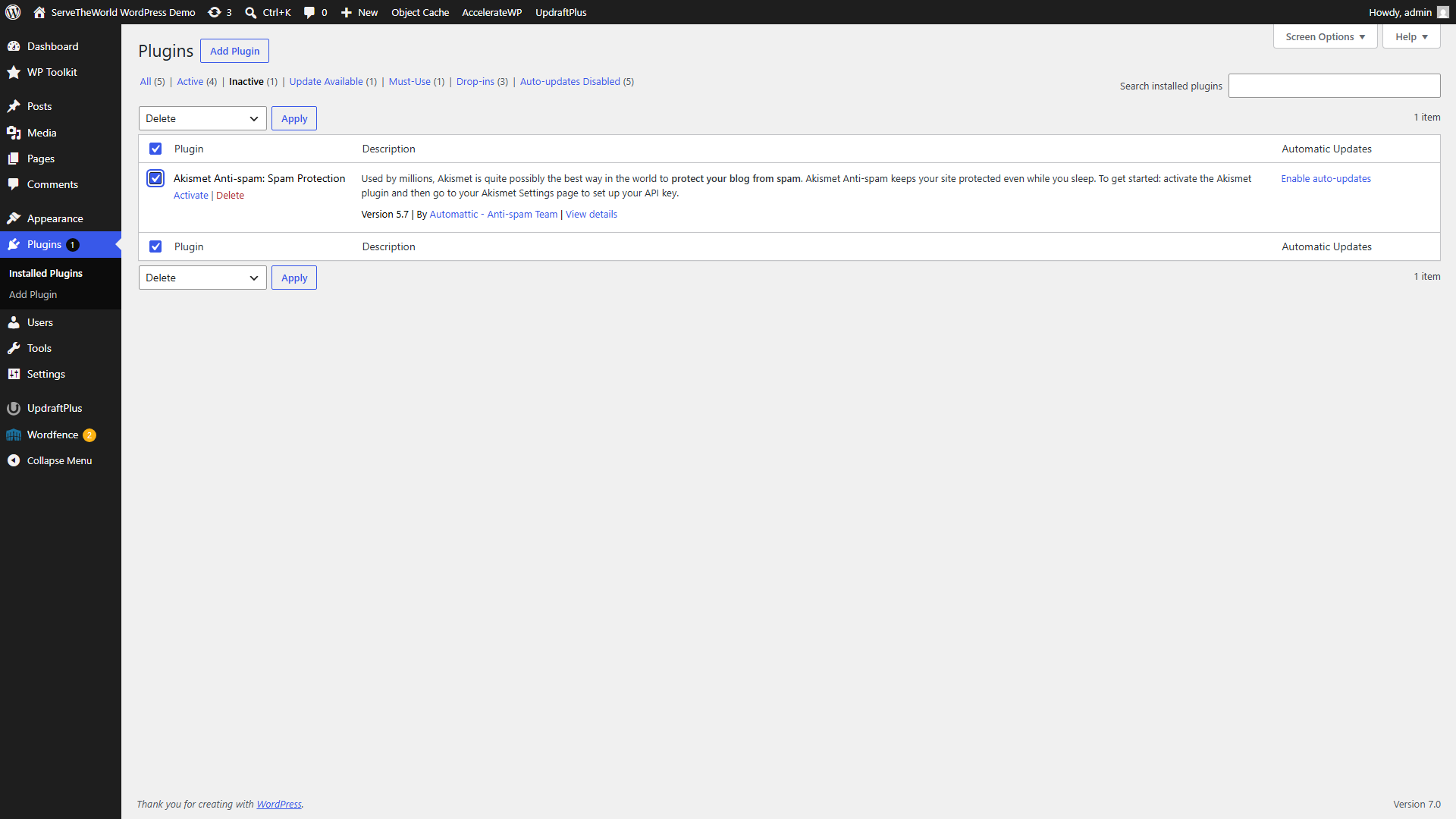
Active plugins need more patience. If you’re confident the plugin is no longer used, deactivate first, then test the public site, wp-admin, your forms, and anything else the plugin might have touched. If everything still works after a few days, delete it. If something breaks, reactivating takes one click.
For plugins tied to sales, bookings, memberships, or your site’s layout, test on a staging copy, not the live site.
Deleting a plugin removes its files but often leaves settings and database tables behind, the residue we covered in our guide to cleaning the WordPress database.
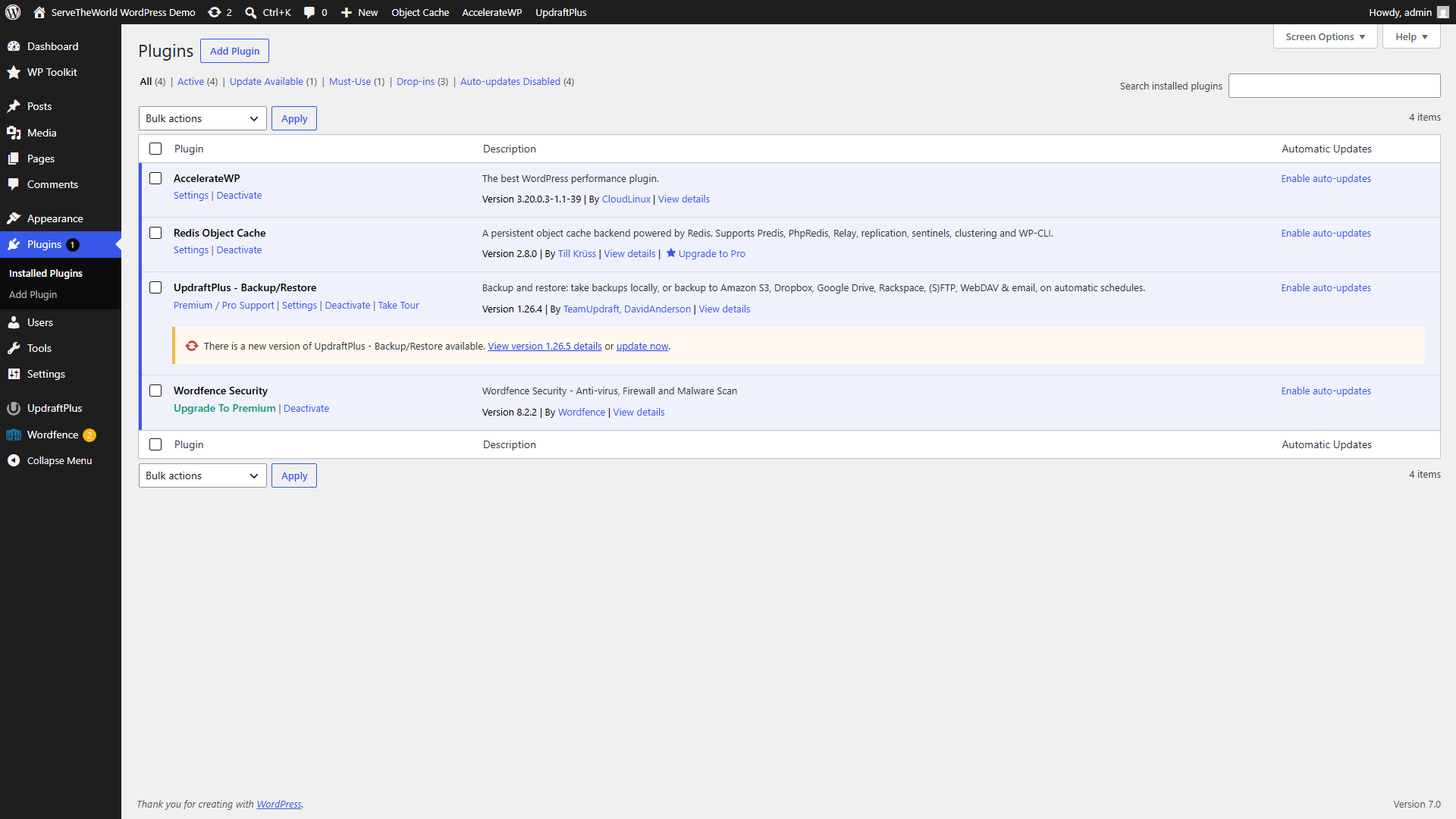
After cleanup, our demo was down to the four plugins doing real work. AccelerateWP and Redis Object Cache for performance, UpdraftPlus for backups, and Wordfence for security.
Themes — Keep the Right Ones, Delete the Rest
Typicallly, it’s best to keep just 2-3 themes installed. First, your active theme. Then you’ll need its parent theme, if your active theme is a child theme, since the child can’t run without it. And keep one current default WordPress theme, such as Twenty Twenty-Five, as a known-good fallback for theme-switching tests.
Everything else can usually go. Open Appearance → Themes, click the unused theme, and find Delete in the bottom of the details window.
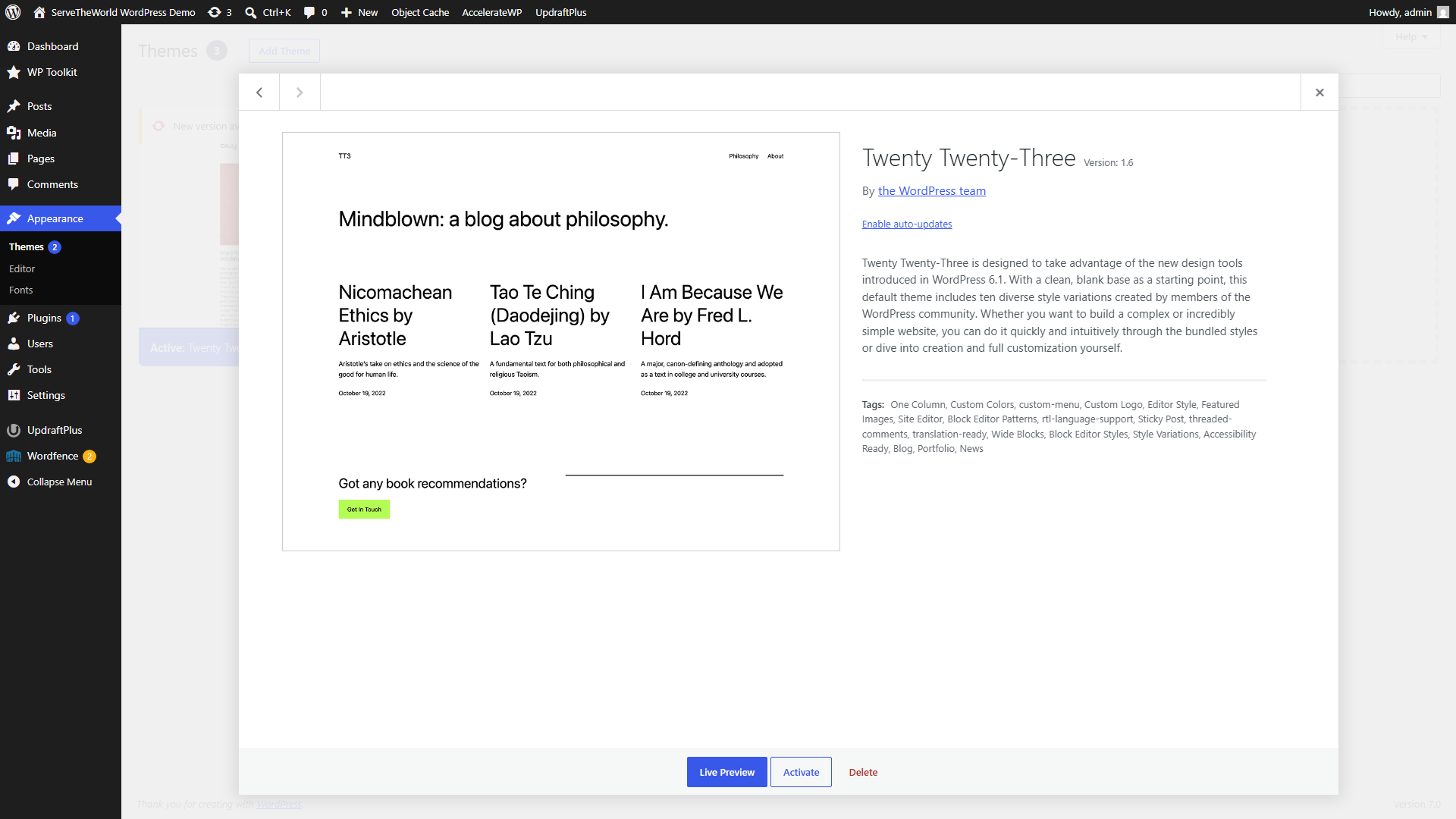
Deleting a theme removes its files. WordPress usually keeps the related Customizer settings in the database, so reinstalling later often brings the old appearance settings back.
Reviewing User Accounts
Old accounts are a security risk. Every account is a set of credentials someone can phish or brute-force, and an administrator account can install software, change settings, and manage other users. Fewer accounts with lower roles means a smaller target.
Go to Users → All Users and check the list against three rules.
1 – Every real person should have their own account
2 – Every account should have the lowest role that still covers the work
3 – Every account should have a reason to exist. Accounts for departed staff, finished contractors, and old tests should be removed.
The Administrator filter at the top deserves the closest look, as it has the most potential to cause damage if in the wrong hands.
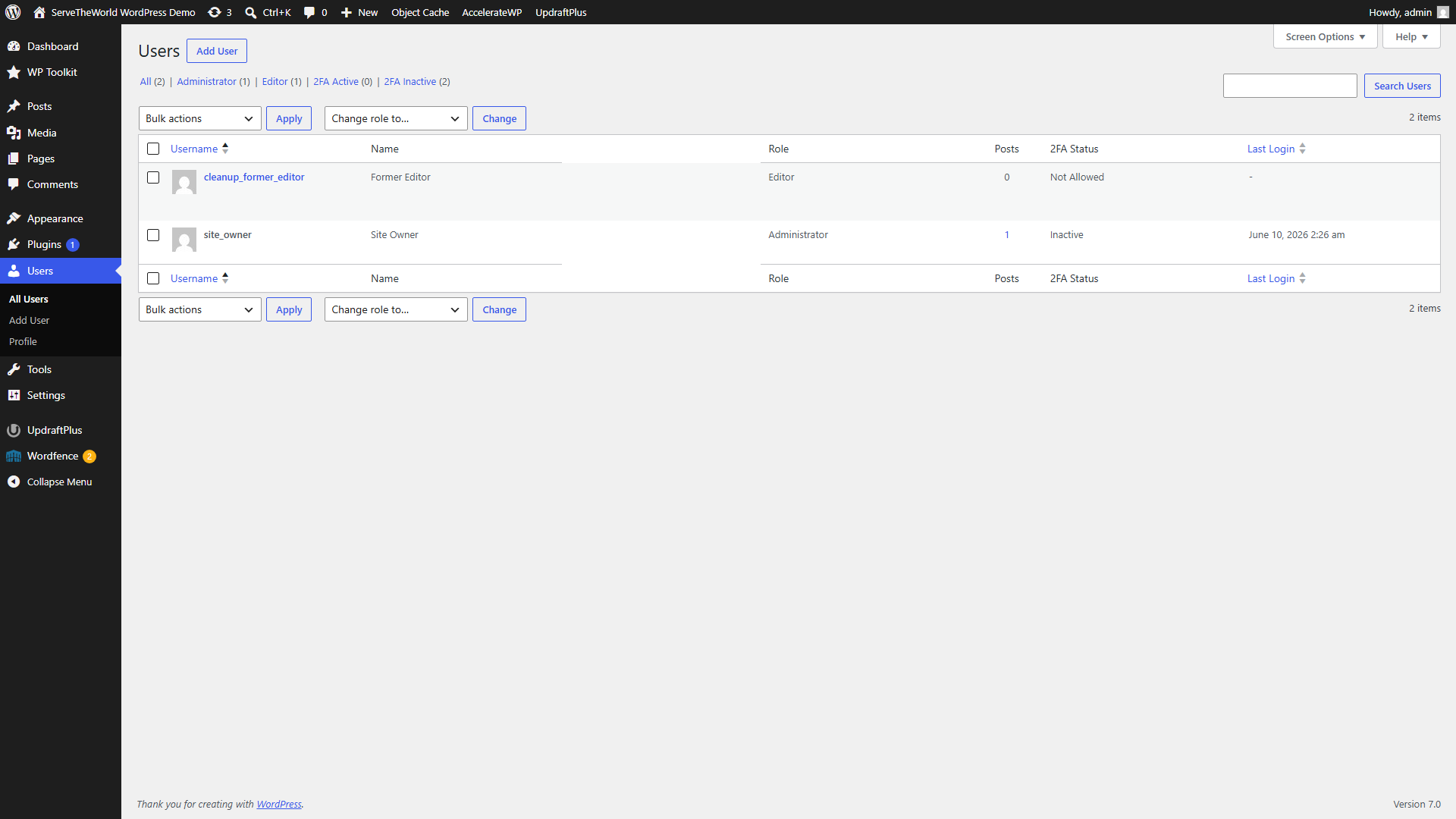
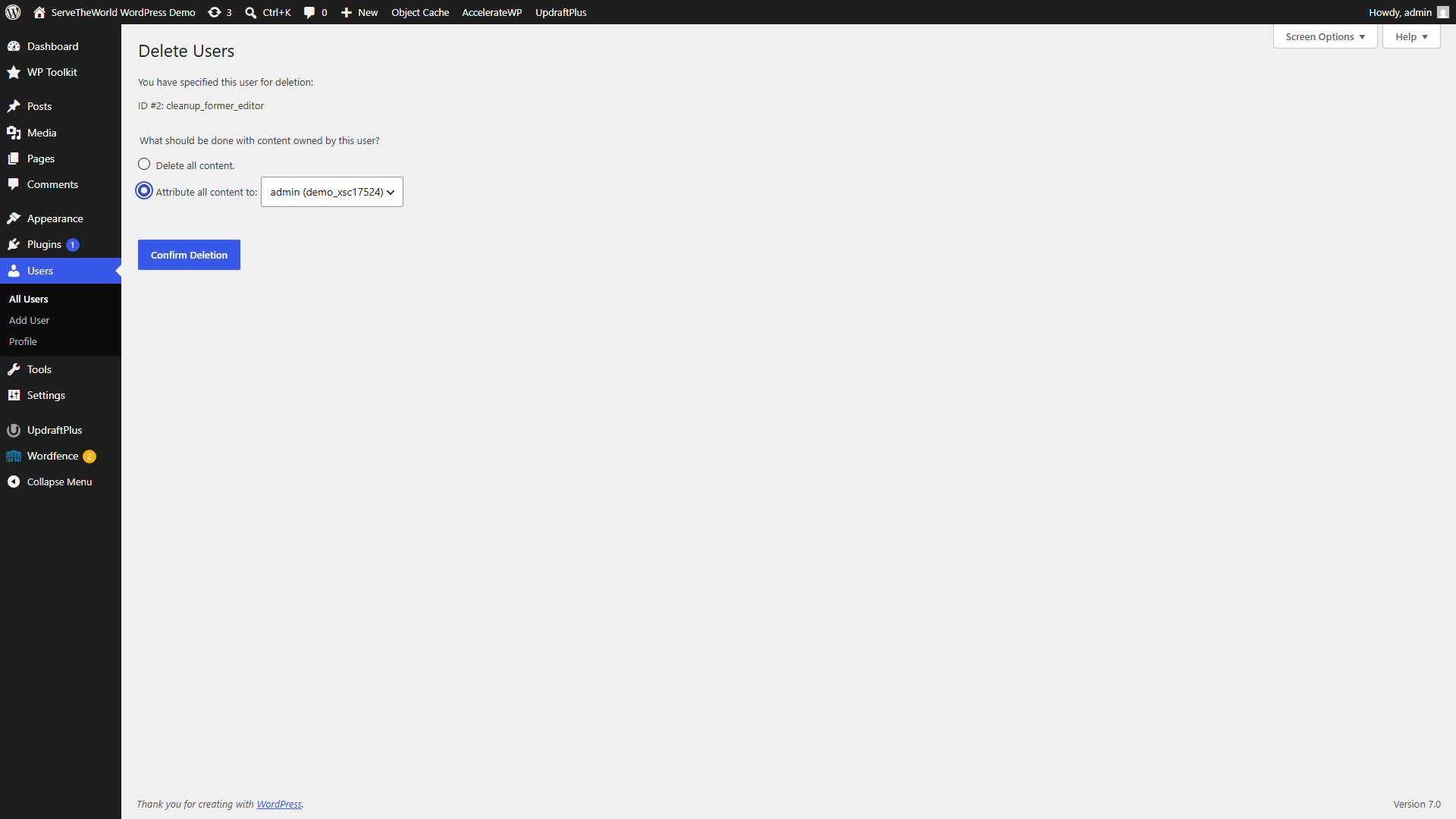
Our demo has a leftover Editor account from a former team member. When you delete a user who has written posts or pages, WordPress asks what to do with their content. Choose Attribute all content to and pick a current user, and everything they wrote stays on the site under the new owner. Delete all content is for when you’re certain it’s all disposable.
Auditing Media Without Breaking Pages
WordPress can’t reliably tell you whether a media file is in use, so this is the slowest part of the job. The Media Library has an Unattached filter, found in Media → Library after switching to list view. Unattached means the file isn’t tied to a specific post or page record in the database. It doesn’t mean unused.
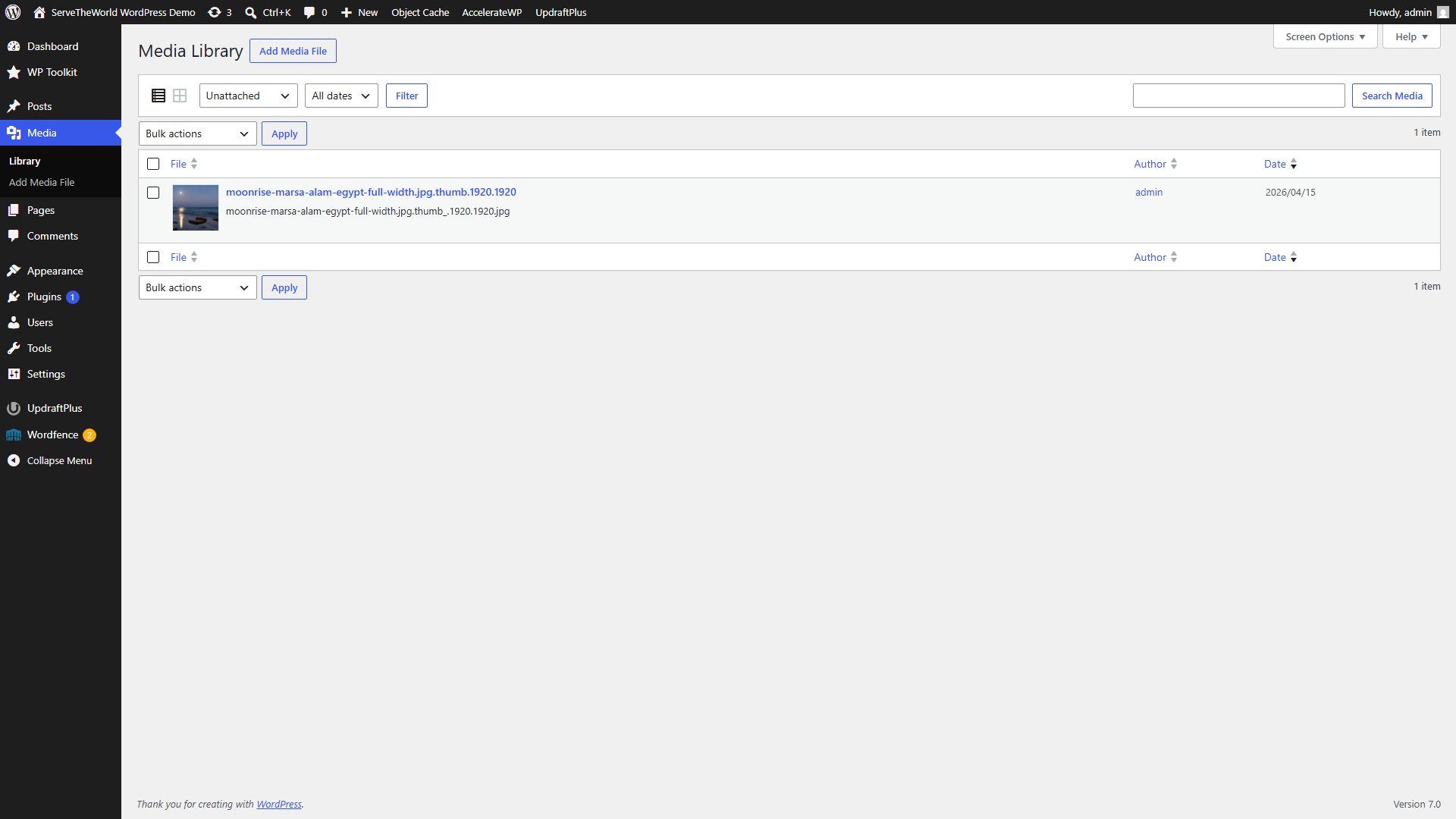
An unattached file can still appear in an Elementor section, a reusable block, theme CSS, a widget, an email template, or be linked directly from another website. Search your site for the filename and check the important pages before deleting anything.
Image-cleanup plugins can miss page builders and custom integrations. When you can’t prove a file is unused, leave it. Storage on shared hosting is rarely so tight that one extra image is worth a broken page.
While you’re at it, clear the easy content clutter. Old drafts, trashed posts, and spam or pending comments can be reviewed and emptied in small batches. Revisions and expired transients are the deeper database side, covered in Part 17.
Check the Site and Set a Rhythm
Finish the same way you’d finish an update. Open the public site in a fresh browser window, click through your main pages, and test anything interactive like a contact form or store checkout. If something stopped working, our troubleshooting steps will isolate it, and your pre-cleanup backup is the safety net behind that.
Then put the next session in the calendar. Monthly suits active sites with regular content changes or several people in wp-admin. Quarterly is plenty for a small site. Backups and updates keep their own, more frequent schedules either way.
Conclusion
That’s the series. You’ve built, secured, backed up, and optimized this site yourself, and the maintenance habits from these last few parts will keep it that way. Ten minutes of housekeeping a month is cheap insurance for everything you’ve put into it. Remember that three months of clutter will take less than ten minutes to clear, but three years’ worth might take you a weekend.
Next steps: