

Introduction
WordPress updates are one of those things that feel like a chore, but they’re important. A plugin that hasn’t been updated in six months might have a security vulnerability that leaves your site exposed, or an outdated theme might clash with a WordPress core change, breaking your site layout.
In our previous guide we set up the backup tools that make updates safe to run. With those in place, we’ll walk through a sensible update order for WordPress core, plugins, and themes and cover how WP Toolkit in Plesk handles the same job from the hosting side on WordPress hosting.
The whole routine takes a few minutes once you’ve done it a couple of times, and it’ll keep your WordPress site healthy.
Before You Update
Back up first
If you followed our guide to WordPress backup plugins and how to backup your WordPress site, you already have the tools and knowledge in place to make good backups. A WordPress Toolkit snapshot in Plesk takes under a minute on a small site, and it gives you a clean rollback point if anything goes sideways. An UpdraftPlus backup is equally quick and sends a copy to your own cloud storage for extra safety.
Follow the steps in Part 21 before you proceed further. The exact backup method matters less than having one that’s recent.
Check Site Health
In WordPress, open Tools → Site Health before you start the update process. Site Health flags pending theme updates, inactive plugins that need attention, and problems with the environment, such as an outdated PHP version.
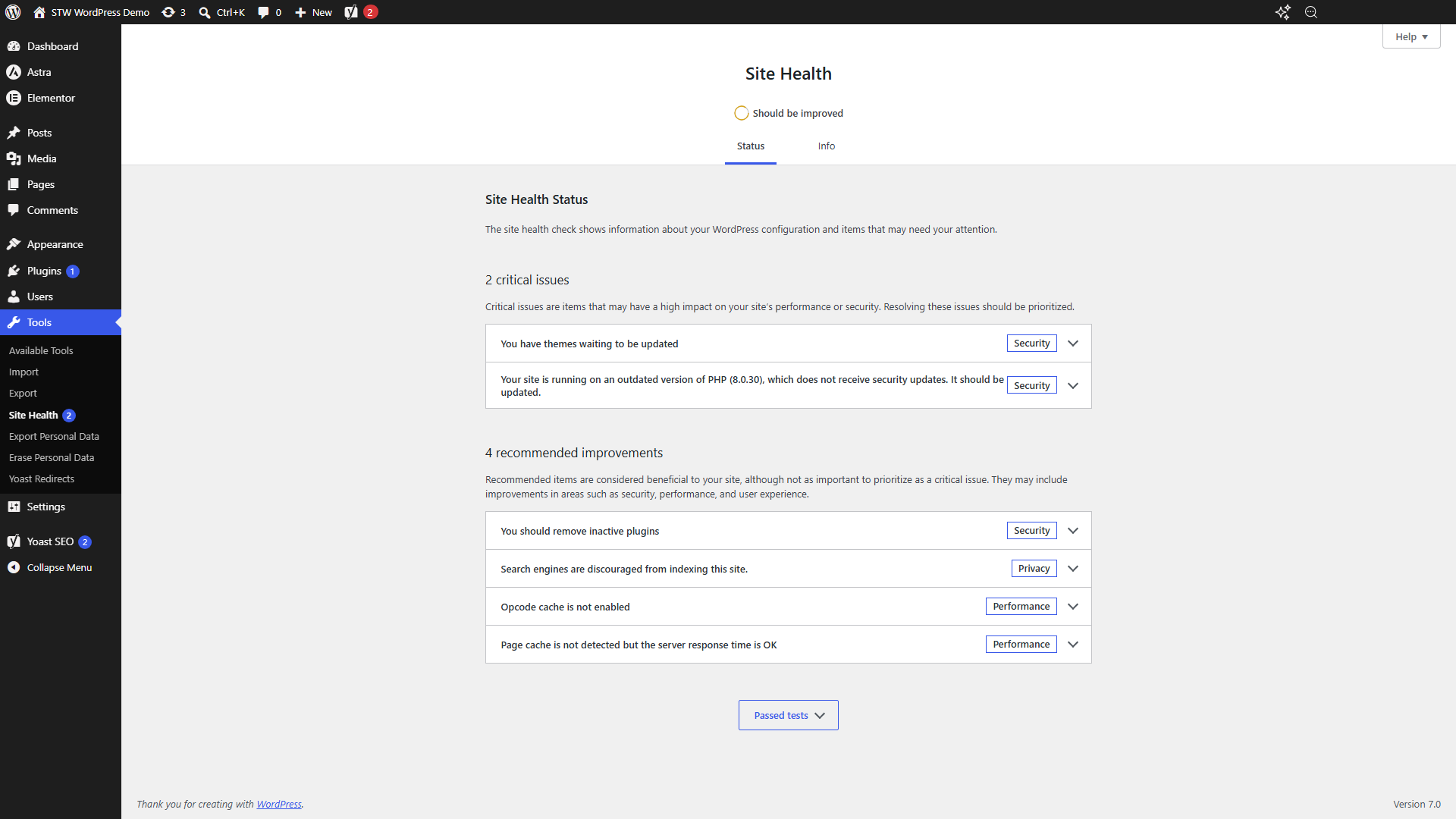
In the example above, Site Health has flagged two critical issues. The first is themes waiting to be updated, which we’ll sort out in this tutorial. The second is an outdated PHP version, which is a hosting-level change rather than something you handle through the WordPress Updates screen. We’ll cover PHP upgrades in Part 23.
The Updates screen
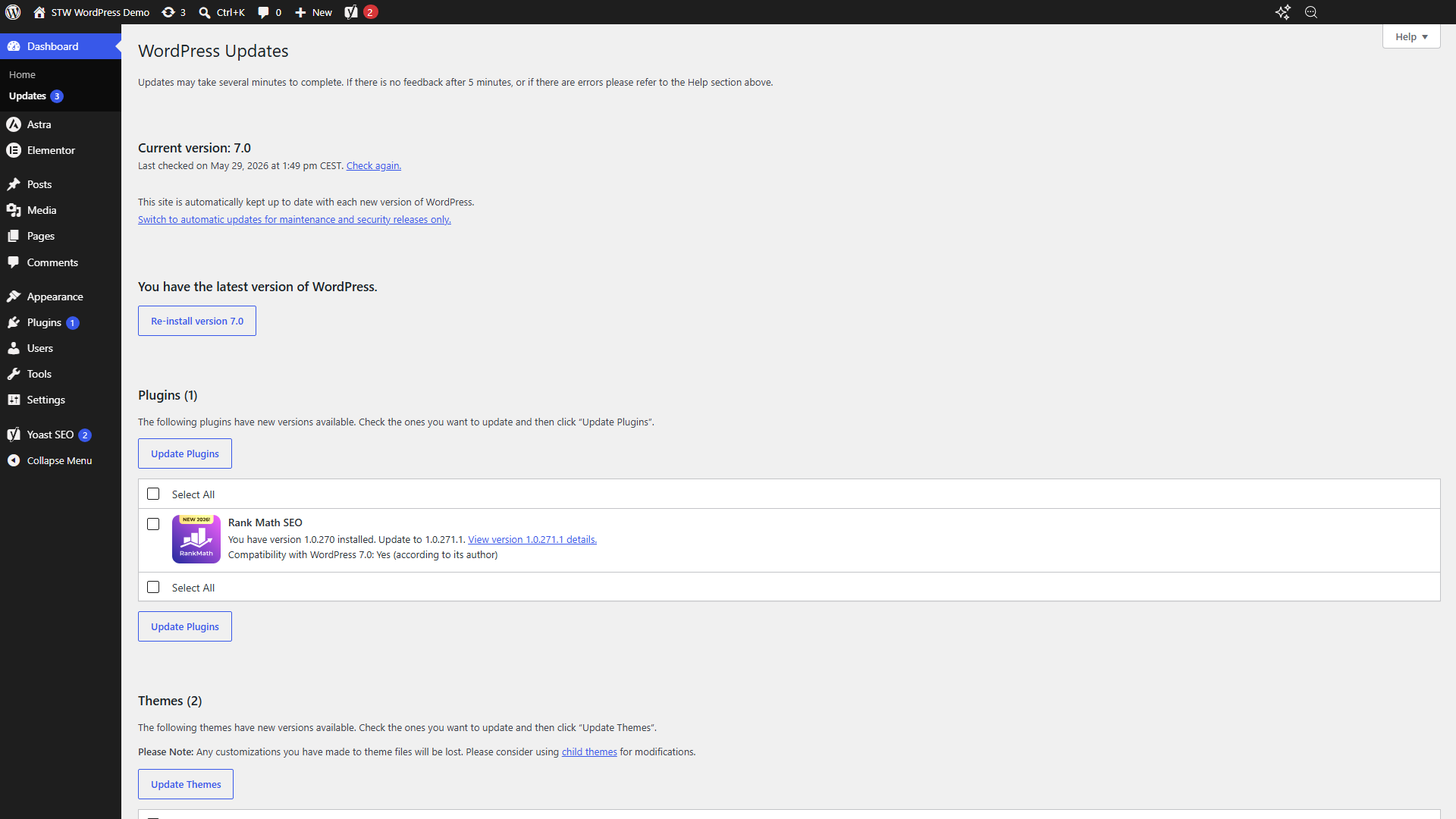
The central hub for WordPress updates is Dashboard → Updates. Everything pending shows up in one place: your current WordPress version, available core updates, and separate lists for plugins and themes with new versions waiting.
Updating WordPress core
WordPress core updates are the biggest change you can make in an update session because they affect the foundation that every plugin and theme relies on. WordPress handles minor releases (security patches and bug fixes) automatically in the background, so you’ll rarely need to think about those. Major version jumps, like 6.9 to 7.0, typically need a manual click.
When a major update is available, you’ll see the new version number, a link to the release notes, and a blue Update to version X.X button. WordPress also shows that yellow backup reminder we mentioned earlier.
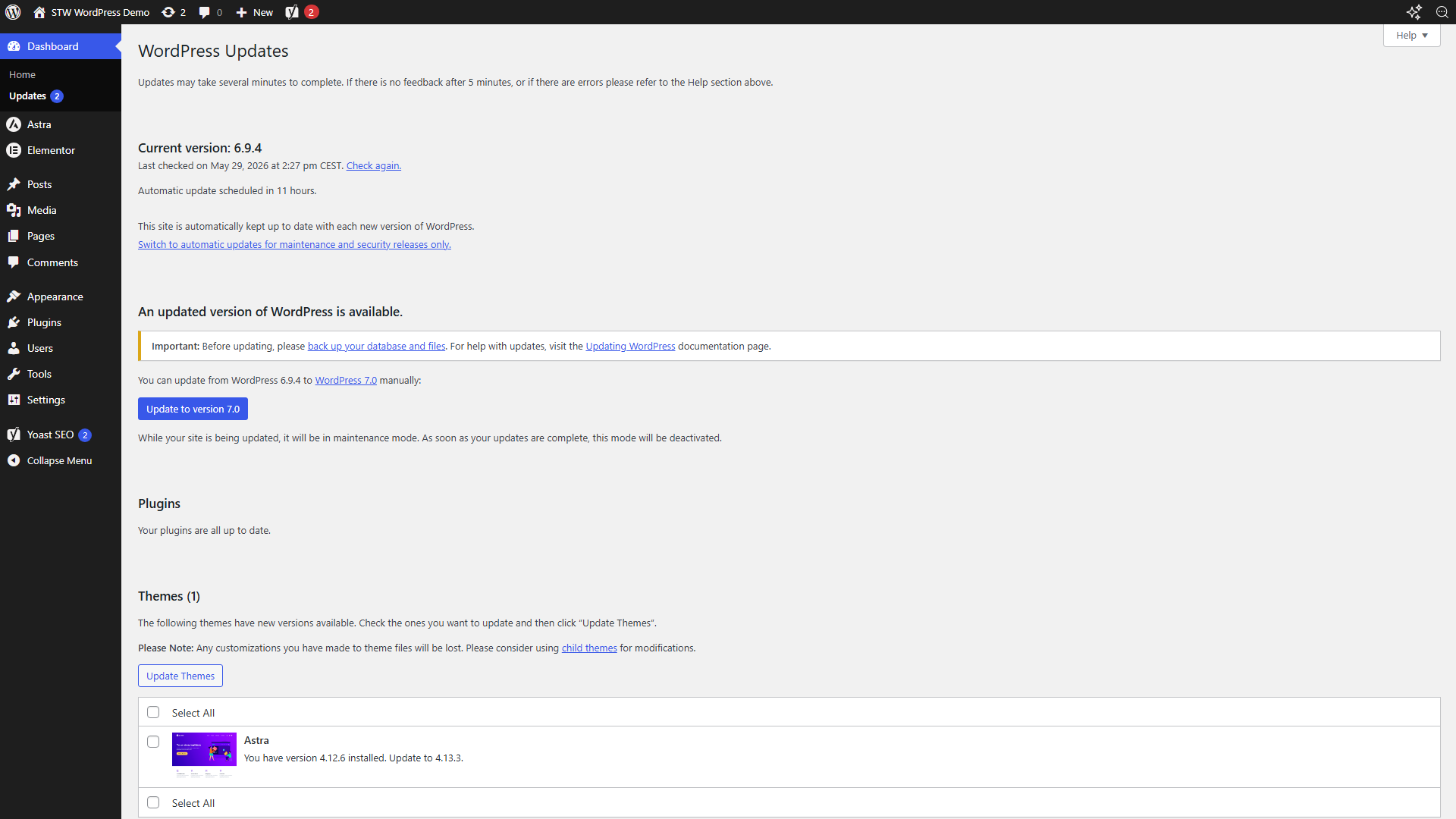
Click the update button and WordPress handles the rest. It downloads the new files, replaces the old ones, and runs any database updates. While it’s doing this, it puts the site into maintenance mode so visitors see a “briefly unavailable” notice instead of a broken page. When it’s done, WordPress shows you the About screen for the new version.
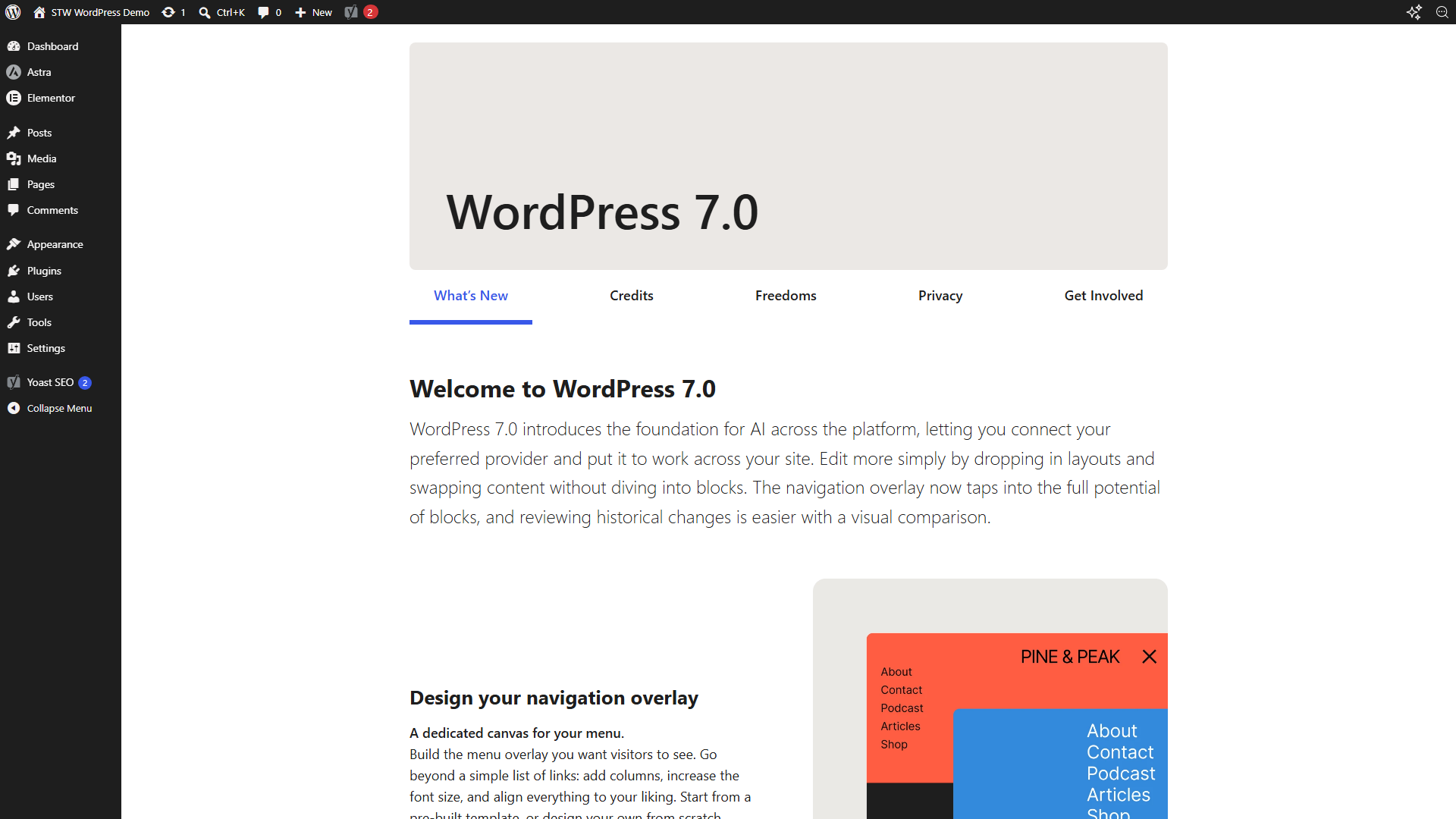
Head back to Dashboard → Updates afterward to confirm the version number is correct and see what plugin or theme updates are still waiting.
Updating core before plugins and themes is a good habit. Plugin and theme developers often time their own compatibility updates to land around major WordPress releases, so updating core first means those plugin patches are more likely to be available by the time you get to them.
Automatic minor updates
By default, WordPress automatically installs minor and security releases without asking you. You can change this in settings, but for most sites, leaving automatic minor updates on is the right call so you get security patches quickly. Minor releases rarely cause compatibility issues.
Updating Plugins
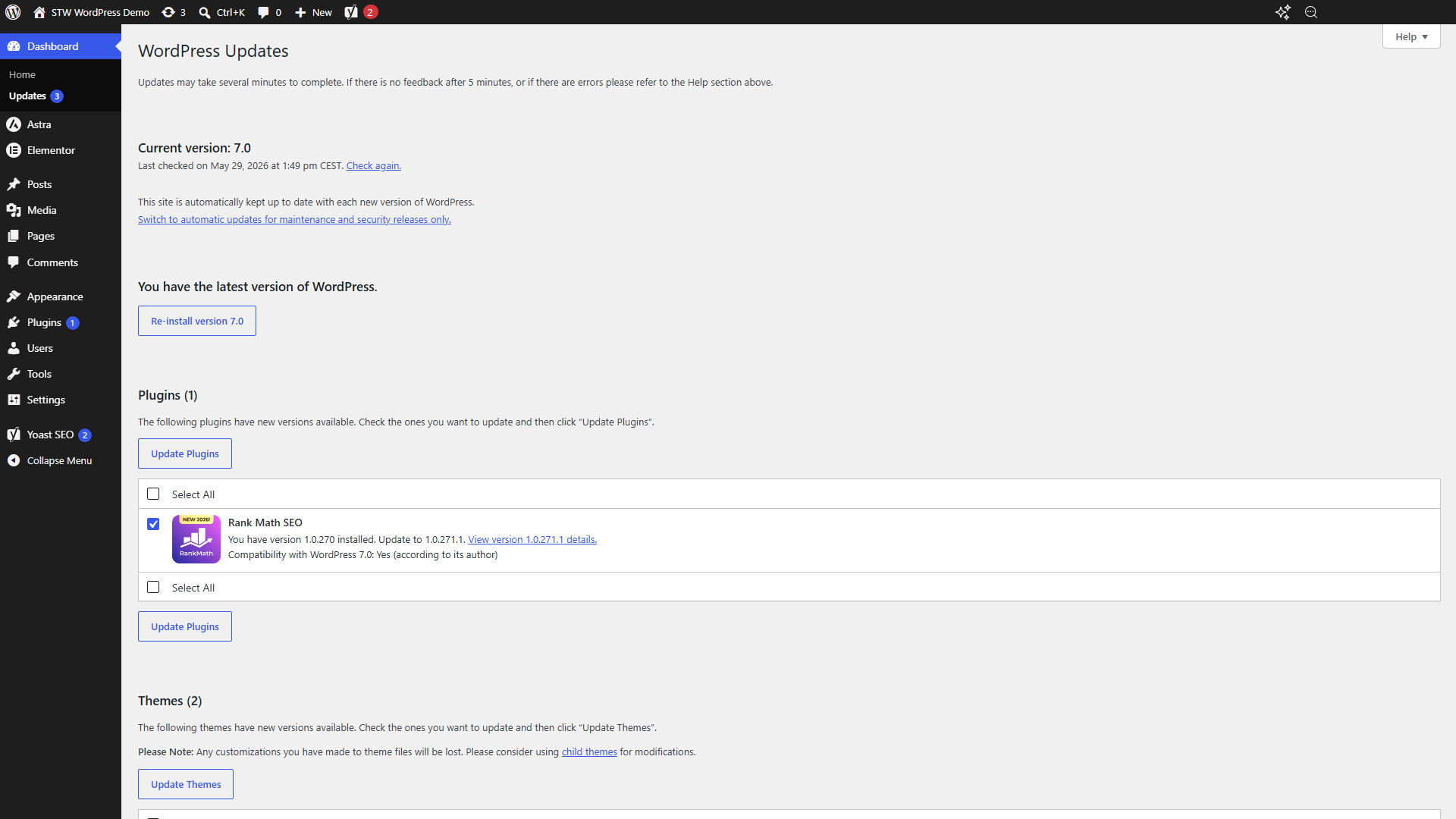
Now your WordPress Core is up to date, plugins are next. The same Updates screen lists every plugin with a pending update, showing installed and available version numbers plus a compatibility note from the developer.
Check changelogs for anything that matters
Each plugin row includes a View version details link. For a point release with minor bug fixes, a quick glance is all you need. For larger jumps, especially on plugins that affect what your visitors see, it’s worth reading the changelog properly.
An SEO plugin changing how it generates schema markup, a page builder dropping a widget you’re using, or a caching plugin resetting its defaults can all change how your site looks or scores in search results. Pay particular attention to plugins that affect checkout flows, booking forms, or any page where a subtle change could cost you conversions.
Update one at a time
Check the box next to a single plugin and click Update Plugins. You can use Select All to do them in one go, but we recommend updating individually to make any necessary troubleshooting easier. If something does breaks after updating five plugins at once, you’re left guessing which one did it. One at a time means you always know the answer.
WordPress downloads the new version, swaps out the files, and shows a result screen. A green “updated successfully” message means the files were replaced without errors.
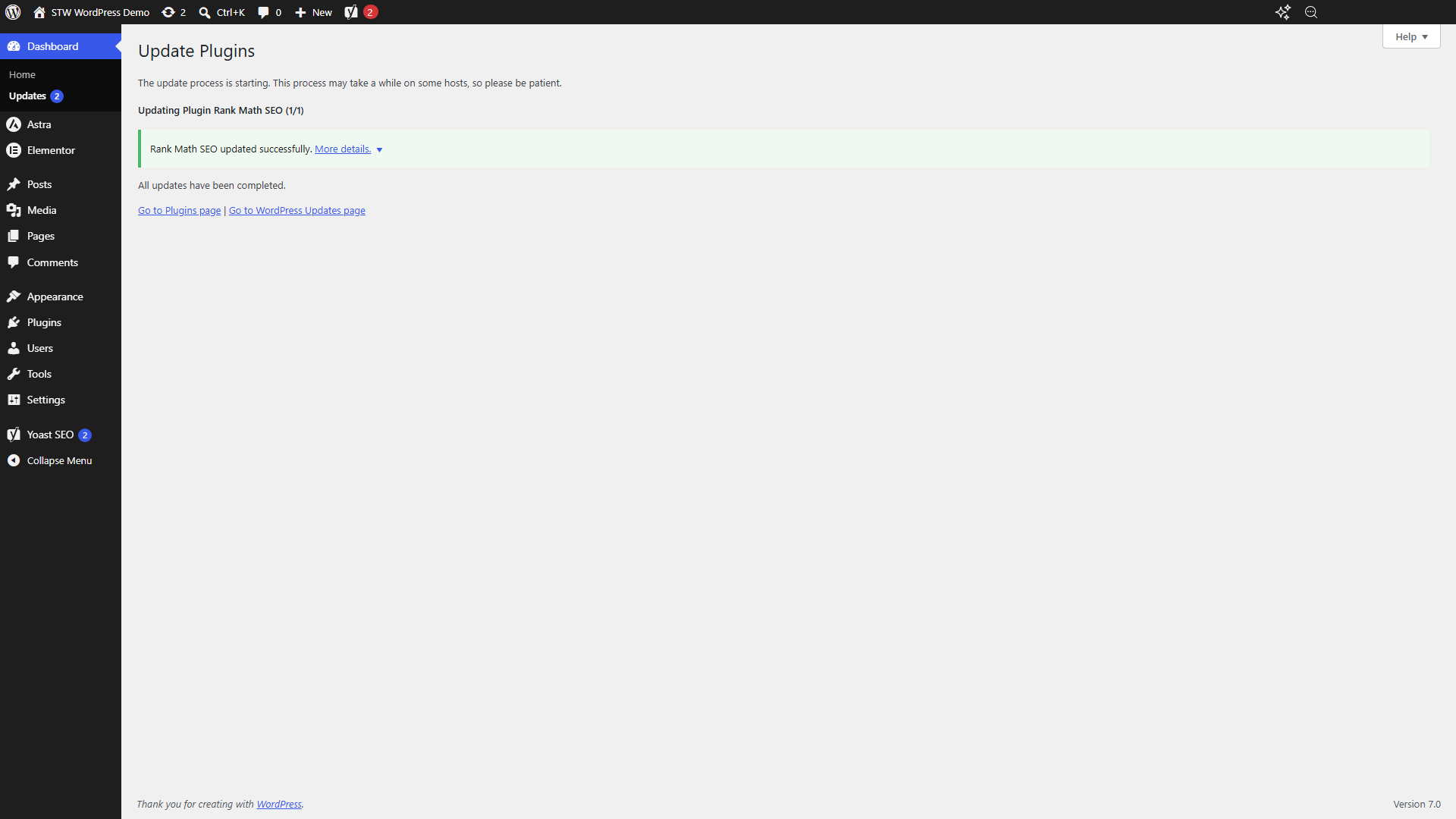
Open your site’s front end in another tab and check the pages that plugin touches. The green message in wp-admin tells you the update worked, but your visual check of the front end tells you the site still works for visitors.
Updating from the Plugins screen
You can also run updates from Plugins → Installed Plugins by clicking the Update Available filter. Each plugin with a pending update shows an update now link and a View version details link right in the row.
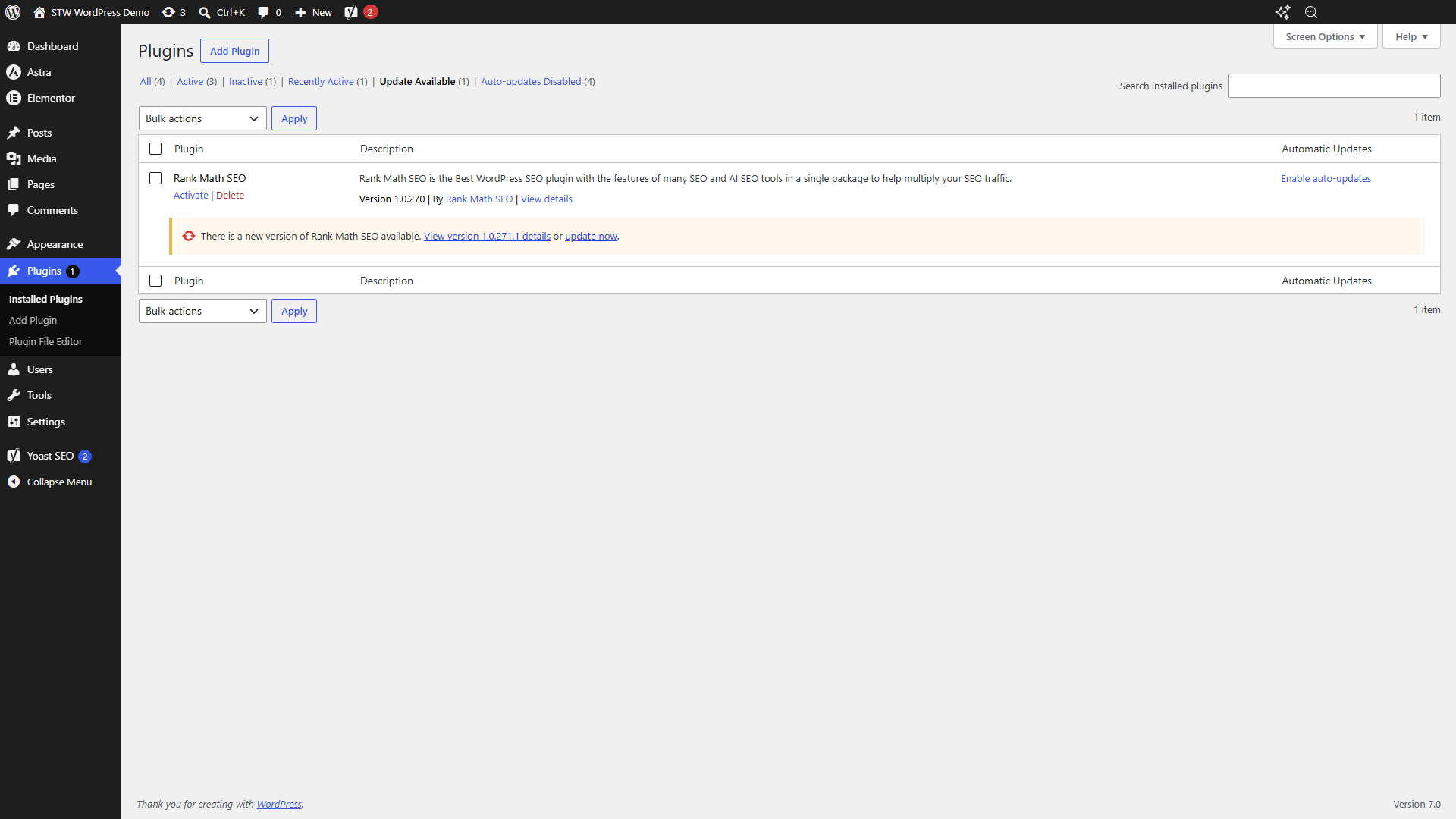
Both routes do the same thing, really. The Updates screen is better for seeing everything pending at a glance, and the Plugins screen is handier when you want to check a plugin’s settings or activation status at the same time.
Plugins you’ve deactivated but left installed still show up in the update list, and they still need updating. Old plugin code on your server is a security concern whether it’s active or not. If you’re keeping a deactivated plugin around for later, update it. If you’re never going to reactivate it, delete it. We’ll cover that cleanup properly in Part 25.
Updating Themes
Theme updates follow the same pattern as plugins, again through the Updates page.
You may see a warning that customizations to theme files will be lost, but this usually doesn’t apply to changes you’ve made through normal WordPress settings, the Customizer, a page builder, or a theme’s own options.
The warning is about edits you might have hade to the theme’s code files directly, which usually requires opening the Theme File Editor, File Manager, FTP, or another developer tool. An update replaces those files with the new version. Most beginners won’t have edited these files and can continue with the update after making a backup.
If you or a developer has made direct code changes, move them to a child theme before updating. A child theme stores custom code separately so the main theme can still be updated safely.
The Appearance → Themes screen also shows update banners on each theme card. You can click Update now directly on a theme, or go back to the central Updates screen and handle it there.
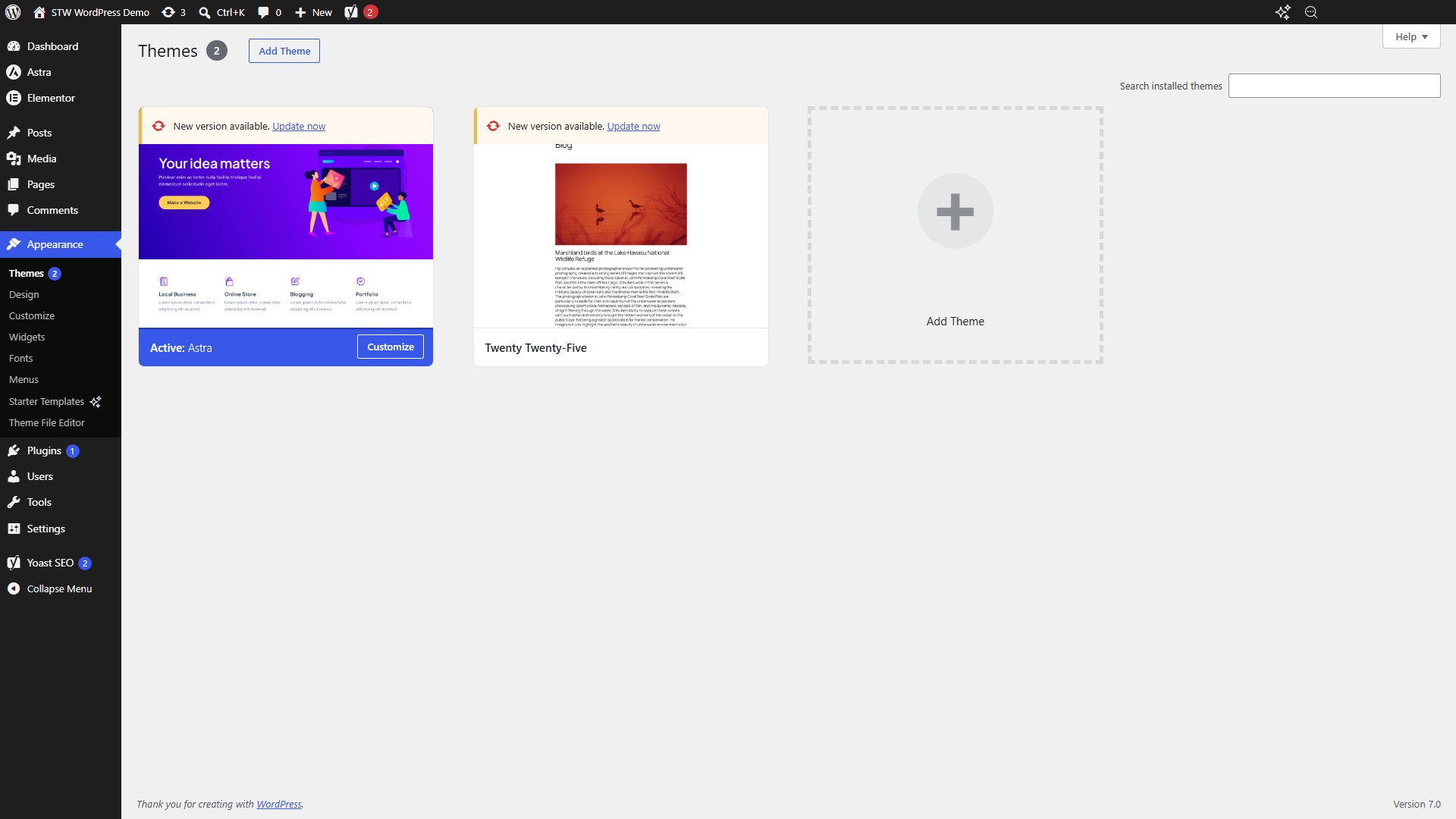
After a theme update, check your site’s front end with fresh eyes. Theme updates can shift things like spacing, font rendering, header layout, or template behavior. Pay particular attention to your home page and any pages with custom layouts.
When testing, make sure you’re seeing the live version of the page and not a cached copy. A normal refresh (or pressing F5) may reload the page from your browser’s cache, so instead do a hard refresh (Ctrl+F5, or Cmd+Shift+R on a Mac)
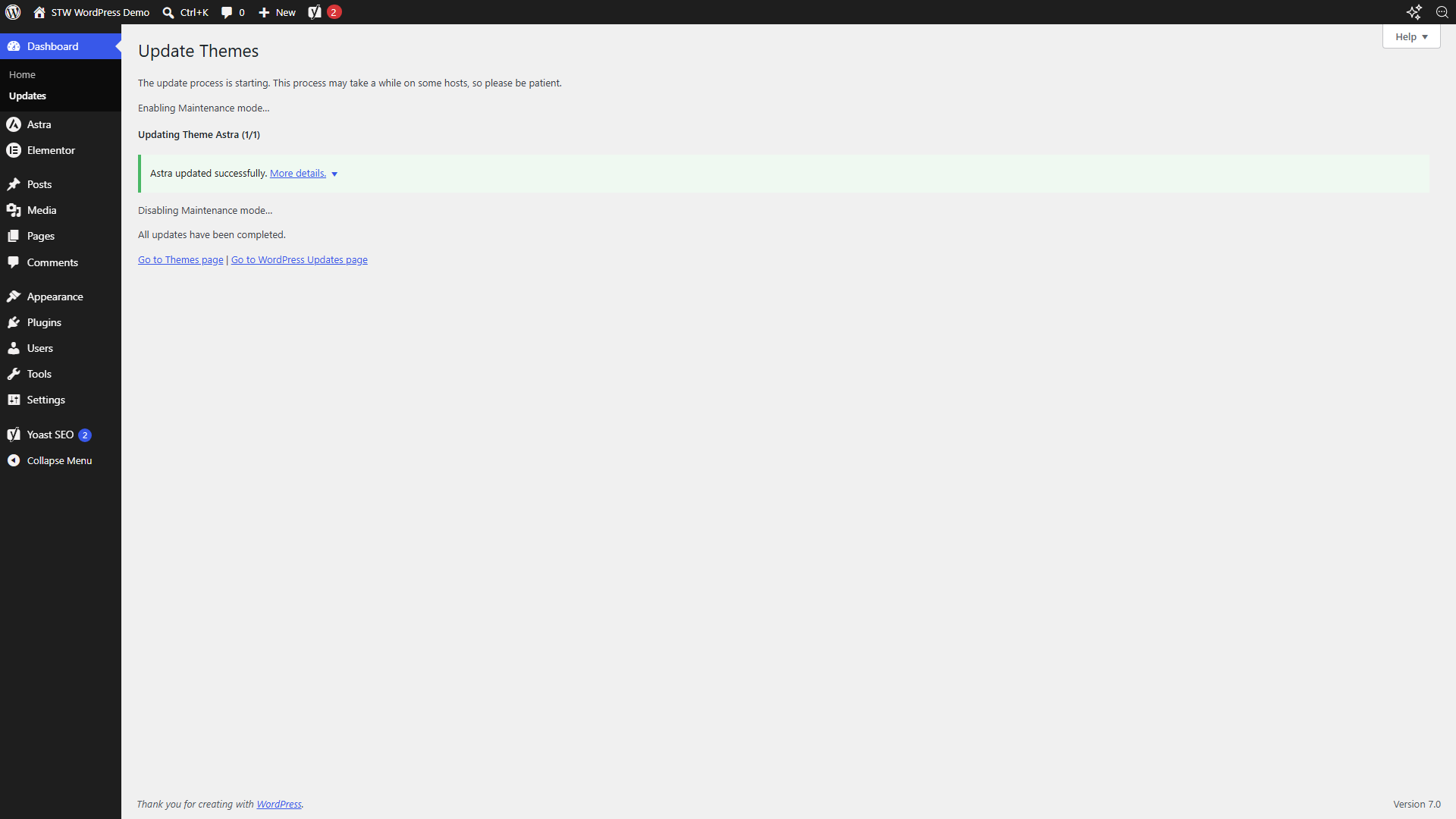
Inactive themes need the same treatment as inactive plugins. If you’ve got a theme sitting around that you don’t plan to switch to, delete it. If you’re keeping it as a fallback, keep it updated.
Automatic Updates for Plugins and Themes
WordPress lets you turn on automatic updates for individual plugins and themes. On the Plugins screen, each row has an Enable auto-updates link. Once enabled, WordPress installs new versions as they arrive without waiting for you to log in.
Auto-updates make the most sense for small utility plugins that rarely cause compatibility issues. A simple redirect manager, a lightweight analytics snippet, or a security plugin that ships frequent patches can all benefit from automatic updates. They’re a riskier choice for anything that controls what visitors see, like a page builder, WooCommerce, or your active theme, where an unexpected change could break something immediately.
If you do enable auto-updates for some plugins, make sure you have reliable scheduled backups running in the background. Daily UpdraftPlus backups to Google Drive or daily Acronis recovery points give you a way to roll back if an automatic update causes trouble.
WP Toolkit Updates in Plesk
If your site runs on ServeTheWorld WordPress hosting, WP Toolkit in Plesk gives you a birds-eye view of update status across every WordPress installation on your hosting account.
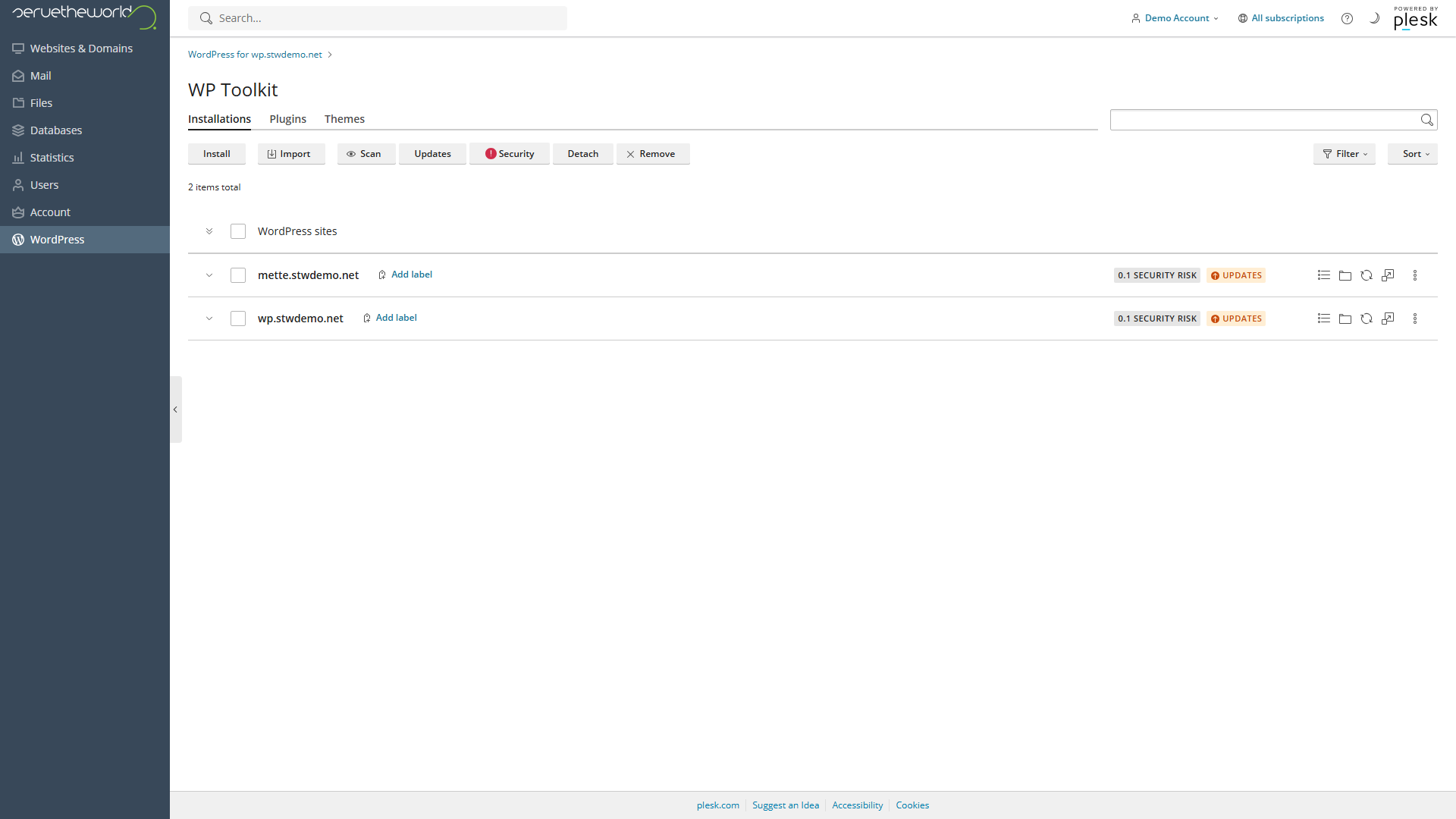
Click Updates in the WP Toolkit toolbar to open a summary of what’s pending. The dialog shows each WordPress installation with columns for core, plugins, and themes. You can select installations and apply updates from here without logging into each site’s wp-admin individually.
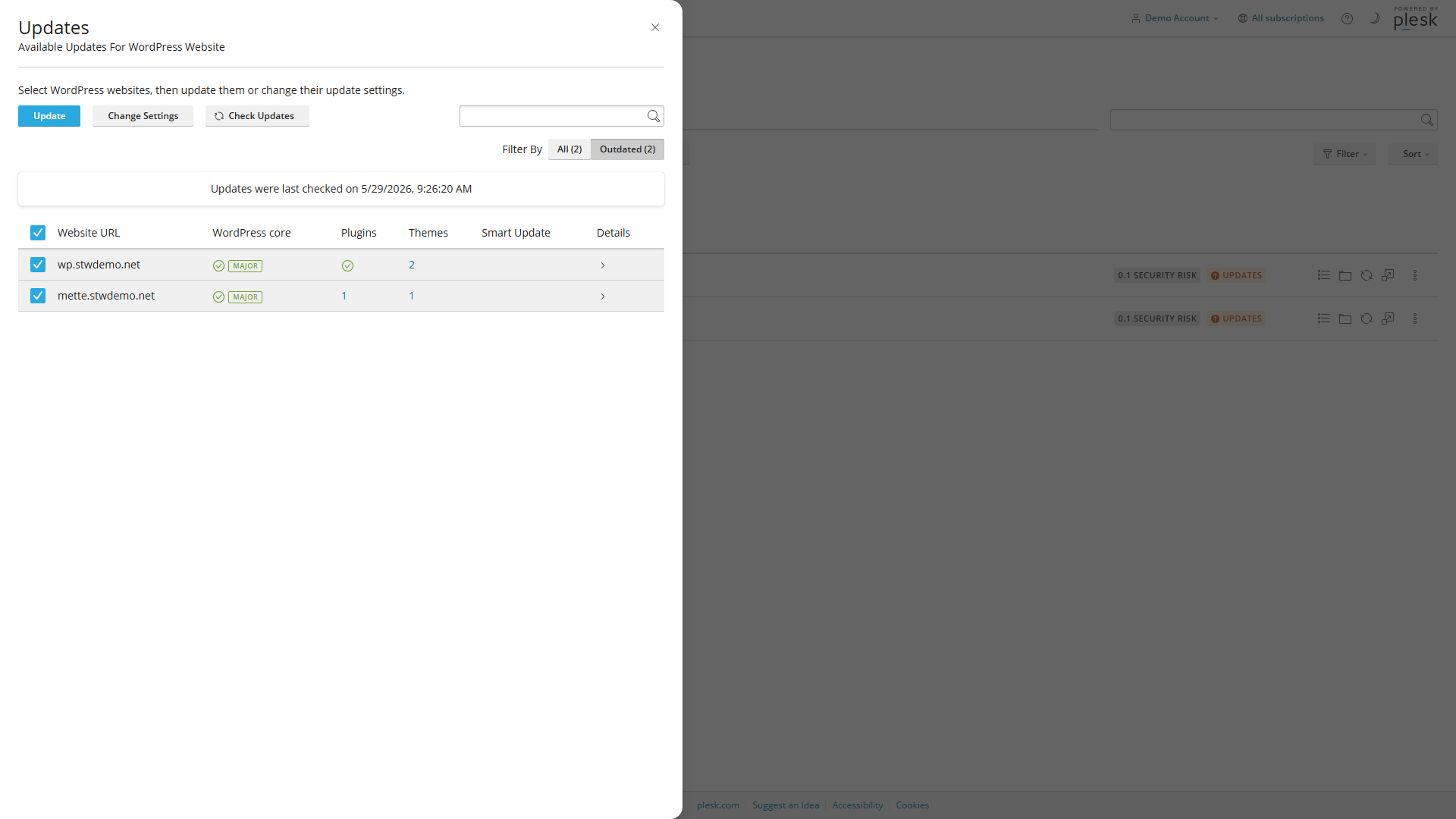
WP Toolkit also has Smart Updates on supported plans. Smart Updates clone your site, apply the pending updates to the clone, run automated visual and functional checks, and compare the before-and-after states. If the checks pass, you can apply the same updates to the live site with more confidence. It’s a useful safety net for business sites where even a brief visual glitch matters, but Smart Updates aren’t a replacement for proper backups.
For a single site or blog, updating through wp-admin works fine. WP Toolkit becomes more useful when you’re managing several WordPress installations from one account, or when the extra confidence of Smart Updates is worth it for a site that can’t afford visible breakage.
After Updating
The green success messages in WordPress admin confirm the files were swapped out correctly. But they don’t confirm your site still looks right to a visitor. The most common update problems, like a broken layout, a missing widget, a form that stopped rendering, or a page builder template that shifted, only show up on the front end.
Get into the habit of opening your home page and a few key pages after each update batch. If your site has forms, submit a test, or if you run a store, load a product page and check the cart. If you use Elementor, check a page you built with it. These quick checks take less than a minute and catch problems while the cause is obvious.
Conclusion
Updates are routine maintenance, not something to leave for a quiet work day. The whole process adds up to a few minutes every week or two and keeps your site running on tested, compatible code.
Next up, we’ll look at another piece of hosting maintenance that often shows up during updates: your PHP version.
Next steps: