

Introduction
In the previous tutorials we covered backing up your site, updating WordPress, and updating PHP. Those are all things that can prevent problems, but with a complex site you’ll inevitably run into bugs from time to time. This tutorial covers some of the most common errors you can encounter and the best steps to follow to troubleshoot them.
Start with the preparation section below, then jump the section that best matches what you’re seeing. You can test plugins and themes when you suspect a conflict, turn on debug logging when the visible error doesn’t explain enough, or jump to the relevant common-problem section for errors such as a blank page, HTTP 500 response, database connection failure, or stuck maintenance screen.
Before You Touch Anything
Before you start deactivating plugins or changing settings, do three things.
1 – Record the details. Copy the exact error message, note which page or action triggered it, when it started, and the last change you made before it appeared. If the error names a specific plugin, theme, or file, that’s your strongest lead. The “last change” part is often a common clue, too, since a plugin update, a PHP version change, or even a WordPress core update can all introduce incompatibilities that only show up afterward.
2 – Back up the current state. Even if the site is broken, you want a snapshot of where things stand right now before you start tinkering further. A WordPress Toolkit backup in Plesk works from the hosting side without needing WordPress to load, so it’s available even when wp-admin is down. The full backup process is covered in Part 21.
3 – Reproduce the problem. Try the same action that caused the error, on the same page, the same way. If you can trigger it reliably, you know it’s a real issue and not a one-off timeout. If you can’t reproduce it, try a different browser or an incognito window to rule out browser cache and extensions.
Isolating Plugin Conflicts
Plugin conflicts are a common cause of WordPress problems. Two plugins that work fine individually can clash with each other or a plugin update can introduce a bug. Sometimes, a plugin can be incompatible with your current WordPress or PHP version. The way to find out is to disable plugins methodically and test after each change.
Testing in wp-admin
- Go to Plugins → Installed Plugins.
- Note which plugins are currently active (take a screenshot or write them down so you can restore the original state later).
- If the error message names a specific plugin, deactivate that one first and test. If the problem disappears, you now know to focus on that plugin.
- If there’s no obvious suspect, use the checkbox at the top of the list to select all plugins, choose Deactivate from the Bulk actions dropdown, and click Apply. Test the site again.
- If the problem disappears with all plugins off, reactivate them one at a time, testing after each activation until the problem comes back. The last plugin you activated is the culprit.
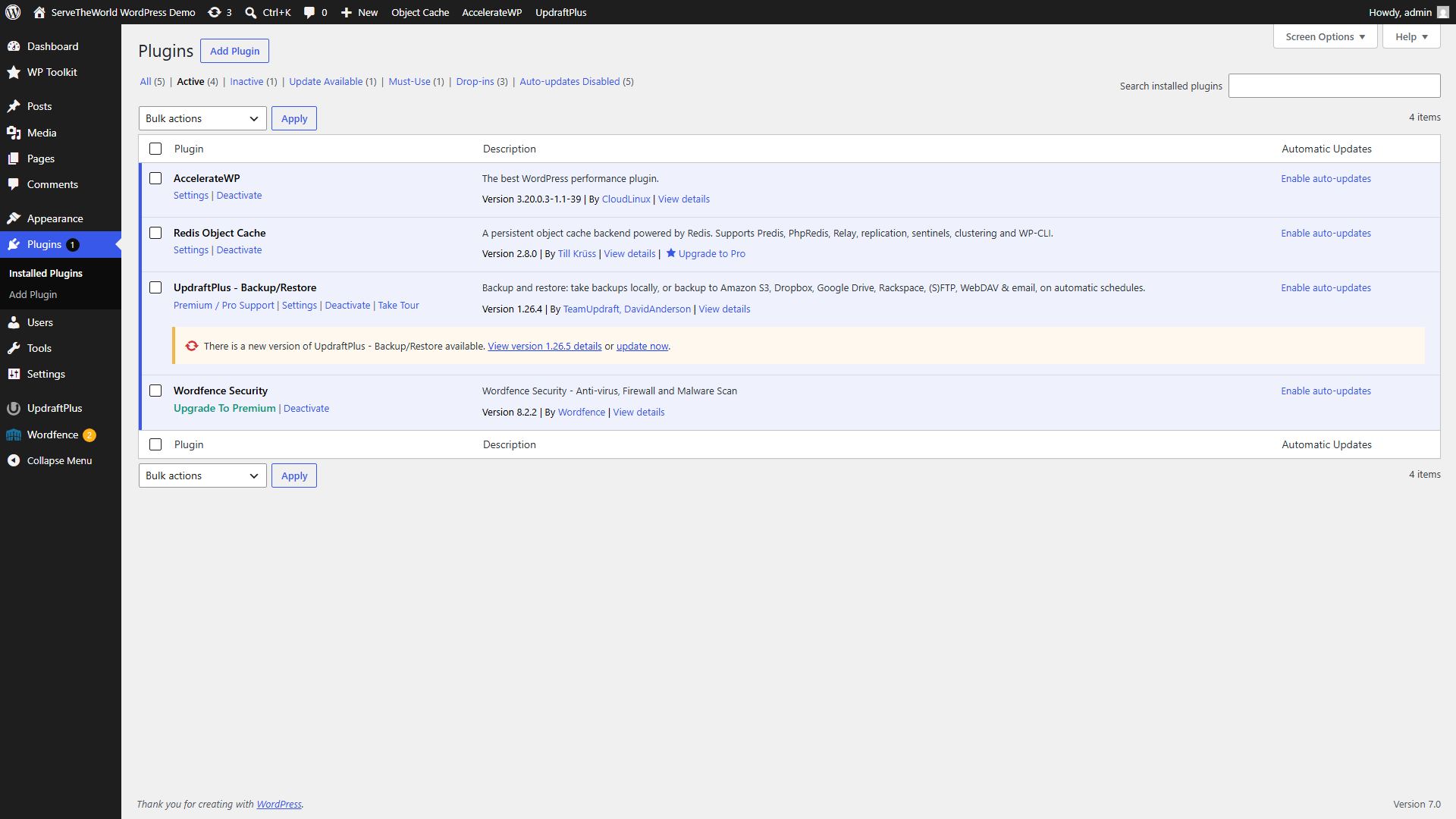
Once you’ve identified the problem plugin, check its changelog and support forum for known issues with your WordPress version. If there’s an update or fix available, try it. If not, you’ll need to decide whether to wait for a fix, look for an alternative, or contact the developer’s support channel.
What if wp-admin won’t load?
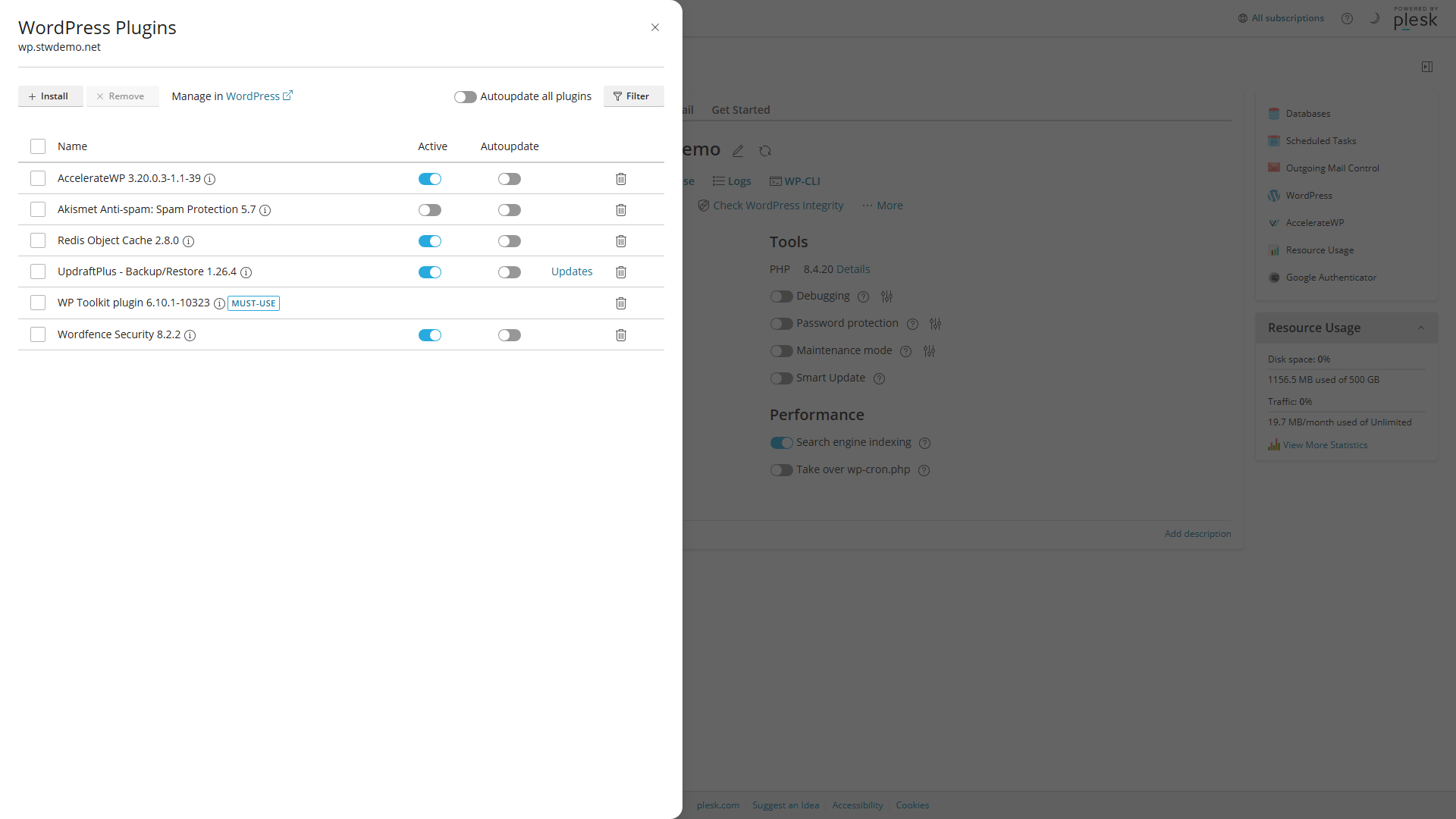
If a plugin has caused a fatal error bad enough that the WordPress administration panel itself won’t open, you can still manage plugins from Plesk without needing WordPress to work.
WordPress Toolkit is the easiest route, if it’s available on your hosting. In Plesk, open your site’s WordPress Toolkit card and expand the Plugins section. Each plugin has a toggle you can use to deactivate it directly.
Using File Manager is the manual fallback if WordPress Toolkit isn’t an option. In Plesk, open Files, navigate to httpdocs → wp-content → plugins, and rename the folder of the suspect plugin (for example, rename problem-plugin to problem-plugin-disabled). WordPress treats a renamed plugin folder as if the plugin doesn’t exist, so it won’t try to load it. To disable all plugins at once, rename the entire plugins folder to something like plugins-disabled.
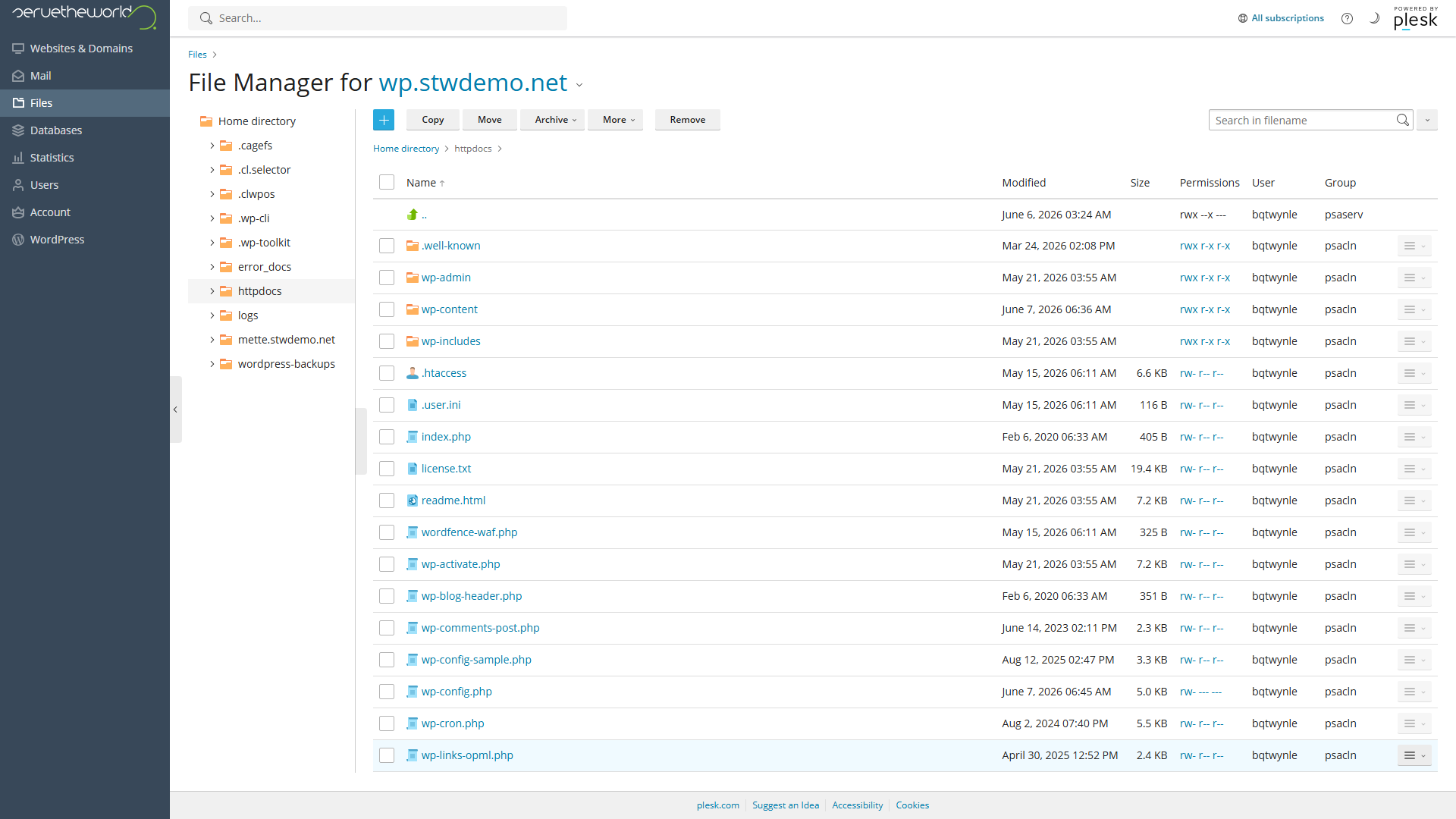
Note: The folder that contains
wp-contentmay be named something different fromhttpdocson your hosting. (e.g.public_html, or the name of the relevant subdomain.)
Isolating Theme Conflicts
If deactivating all plugins doesn’t fix the problem, the theme is the next suspect. WordPress ships with default themes (like Twenty Twenty-Five) that are known to work reliably with core. Switching to one of these as a test can help you see whether there is a potential issue in your theme’s code.
- In WordPress, go to Appearance → Themes.
- Make sure you have at least one default WordPress theme installed.
- Activate the default theme and test the site.
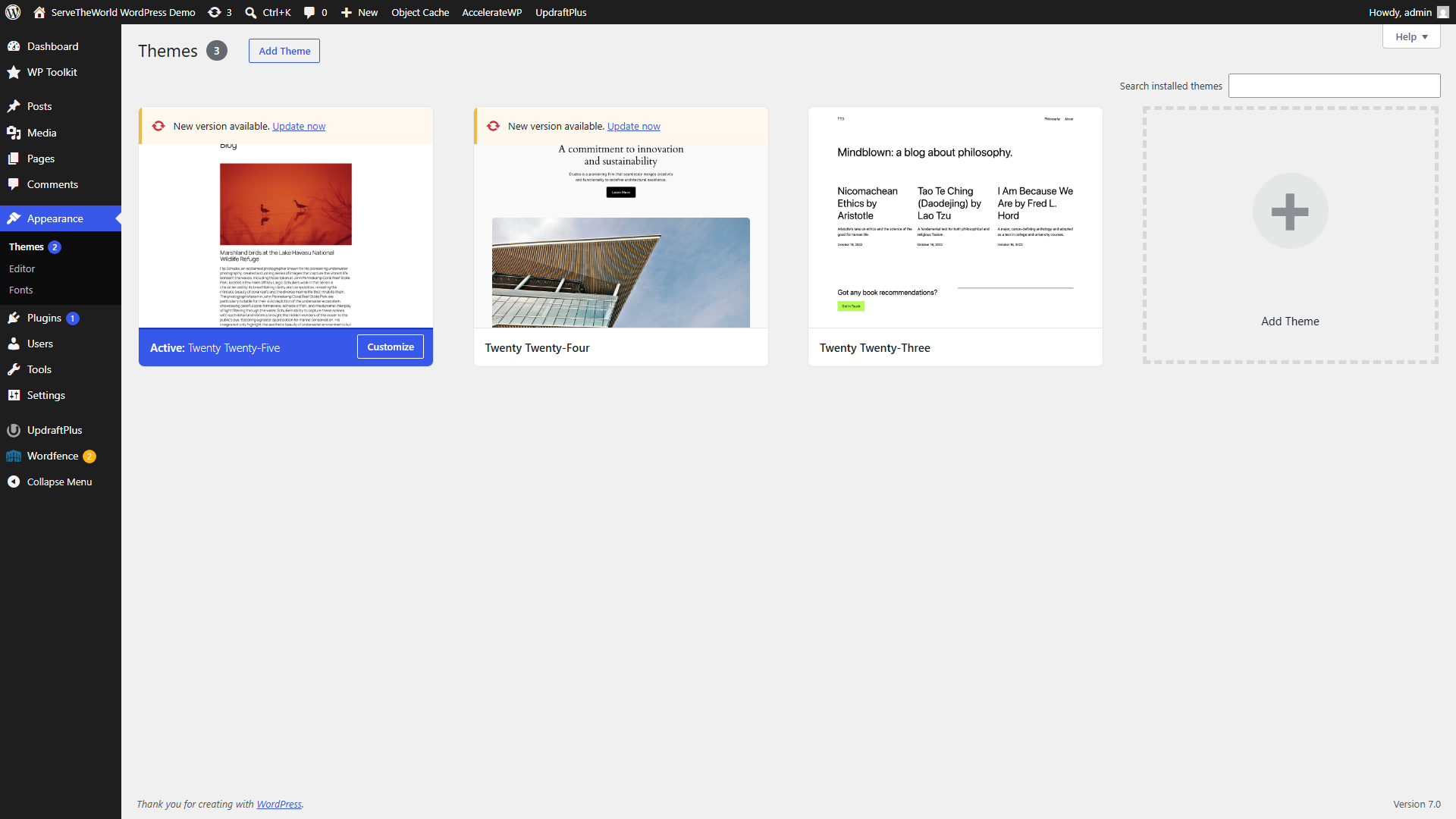
If the problem disappears with a default theme, the issue is in your original theme. Check for a theme update, review the theme’s support forum, or contact the developer. If wp-admin is inaccessible, WordPress Toolkit in Plesk can switch themes from the hosting side the same way it handles plugins.
It’s worth keeping at least one default WordPress theme installed even if you never use it. It gives you a known-good fallback for exactly this kind of test.
Turning on Debug Logging
If you need more information on what’s happening behind the scenes, WordPress can write detailed error information to a log file behind the scenes. WordPress Toolkit in Plesk lets you toggle this without editing any files.
Open your site’s WordPress Toolkit in Plesk and look for the Debugging toggle. Click the config icon beside this toggle, and you’ll see the options for enabling debugging output. Enable WP_DEBUG to turn on WordPress debug mode and WP_DEBUG_LOG to save errors, warnings, and notices to a log file. Unless you’re working on a non-production site, leave WP_DEBUG_DISPLAY off so debug messages aren’t shown on public pages.
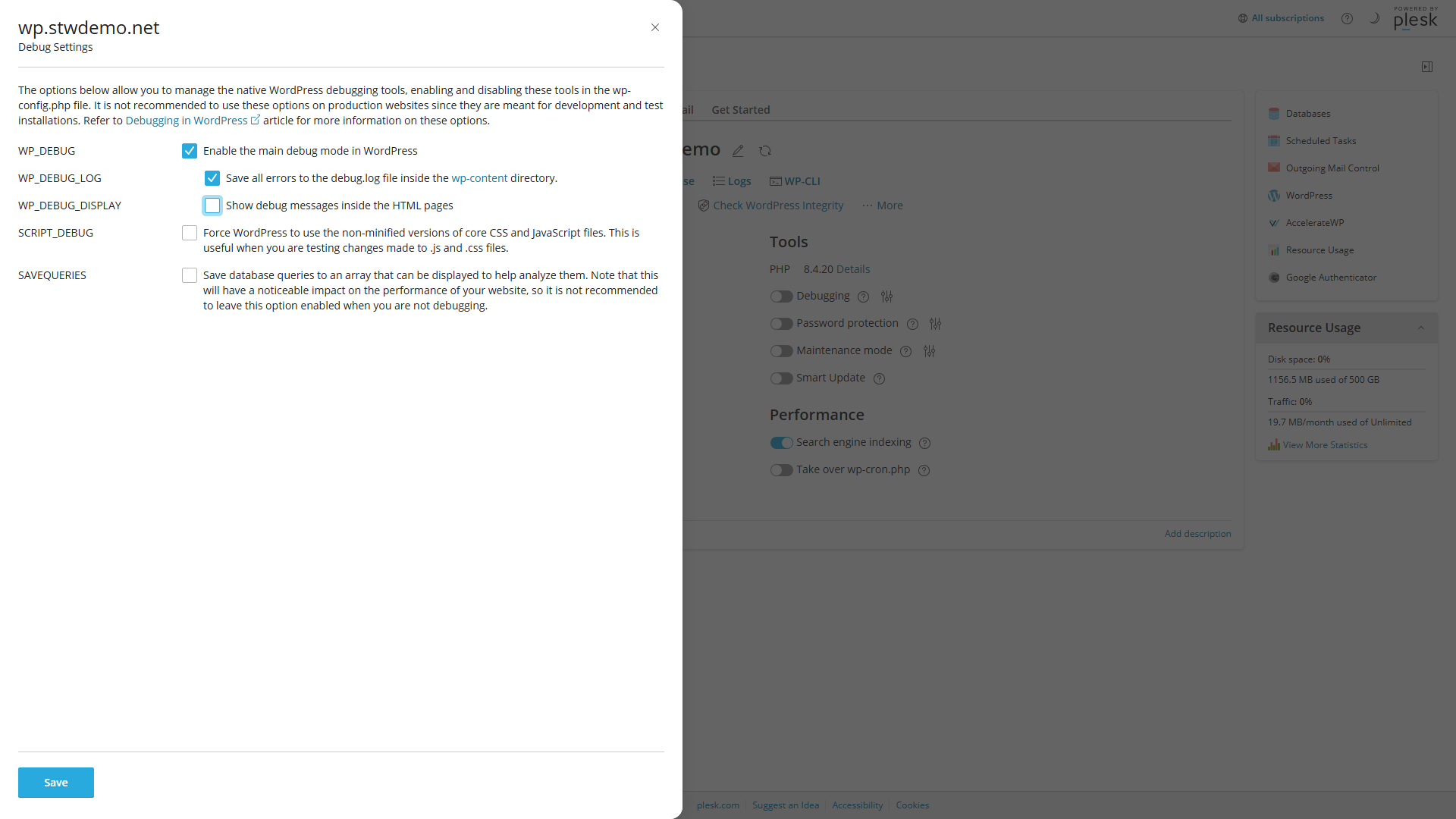
With those settings enabled, reproduce the error once. Then open Plesk File Manager and navigate to httpdocs → wp-content. WordPress normally creates debug.log there when it has something to record. Useful entries include a timestamp and may name the file and line where the error occurred. A line like PHP Fatal error: ... in /httpdocs/wp-content/plugins/some-plugin/main.php on line 42 points to that plugin as the first component to investigate.
Turn debugging off when you’re done. Debug logs can accumulate file paths, database details, and other internal information that shouldn’t sit on a production server. Once you’ve collected what you need, go back to WordPress Toolkit and disable both debug settings.
Common Problems and What to Do About Them
“There has been a critical error on this website”
This is WordPress’s fatal error screen. It means PHP hit an error serious enough to stop execution, usually a plugin or theme conflict, a PHP version incompatibility, or corrupted files.
Check the administrator email account for your WordPress site, including the spam folder. WordPress has a built-in Recovery Mode that may send an email with a special link when it detects a fatal PHP error during a normal page load. Clicking that link opens a protected admin session where the faulty plugin or theme is paused for your login only. You can then enter wp-admin to deactivate, update, or repair the problem component. The recovery link expires, so check promptly.
If the email doesn’t arrive (which can happen if your server’s outgoing mail isn’t set up correctly, or if the plugin that handles outgoing email is the one that crashed), use WordPress Toolkit in Plesk to deactivate plugins or switch themes from the hosting side instead using the process listed above.
Blank white page
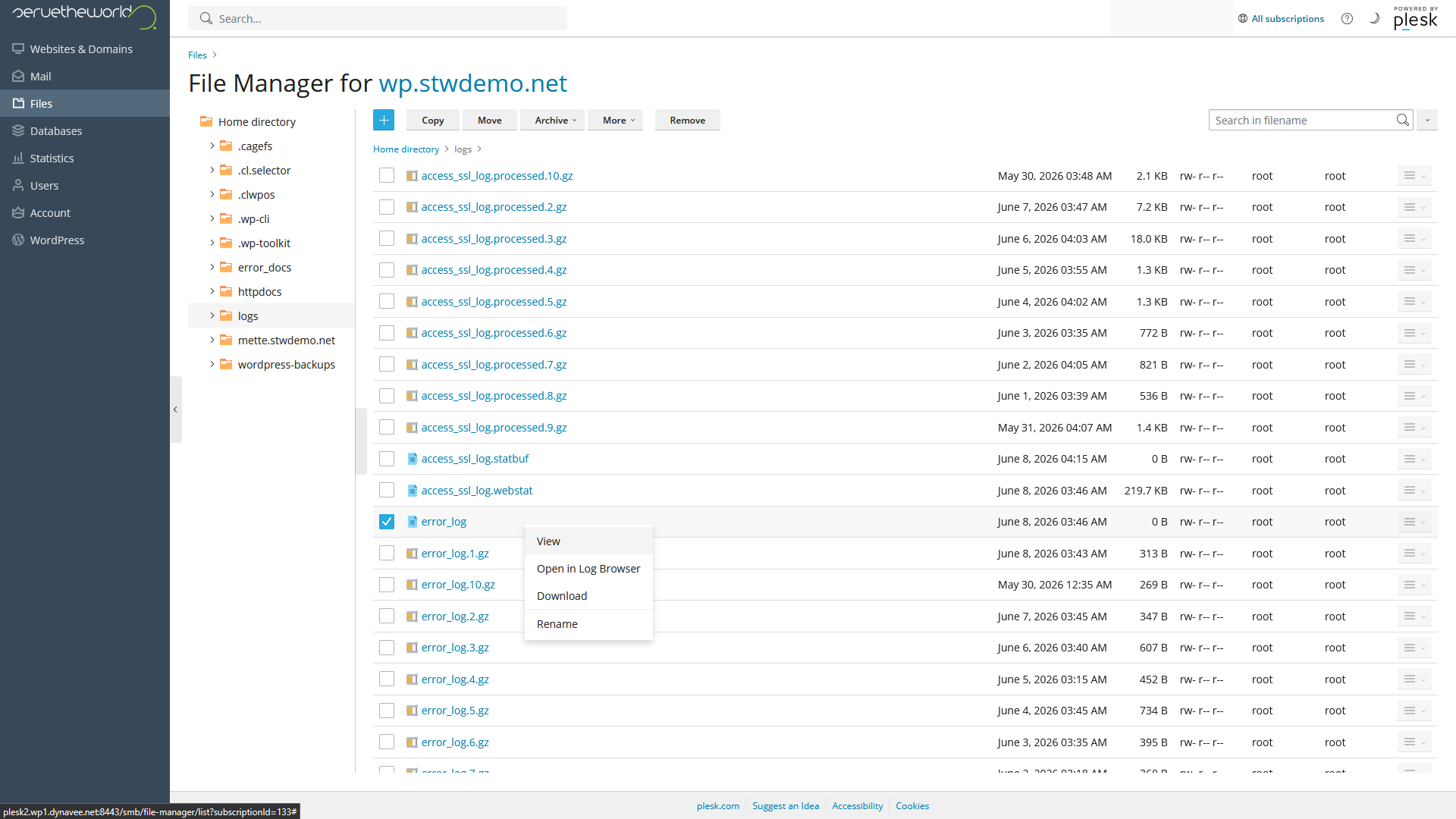
A completely blank page with no error message can be caused by a PHP error, a database error, or a plugin or theme conflict. Enable WP_DEBUG and WP_DEBUG_LOG through WordPress Toolkit as described above, reload the broken page, then check debug.log in Plesk File Manager, typically under httpdocs → wp-content. If that log doesn’t show the cause, return to your home directory, open the logs folder, and check the current error_log for entries from the time the blank page appeared.
wp-admin won’t load
If your site’s front end works but wp-admin returns an error or redirects in a loop, try going to yourdomain.com/wp-login.php directly instead of /wp-admin. A working login page confirms that WordPress can still reach the login screen, but it doesn’t identify the cause of the wp-admin problem. Check the error logs, then use WordPress Toolkit in Plesk to test suspected plugins one at a time.
If neither the login page nor wp-admin loads, the issue may be a corrupted .htaccess file. This is a configuration file that sits in your site’s root directory and controls how URLs are handled. Open Plesk File Manager, navigate to httpdocs, find .htaccess, and rename it to .htaccess-backup. Test the site again. If it comes back, the old file contained a bad rule. You can regenerate a clean one by going to Settings → Permalinks in WordPress and clicking Save Changes without changing the selected structure.
HTTP 500 Internal Server Error
A 500 error means something failed on the server side, but the server isn’t telling you specifically what. The actual cause could be a PHP error, a corrupted .htaccess, a memory limit, or a server configuration problem.
Start with the server error log. In Plesk, open Files, navigate to your home directory, then open the logs folder. Look for the current error log file and find entries matching the time the 500 error appeared.
If the log points to a plugin file, follow the plugin isolation process. If it mentions a corrupted .htaccess, rename the file through File Manager as described above and resave permalinks. If the log mentions memory exhaustion or PHP limits, that’s sometimes a hosting-level issue to raise with customer support rather than something to fix yourself, particularly if you haven’t made any significant changes to your site.
Avoid increasing PHP memory limits in
wp-config.phpas a first response. Memory exhaustion is usually a symptom of something else (a runaway plugin, a massive query, a traffic spike), and raising the limit without understanding the cause just masks the real problem until it gets worse.
Error establishing a database connection
This means WordPress couldn’t connect to or select its database. Common causes include incorrect database settings in wp-config.php, an unavailable database server, or credentials that weren’t updated correctly during a migration.
Work through these checks in Plesk before contacting support.
1 – Open Databases and confirm that the site’s database and database user still exist in the Databases and User Management tabs. Try opening the database through phpMyAdmin as well, by clicking on the Web Admin icon to the right of the page. If phpMyAdmin opens normally, the database service itself is running.
2 – Back up the site, then open wp-config.php through File Manager. Compare DB_NAME and DB_USER with the database details shown in Plesk. On typical hosting, DB_HOST should be localhost. Correct a value only when you know what it should be.
3 – If the database user exists but its password is unknown or was recently changed, reset that user’s password in Plesk and enter the same new password as DB_PASSWORD in wp-config.php. The two values must match. Make sure you’re editing the user assigned to this database and keep the password private.
If the database and user exist but phpMyAdmin can’t connect, or the connection settings match but WordPress still shows the error, wait a few minutes and try again. A persistent failure at that point may indicate a database-service or hosting problem, so contact customer support with the time the error began and the checks you’ve completed.
Posts and pages return 404
If your home page loads but individual posts or pages return 404 errors, WordPress’s rewrite rules have probably fallen out of sync. This happens most often after a migration or a permalink update that didn’t finish cleanly.
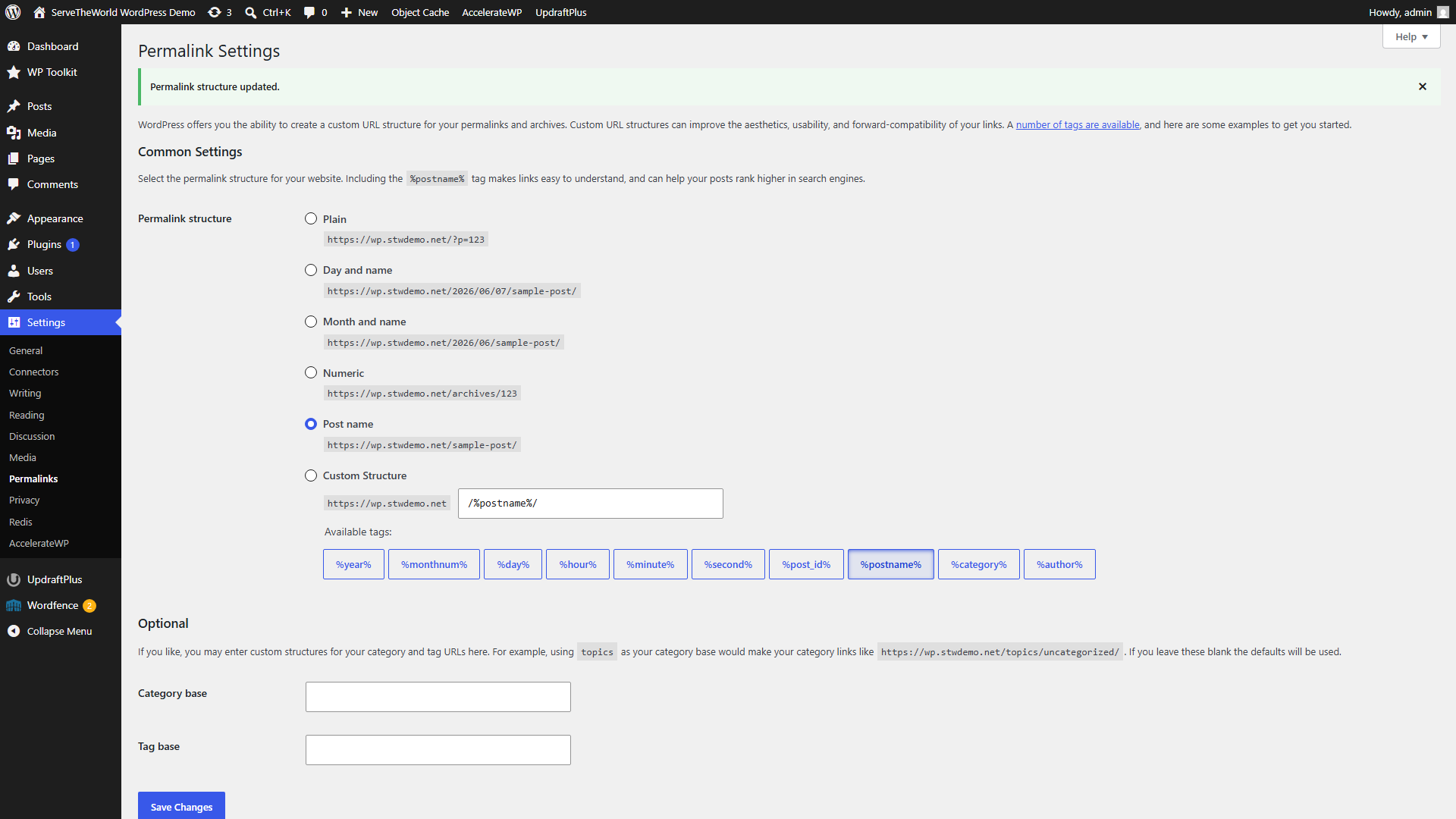
Go to Settings → Permalinks and click Save Changes without changing the selected structure. This tells WordPress to rebuild its internal URL rules.
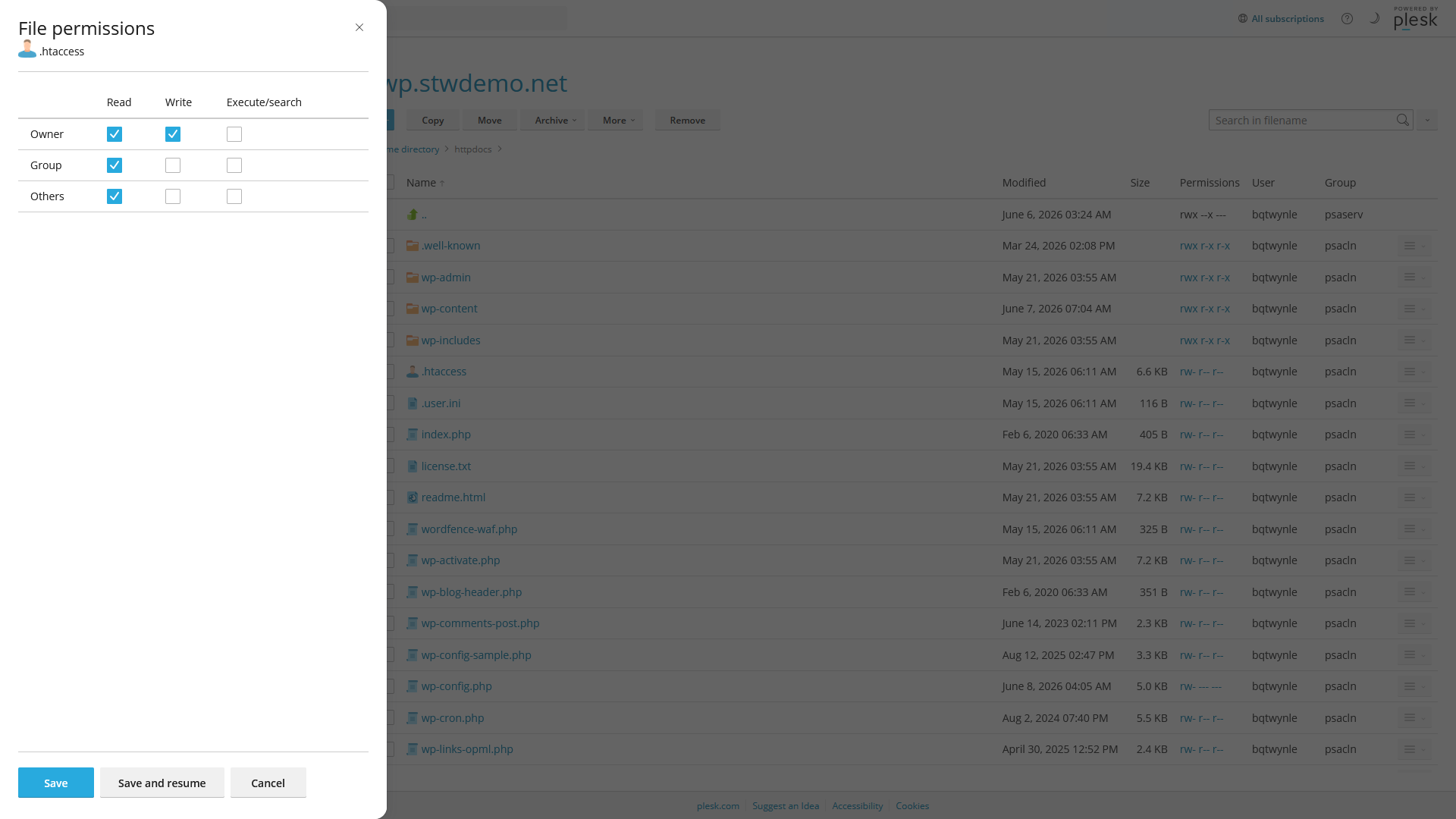
If that doesn’t fix it, check whether the page or post you’re trying to reach actually exists (it may have been trashed), then find .htaccess in httpdocs through Plesk File Manager. Check its Permissions column. The usual setting is rw- r-- r--, also known as 644, which lets the file owner read and write the file while everyone else can only read it.
If the permissions are different, click the .htaccess line and choose Change Permissions. Under Owner, select Read and Write. Under Group and Others, select Read only. Leave every Execute/search box clear, then click Save. Don’t make the file writable by everyone or set it to 777.
Stuck in maintenance mode
When WordPress runs an update, it creates a temporary file called .maintenance in the site’s root directory. This tells WordPress to show a “briefly unavailable for scheduled maintenance” message instead of loading the site. Normally this file is deleted automatically when the update finishes, but an interrupted or failed update can leave it behind.
First confirm that no update is still running. Then open Plesk File Manager, navigate to your httpdocs, find .maintenance, and delete it. The maintenance message should clear. If the update didn’t finish, you can run it again from Dashboard → Updates once you’re back in wp-admin.
Changes aren’t showing up
In this case, you’ve edited a page or changed a setting, but the live site still shows the old version. WordPress sites can have several cache layers stacked on top of each other. Work through them one at a time.
1 – Browser cache is a good first check. Hard-refresh the page with Ctrl+Shift+R (Windows) or Cmd+Shift+R (Mac), or open it in an incognito window to test with a fresh browser cache.
2 – WordPress page cache is next. If you’re using AccelerateWP or another caching plugin, open its settings and look for a Purge or Clear Cache button. AccelerateWP shows a Purge All option in the WordPress admin bar at the top of every page. Other caching plugins have similar controls in their own settings screens, usually under Settings or as a top-level menu item in the left sidebar.
3 – Object cache applies if you’re running Redis, which we covered in Part 14. Open Settings → Redis in your WordPress admin and click Flush Cache. This clears the stored database queries that Redis keeps in memory.
If none of those solve it, double-check that you edited the right page. On sites with similar page names or multiple drafts, editing a page that isn’t actually linked in the menu is an easy mistake to make.
Slow pages or timeouts
A site that was loading quickly and has started dragging could be hitting hosting resource limits, running a heavy plugin, or dealing with a database that’s grown bloated.
Check Plesk’s Resource Usage section for your domain. You’ll find it among the domain tools under Websites & Domains. If it shows CPU, memory, or entry-process limits being hit at the times the site was slow, include those timestamps when you contact STW support, since that data helps them pinpoint the cause from the server side.
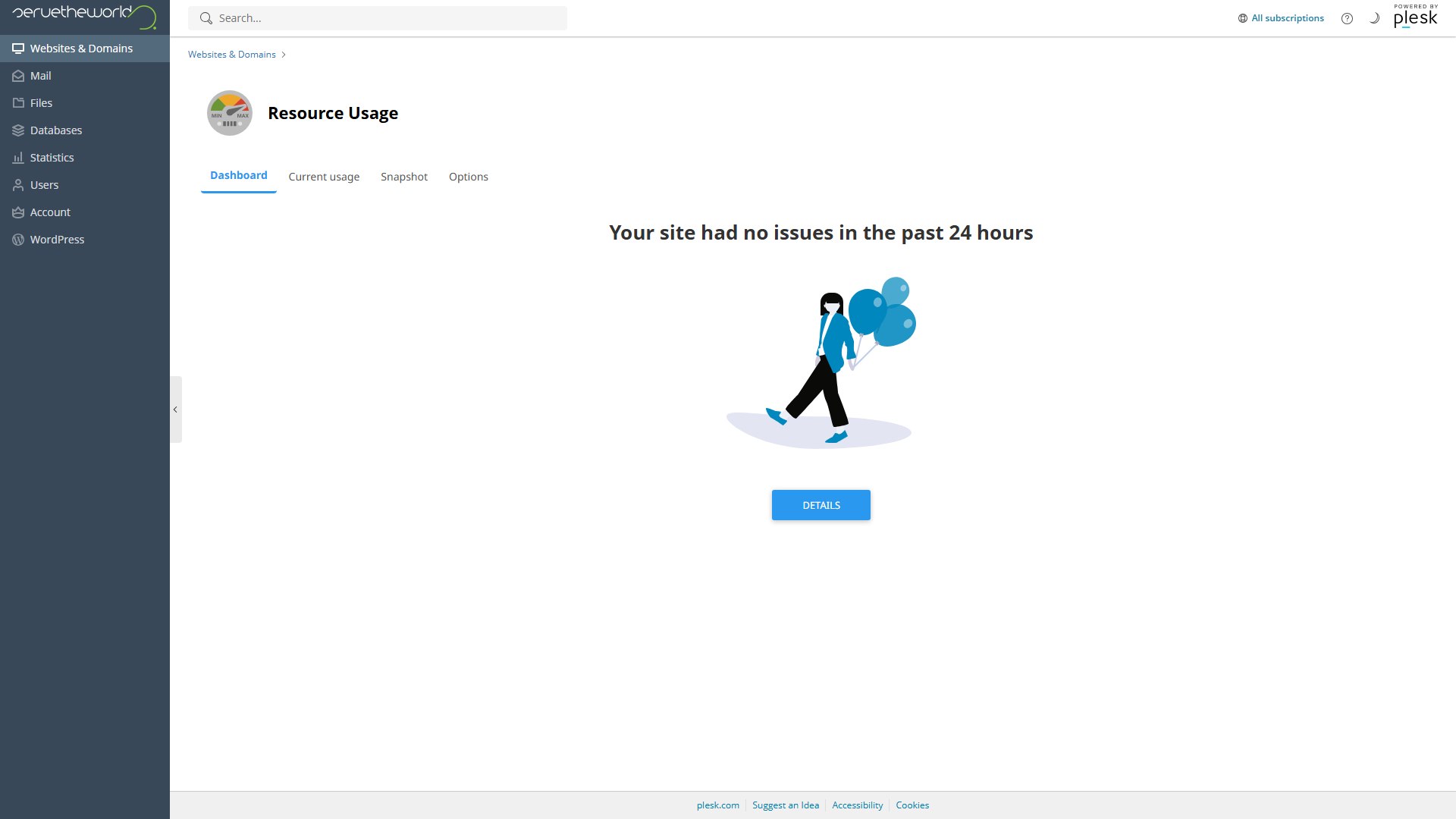
If resource usage looks normal, the problem is more likely on the WordPress side. Deactivate plugins one at a time to find the heavy one. Common culprits include backup plugins scheduled during peak hours, analytics plugins making external API calls, and complex form or popup plugins. Earlier tutorials covered caching, image optimization, and database cleanup, all of which help with ongoing performance.
Checking Core File Integrity
If you’ve ruled out plugins and themes and the problem still persists, WordPress Toolkit in Plesk can check whether your core WordPress files have been modified or corrupted. Open your site’s WordPress Toolkit card, click Check WordPress Integrity, and Verify Checksums. This compares every core file on your server against the official WordPress checksums for your version.
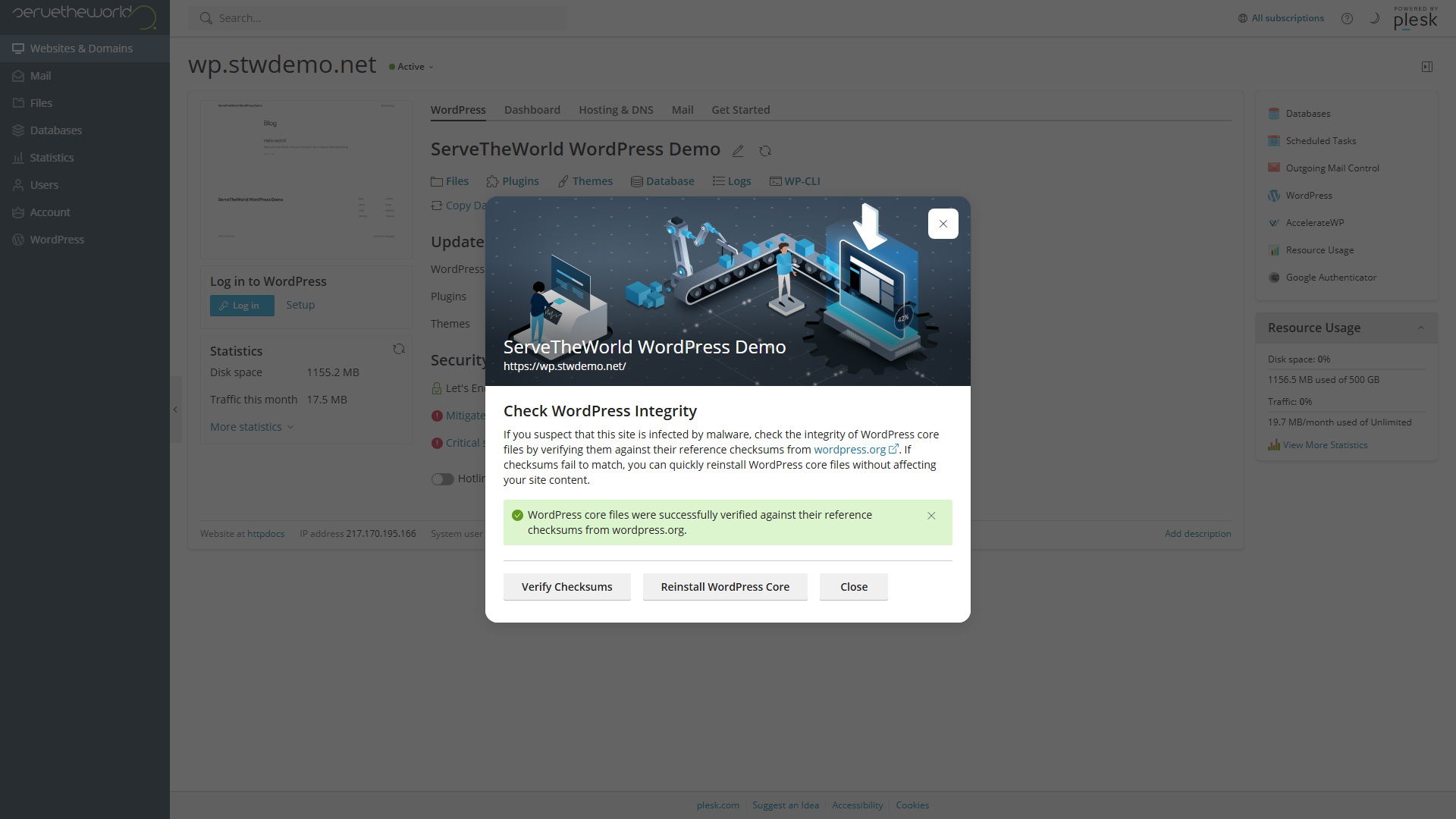
If the check finds mismatched files, WordPress Toolkit offers a Reinstall WordPress Core option that replaces the core files with clean copies. Reinstalling core doesn’t affect the site’s content, but you should still create a backup first. This is a repair for damaged core files, not a fix for plugin or configuration problems.
Finding Better Answers Online
Search with specifics
Copy a distinctive line from the error message and put it in quotes. Add the name and version of the plugin or theme involved, and include your WordPress or PHP version if the problem started after a version change. A search like "Call to undefined function" flavor-developer 3.2.1 WordPress 7.0 will find relevant results much faster than WordPress page not loading.
Start with the most reliable sources:
- The plugin or theme’s own documentation and changelog. Developers often document known issues or fix them in newer releases.
- The plugin’s support forum on WordPress.org. Developers and experienced users post solutions and workarounds, and you can search for your exact error text.
- The plugin’s GitHub issues, if the developer uses GitHub. Issues are searchable and often contain version-specific discussion.
- The official WordPress documentation. The Common Errors page and the Debugging handbook cover the fundamentals.
Be cautious with old forum posts and generic “how to fix” articles. A solution from 2019 for a plugin that’s been rewritten since then may not apply to your situation and could make things worse. Check the dates and version numbers before following any advice.
Don’t paste code snippets from unknown sources into
wp-config.php,.htaccess, or your theme’sfunctions.phpwithout understanding what they do. A line of code that fixed someone else’s problem on a different hosting setup can easily break yours.
When to Contact Support
Occasionally, some problems aren’t yours to fix. Knowing which direction to send a support request saves time for everyone.
Contact your hosting provider for database server outages, server error log entries that reference memory limits or PHP configuration, resource usage limits showing up alongside the symptoms, SSL certificate errors, and DNS or domain resolution problems. Support can access the server-side information you can’t see from WordPress or Plesk.
Contact the plugin or theme developer when the debug log or error message names their code specifically, when a feature stopped working after updating that component, or when a conflict between two plugins needs the developer’s input to resolve.
Sending a useful support request
Include the exact error text, when the problem started and what changed before that, your WordPress version, PHP version, active theme and version, and the relevant plugin and version. Mention any significant changes you’ve made on your hosting and what you’ve already tried (plugin isolation, theme switch, debug log findings) so the responder doesn’t have to start from scratch.
The Copy site info to clipboard button on the WordPress → Tools → Site Health → Info tab gives you a clean environment summary to paste into a private support ticket. Review it before posting anywhere public, since it includes server paths and hosting details.
Never share database credentials, API keys, WordPress authentication salts, or the full contents of
wp-config.phpin any support request, public or private.
Conclusion
Many WordPress problems become much easier to diagnose once you stop guessing and start isolating. A backup before you touch anything, a methodical plugin and theme test, and a look at the logs will often reveal whether the next step belongs with a specific developer or the hosting provider.
Next steps: