

Introduction
Your WordPress database holds every post, page, comment, user account, plugin setting, and piece of media metadata on the site. Over months and years of normal use, it also accumulates things you’d never deliberately keep, like expired temporary data from plugins that didn’t clean up after themselves, configuration rows left behind by plugins you deleted months ago, thirty saved drafts of an About page you published once, and spam comments sitting in a queue nobody checks.
That extra weight slows things down gradually. The dashboard takes a beat longer to load and database queries that used to be instant start dragging. A database that was lean at launch can double in size within a year, and most of that growth has nothing to do with real content.
On STW WordPress hosting, AccelerateWP includes a dedicated Database page that handles the most common cleanup tasks from inside the WordPress admin. On shared hosting, free plugins can do much the same work. We’ll cover both.
What Fills Up a WordPress Database?
If you know what accumulates over time in a WordPress database, it’s easier to decide what’s safe to remove.
1. Post revisions
Every time you click Save Draft or Update on a post or page, WordPress stores the previous version as a revision. Edit a post twenty times and your database holds twenty copies of that post’s content alongside the current version. Revisions are useful for rolling back recent changes, but a site with a hundred posts and fifteen revisions each carries 1,500 extra database rows that serve no current purpose.
2. Auto-drafts and trashed content
WordPress saves a draft automatically as you type, even before you’ve clicked Save Draft yourself. These auto-drafts accumulate. Spam comments follow a similar pattern, lingering in the spam queue until someone manually empties it or a plugin clears them.
3. Expired plugin and theme data
A social media plugin might cache a follower count for an hour, or a weather widget might store forecast data for thirty minutes. Once the expiration passes, this data should disappear, but WordPress doesn’t proactively clean them up. Expired data only gets deleted when something specifically requests it again through code. If nothing does, the expired entry sits in the wp_options table indefinitely. On a site with ten or fifteen plugins, expired data can really accumulate.
4. Orphaned plugin data
When you delete a plugin, WordPress removes the plugin’s code files from the server but usually doesn’t remove the data that plugin wrote to the database. Settings, custom tables, option rows, and metadata all stay behind. If you’ve tried and removed five different contact form plugins while deciding which one to use, your database likely contains five sets of orphaned configuration data doing nothing.
5. wp_options table bloat
The wp_options table in the database stores site-wide settings and transients. WordPress reads it on nearly every page load, so it’s one of the most performance-sensitive tables in the database. On a site that’s been running for a year or more with plugins added and removed along the way, wp_options fills up with entries that no longer belong to anything active, and that bloat hits hard because it’s a constantly-used table.
Back Up Before You Clean
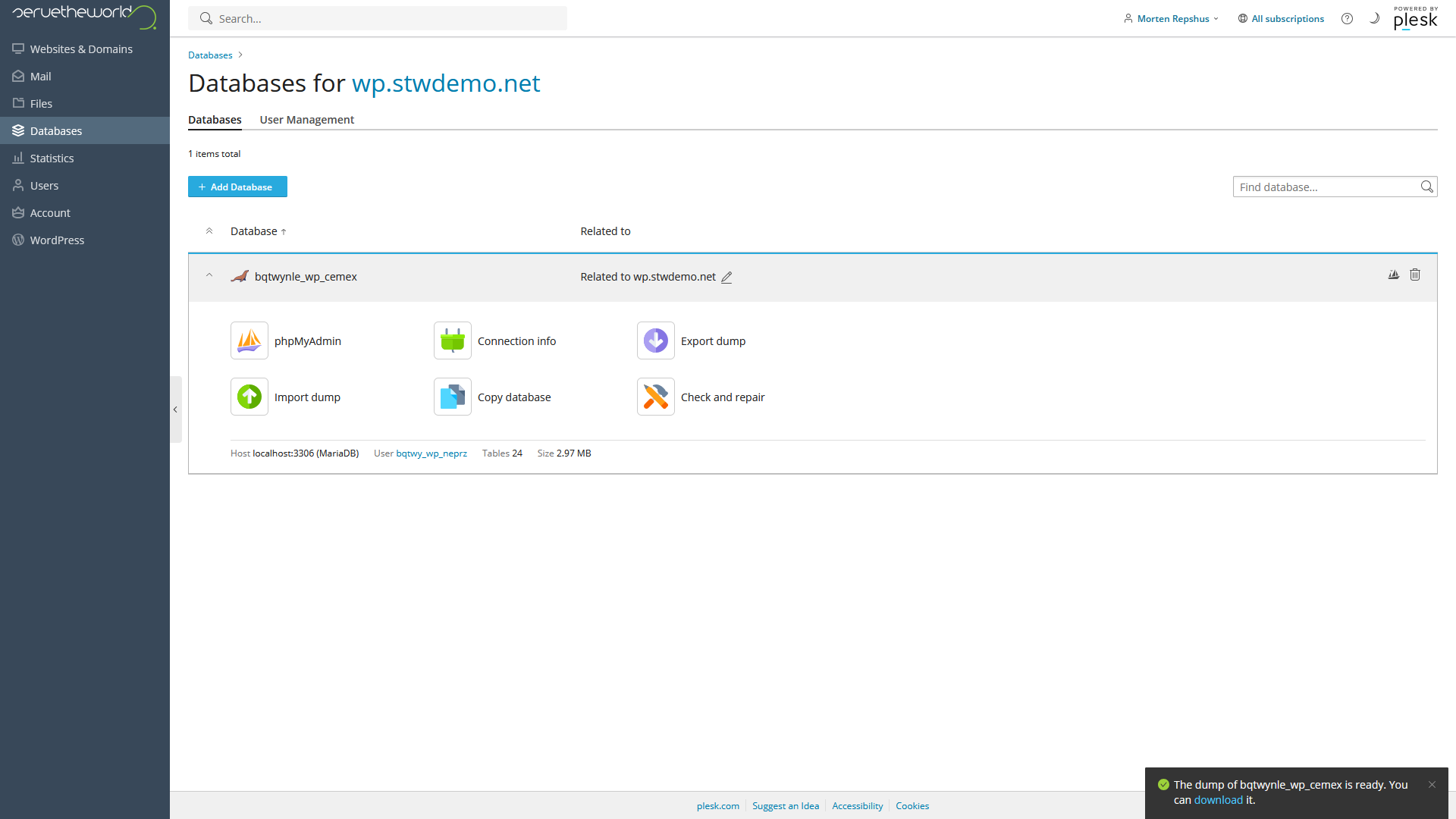
Database changes are permanent, so backup your database before you run a cleanup. Once a database optimization in AccelerateWP has been performed, there is no way to undo it. Part 21 covers the full backup workflow for an entire WordPress site. For a quick pre-cleanup backup of just the database, you can use the database export function in Plesk:
- Log in to my.servetheworld.net.
- Go to Products → My Products → Manage for your hosting package.
- Click Plesk.
- Click Databases.
- Find your WordPress database and click Export dump.
- Check Automatically download dump after creation and click Export Dump.
This will download a zipped-up .sql file you can re-import through the same Databases page if something goes wrong by clicking Import dump and selecting your backup zip file.
Database Cleanup in AccelerateWP
On STW WordPress hosting, AccelerateWP includes a Database page that covers the most common cleanup tasks in one place. In WordPress, go to AccelerateWP → Database to access it.
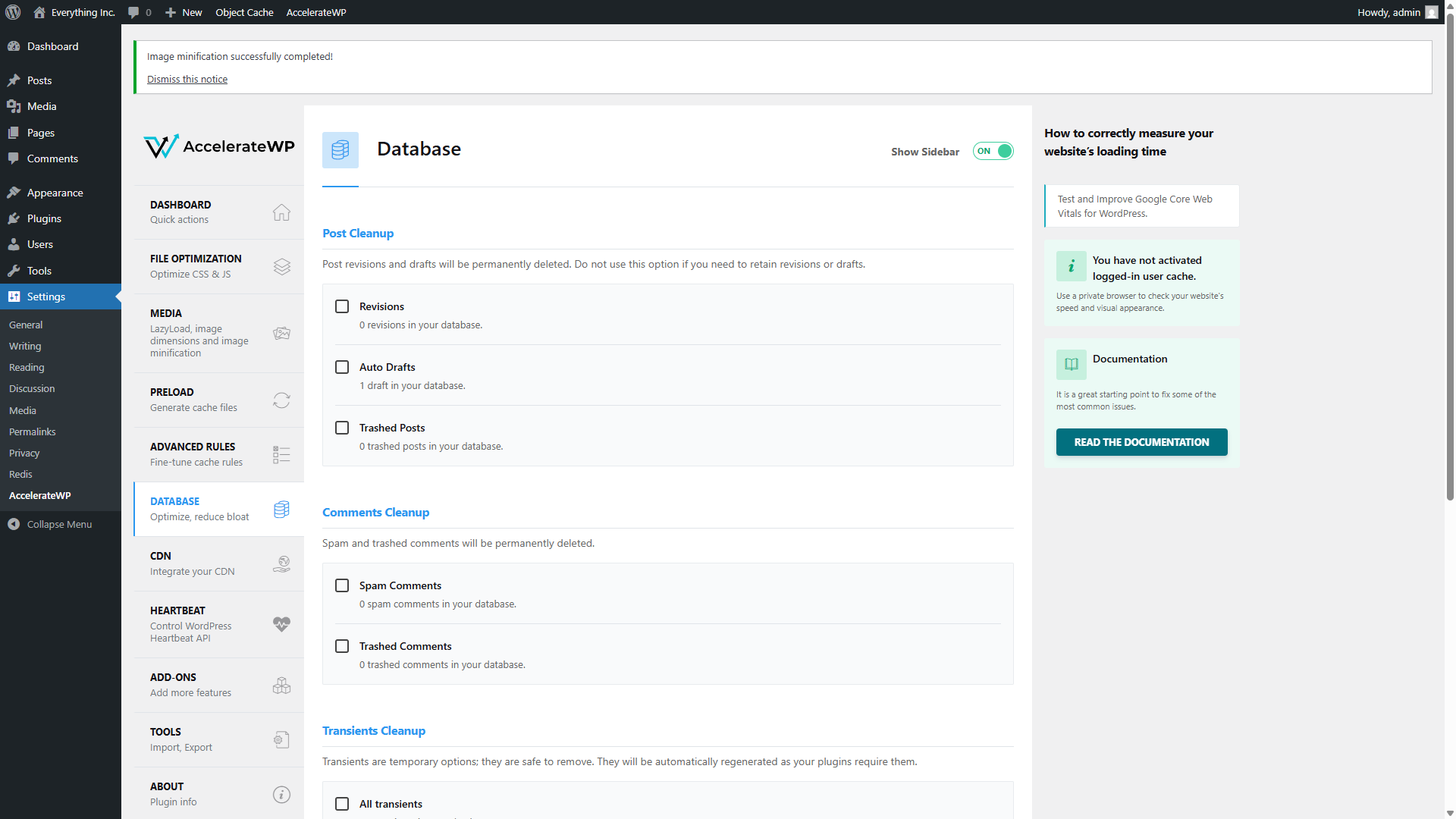
The page is split into five sections, each targeting a specific type of database clutter with a count of how many items are waiting.
Post Cleanup
Revisions deletes all stored post and page revisions. If you’ve recently edited important content and might need to roll back, skip this checkbox for now. If your revisions are from pages you finished months ago, they’re safe to clear.
Auto Drafts removes automatic drafts that WordPress created in the background during editing sessions. These are leftovers from posts you never published or editing windows you closed.
Trashed Posts clears posts and pages sitting in the trash. WordPress is supposed to empty the trash automatically after 30 days, but that process relies on scheduled events that don’t always run reliably.
Comments Cleanup
Spam Comments shows spam caught by Akismet or whatever spam filter you’re using. These comments are already flagged as spam, so deleting them removes data that was never going to be approved or displayed.
Trashed Comments shows comments you (or a plugin) moved to the trash. Like trashed posts, these linger until something clears them.
Transients Cleanup
Transients are those temporary files from plugins and themes discussed above. All transients shows the total transient count. This is the lowest-risk item on the page. Clearing transients removes the expired entries WordPress never got around to deleting and forces active ones to refresh, which is harmless.
Database Cleanup
Optimize Tables reclaims space left behind by deleted rows and reorganizes table data for faster queries. When WordPress deletes a revision, trashed post, or spam comment, the space that row occupied isn’t automatically returned to the table. Over time these gaps add up, and optimization compacts everything down. On a site that’s never been optimized, the first run often recovers a noticeable amount of space.
Table optimization briefly locks each table while it reorganizes (milliseconds on a small site). Running it once a quarter is plenty.
Automatic Cleanup
Schedule Automatic Cleanup runs these tasks on a recurring schedule. When enabled, a frequency selector appears. Weekly or Monthly is reasonable for most sites, though you’ll still want the occasional manual session for revisions and table optimization since those benefit from a quick judgment call before you confirm.
Running the cleanup
Check the boxes for the items you want to clean and click Save Changes and Optimize at the bottom of the page. The cleanup runs in the background and you’ll see a notice when it completes. For a first run, start with transients, spam comments, trashed comments, trashed posts, and auto-drafts (all low-risk), then add revisions and table optimization next time.
Optional – Limiting Revisions Going Forward
Cleaning up old revisions fixes the backlog, but you can also stop them from piling up again. Add this line to your wp-config.php file (which you first saw in Part 5):
define('WP_POST_REVISIONS', 5);This caps revisions at five per post. When a sixth is created, the oldest one is discarded.
You can access wp-config.php through the Plesk by clicking on Files and choosing the file wp-config.php. Depending on your server and how you installed WordPress, you might find this file in a folder named httpdocs or public_html , or a folder named after your domain name. The line you add should go above the /* That's all, stop editing! */ comment.
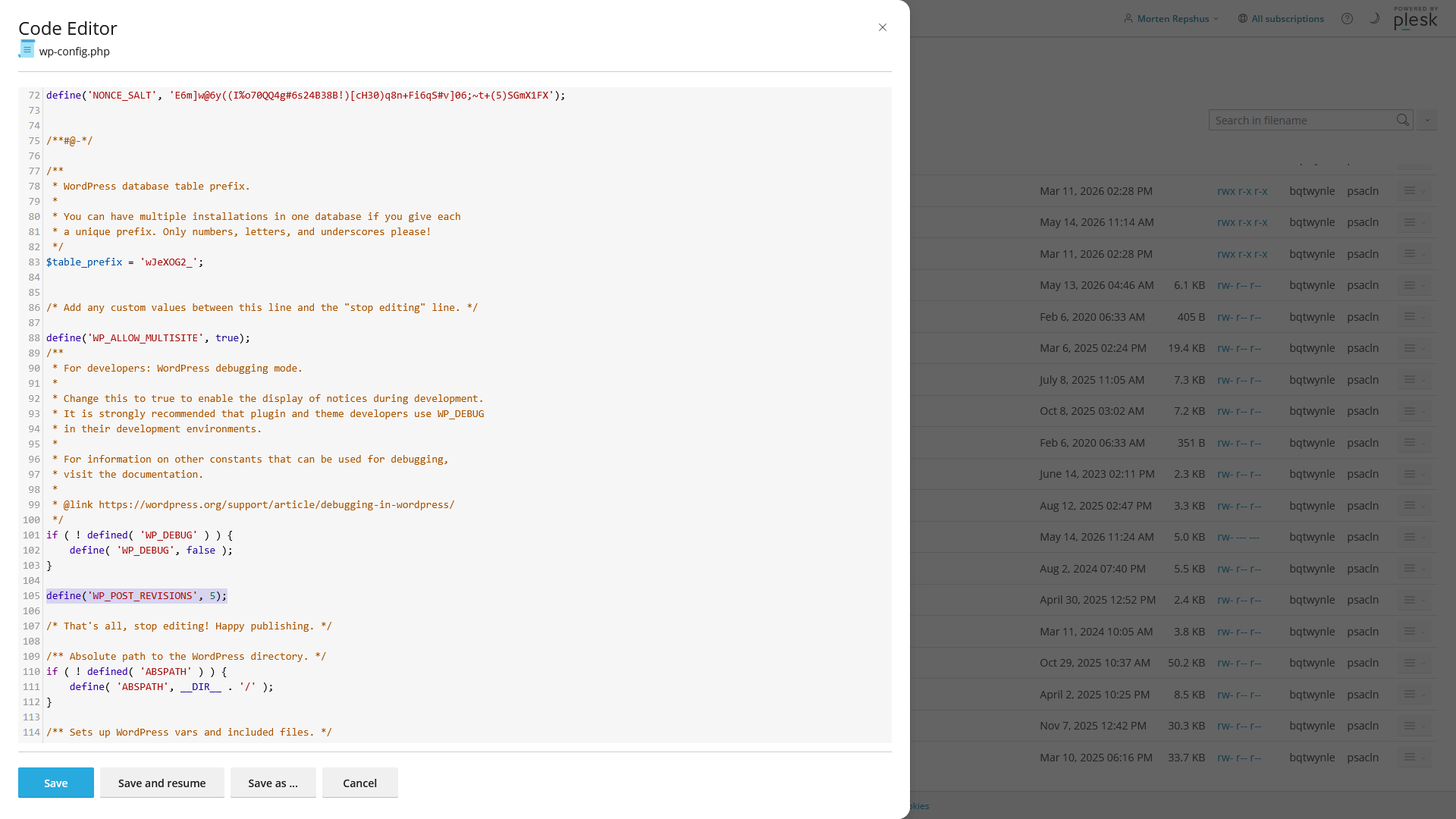
Five revisions is a reasonable default. If you rarely roll back changes, 3 works too. Setting it to 0 or false disables revisions entirely, which removes the rollback safety net.
If You’re on Shared Hosting
If your hosting plan doesn’t include AccelerateWP, a database cleanup plugin can handle the same work.
WP-Optimize
WP-Optimize (free, with a premium tier) handles revisions, auto-drafts, transients, trashed content, spam comments, and table optimization.
After installing it through Plugins → Add New Plugin, go to WP-Optimize → Database. The interface lists cleanup categories with counts and checkboxes, similar to AccelerateWP’s layout. Each item shows how many entries will be removed and how much space will be recovered.
Run through the list, check the items you want to clean, and click Run optimization. WP-Optimize also lets you schedule automatic cleanups under its Settings tab, with weekly being a sensible default.
Advanced Database Cleaner
Advanced Database Cleaner (free, with a premium tier) goes deeper on orphaned data. Its free version handles general cleanup (revisions, transients, drafts, trashed items). The premium version adds detection of orphaned tables, orphaned options, and orphaned metadata left behind by deleted plugins and themes.
If you’ve installed and removed several plugins over the life of your site, Advanced Database Cleaner can identify which leftover tables and option rows belong to plugins that are no longer active. It labels each item with the plugin it came from, which makes it easier to decide what’s safe to delete.
For most sites, WP-Optimize covers the routine maintenance. Advanced Database Cleaner is worth adding when you want to hunt down the orphaned data that general cleanup tools don’t catch.
How Often to Clean
You don’t need to do this every week. Transients, spam, trashed content, and auto-drafts are safe to clear monthly, and AccelerateWP’s scheduled cleanup can handle those for you automatically. Revisions and table optimization are better done quarterly, with a fresh backup taken first. If you’ve removed any plugins since the last session, that’s also a good time to check for orphaned data.
Tip: Before you deactivate and delete any plugin, check its settings for a “remove data” or “clean uninstall” option.
What to Avoid
- Don’t run raw SQL queries. The cleanup tools exist so you don’t have to write
DELETE FROM wp_postmeta WHERE...by hand. A wrong query can delete live content with no undo. - Don’t optimize tables too often. Table optimization locks each table briefly while it reorganizes. Quarterly is enough for most sites.
- Don’t assume everything flagged is safe to delete. Some “orphaned” data might belong to an active plugin that stores things in an unusual way. If you aren’t sure what something belongs to, leave it. A few KB of mystery data costs less than a broken plugin.
- Don’t skip the backup. Two minutes of backup protects against every possible mistake in the steps that follow.
How to Tell If Cleanup Helped
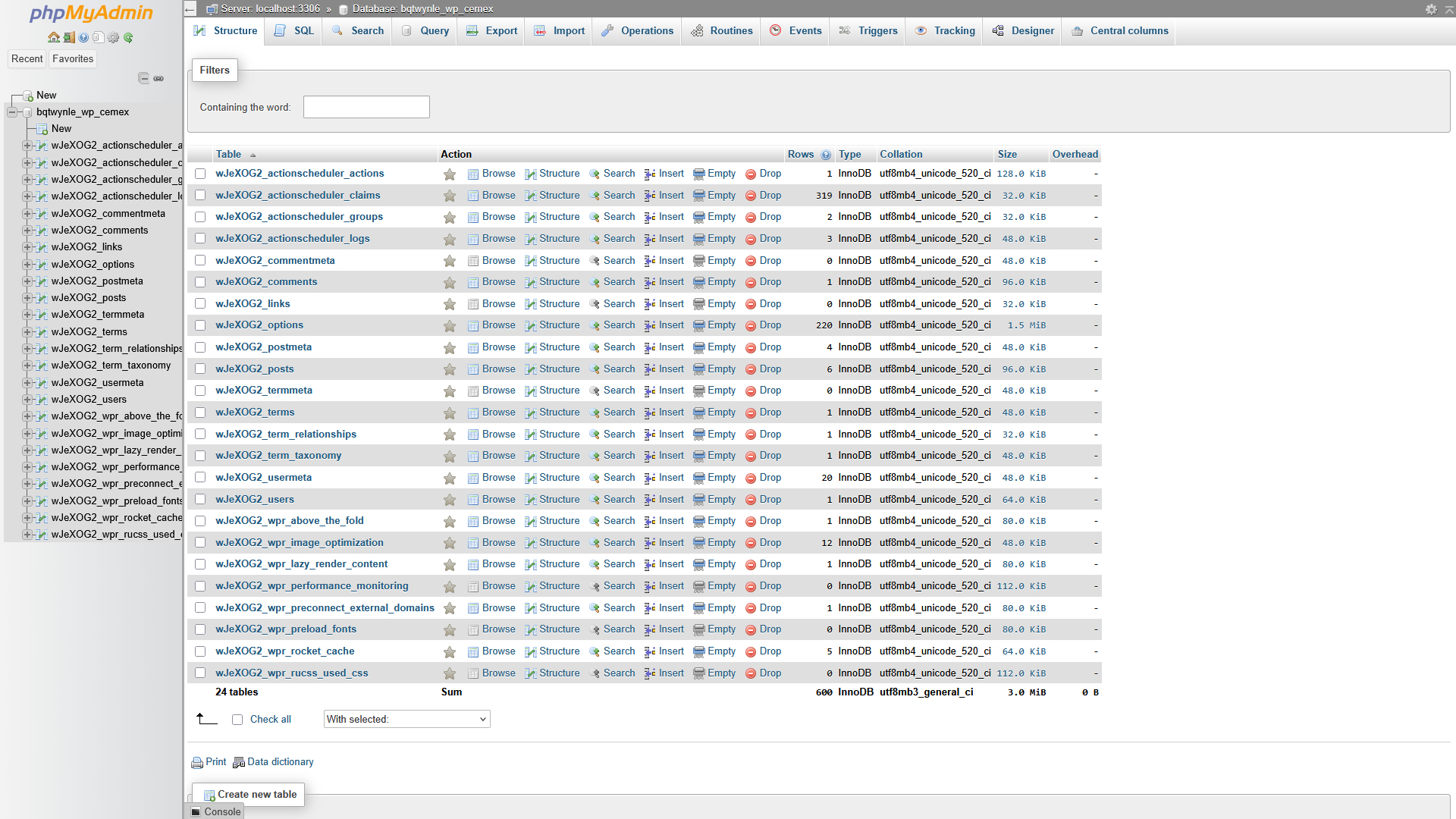
If you’re curious, you can check your database size in phpMyAdmin (accessible through Plesk → Databases → phpMyAdmin), which shows each table’s size. On a site that’s never been cleaned, the first session often recovers 20-50% of total database size. You may also notice faster dashboard loads and smaller backups afterward, though the gains from any single session are modest. The benefit is cumulative. Regular maintenance keeps the database consistent, while one that’s never cleaned degrades slowly over months.
Conclusion
Revisions, expired temporary data, orphaned plugin data, and trashed content all accumulate without any obvious sign that something is wrong. On STW WordPress hosting, AccelerateWP’s Database page handles the common cleanup tasks with optional scheduling. On shared hosting, WP-Optimize covers the same ground through a plugin. Either way, the WP_POST_REVISIONS constant in wp-config.php keeps revisions from piling up again after you’ve cleaned them.
You’ve now covered the five layers that affect WordPress speed on shared hosting, from page caching and object caching through image weight, CSS and JS delivery, and database efficiency. The next section moves into essential plugins, starting with security.
Next steps: