

Introduction
Our tutorial on WordPress caching and site speed covered page caching, which stores finished HTML so the server doesn’t rebuild every page from scratch. That handles the biggest performance win for most sites.
But page caching has a blind spot.
When you’re logged into your WordPress dashboard, editing a post, checking orders in WooCommerce, or managing a membership area, the pages you see are personalized. They can’t be served from a static cache because the content depends on who you are and what you’re doing. Every dashboard load still triggers PHP, still queries the database, and still assembles the page from scratch.
Object caching addresses this layer. It stores individual pieces of data that WordPress pulls from the database repeatedly, so those same queries don’t hit the database every time. On STW WordPress hosting, the tool for this is usually Redis, and it’s included with every WordPress hosting plan.
How Object Caching Differs from Page Caching
Page caching works at the output level. WordPress builds a page, the cache stores the finished HTML, and future visitors get the stored copy. It’s fast and effective for public-facing pages.
WordPress constantly reads from the database for site settings, menu structure, widget configurations, user data, and post metadata. Many of these queries return the same data hundreds of times per hour. Without object caching, each one goes to the database every time. With object caching, WordPress checks a fast in-memory store first. If the data is there, it skips the database entirely and uses the cached result. If not, it queries the database, gets the result, and stores it for next time.
| Page caching | Object caching | |
|---|---|---|
| What’s cached | Full HTML pages | Individual database query results |
| Best for | Public pages seen by anonymous visitors | Admin dashboards, logged-in areas, dynamic content |
| Speed benefit | Dramatic (skips PHP and database entirely) | Moderate to significant (reduces database load) |
| Limitation | Can’t cache personalized or dynamic pages | Doesn’t eliminate PHP processing |
Both layers complement each other. Page caching handles the front of the house. Object caching keeps the back end responsive.
What Redis Is
Redis is an in-memory data store. “In-memory” means it keeps data in RAM instead of reading from disk. RAM is orders of magnitude faster than disk-based storage, so when WordPress asks Redis for data, the answer comes back in microseconds rather than milliseconds.
Redis is not a replacement for your database. MySQL still stores everything permanently. Redis is a fast-access layer in front of it, holding the most frequently requested data so the database doesn’t repeat the same work constantly.
On STW WordPress hosting, Redis runs as a dedicated service for your account once the premium AccelerateWP features are enabled in Plesk. If you haven’t enabled it yet, our guide to WordPress caching and site speed shows where to enable it in Plesk.
When Redis Actually Helps
Redis doesn’t make every site faster. For a five-page brochure site with light traffic and no logged-in users, page caching alone handles the job. The database isn’t under enough pressure for object caching to matter.
Redis starts earning its keep when:
- Your admin dashboard feels sluggish. If loading the WordPress dashboard, saving posts, or navigating plugin settings feels slow, the database may be the bottleneck. Redis reduces the number of queries hitting it on every admin page load.
- You have logged-in users. Membership sites, online courses, client portals, and any site where visitors log in and see personalized content. Page caching can’t help here because every user sees something different. Object caching reduces the database cost of building those personalized pages.
- You’re running WooCommerce. Shopping carts, variable product pages, user accounts, and order histories make WooCommerce database-heavy by nature. Redis keeps the store responsive under normal traffic.
- Your site has grown beyond a handful of plugins. Each plugin can add its own database queries. A site with fifteen active plugins makes substantially more database calls per page than a site with five. Object caching absorbs that extra load.
Checking the Redis dashboard
Go to Settings → Redis in your WordPress admin sidebar. The Overview tab shows the connection status.
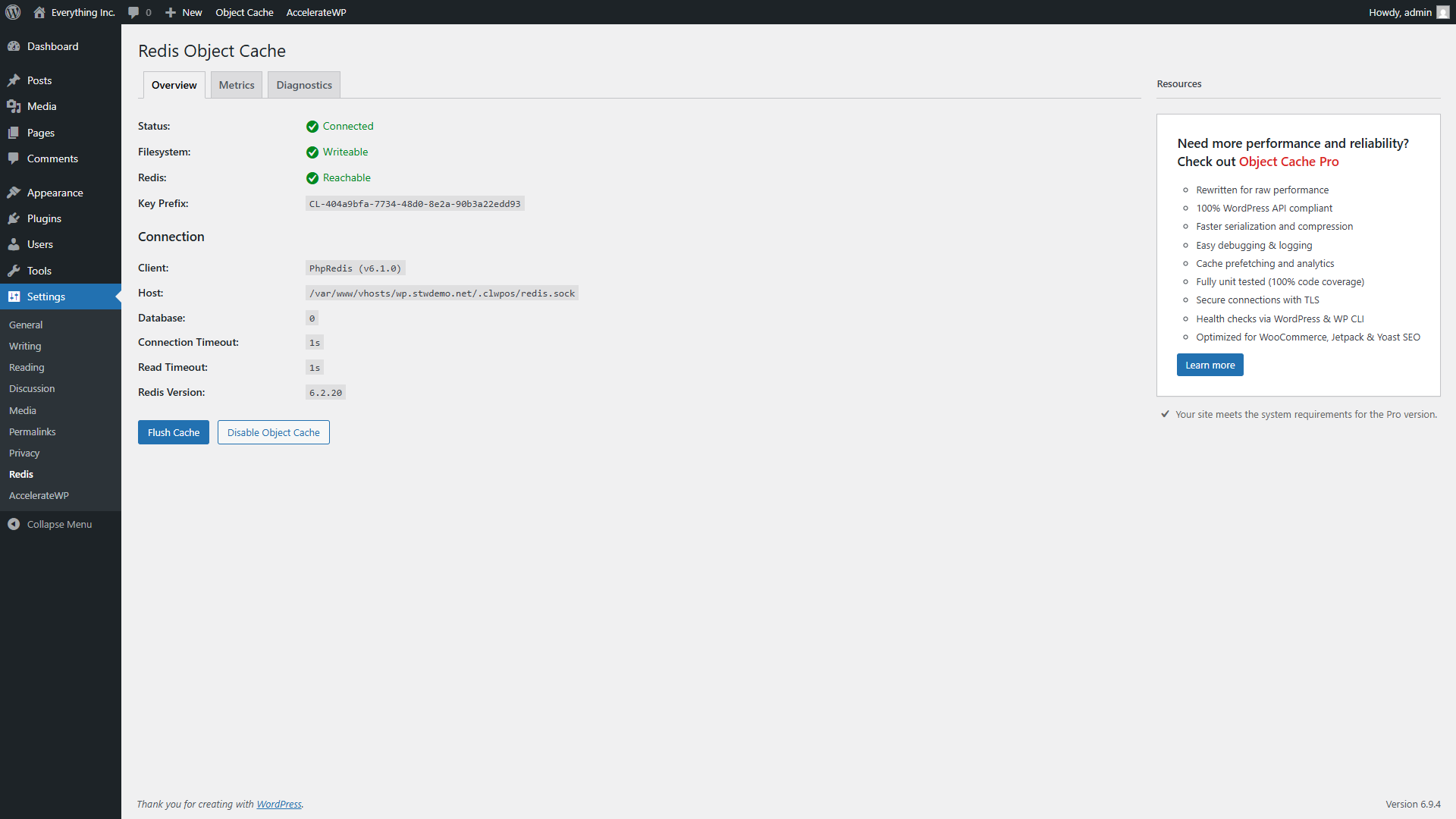
The key information on this page:
- Status should show Connected with a green checkmark
- Filesystem should show Writeable
- Redis should show Reachable
The Connection section shows the technical details. On STW WordPress hosting, the client is PhpRedis and the host points to a local Redis socket on your server. You don’t need to change any of these values. They’re set up automatically.
Two buttons appear at the bottom of the page:
- Flush Cache clears everything stored in Redis. WordPress will rebuild the cache as pages are loaded. Use this if you suspect stale data, or after a major site change like switching themes or bulk-updating plugins.
- Disable Object Cache turns Redis off entirely. You’d only use this for troubleshooting. Under normal operation, leave Redis enabled.
The Metrics tab
Click the Metrics tab to see a real-time graph of Redis response times.
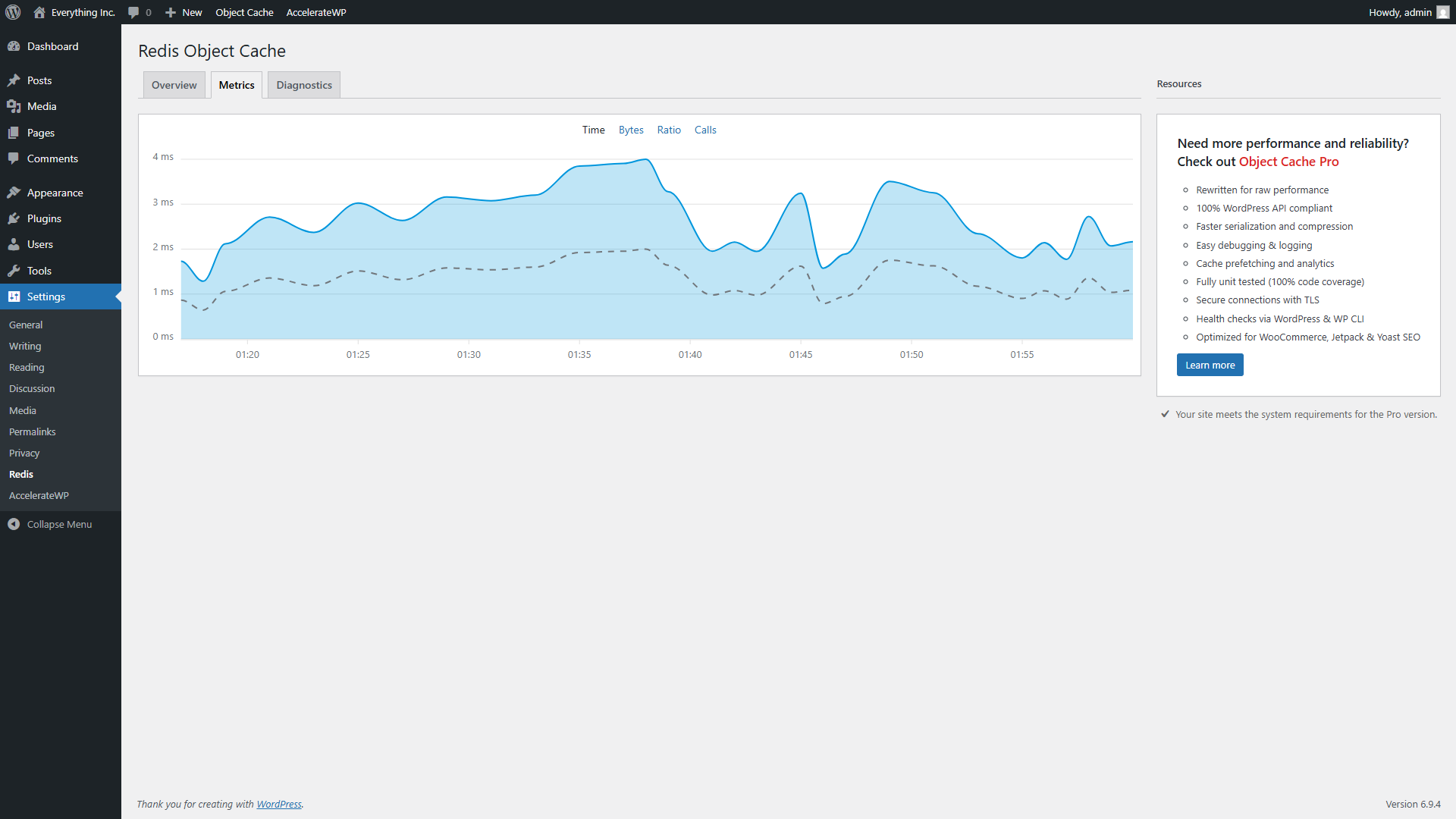
The graph tracks how long Redis takes to respond to queries over time. On a healthy site, you’ll see times in the 1 to 4 millisecond range. Spikes above that can indicate heavy server load or a large number of simultaneous queries.
The tab also lets you switch between Time, Bytes, Ratio, and Calls views. The Time view is the most useful for a quick health check. The Ratio view shows cache hit rates. A high hit ratio means Redis is serving most queries from memory rather than passing them to the database.
The Diagnostics tab
The Diagnostics tab shows a system information dump with connection details, software versions, and configuration values.
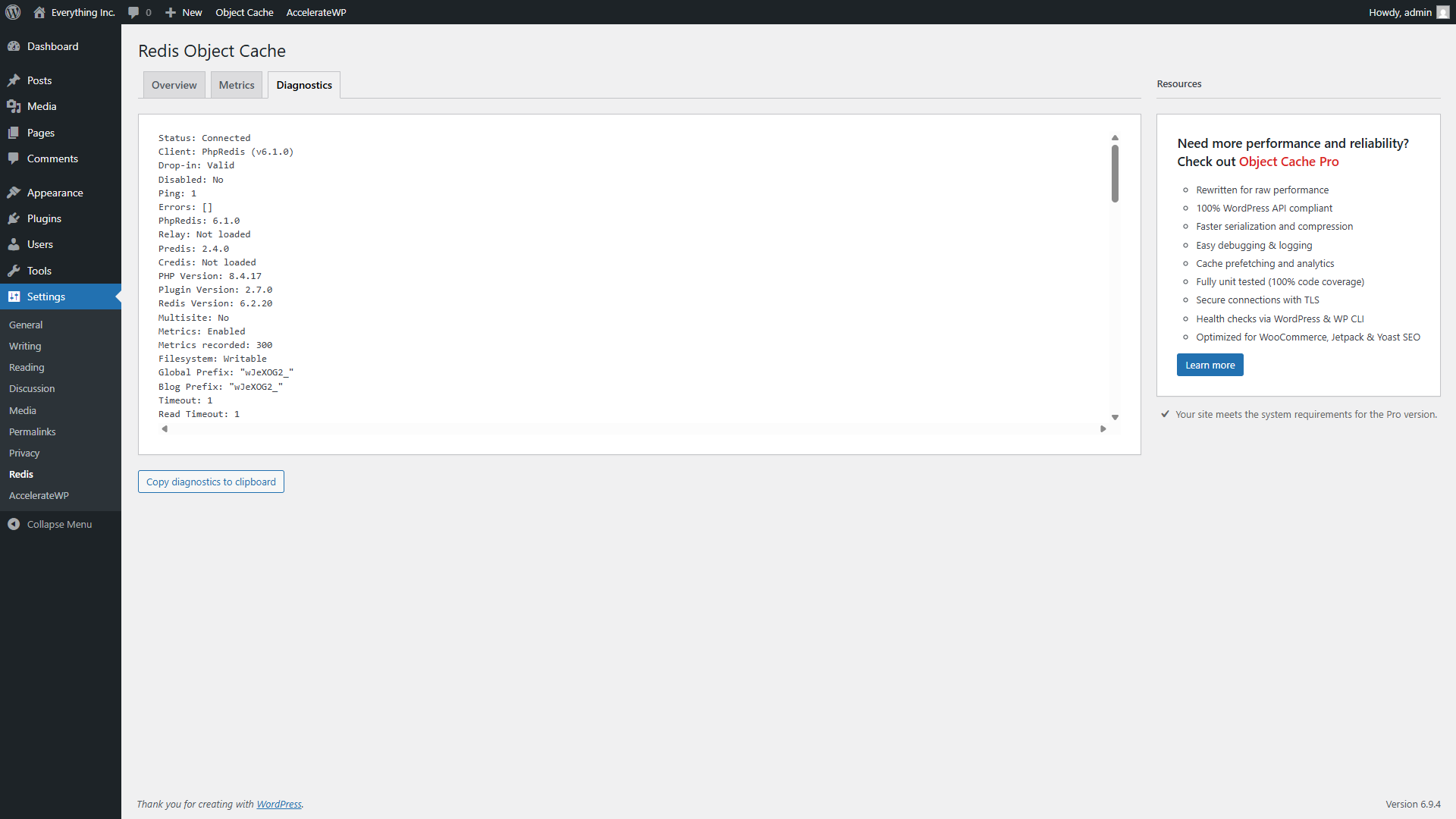
This tab is primarily useful if something goes wrong and you need to share technical details with support. Under normal operation, you won’t need it. Key lines to note:
- Status: Connected confirms Redis is running
- PhpRedis and Redis Version show the installed software versions
- Metrics: Enabled confirms the metrics graph is collecting data
- Errors: [] means no errors (the empty brackets are good)
You can click Copy diagnostics to clipboard to grab everything for a support ticket.
When to Flush the Redis Cache
Redis manages its own cache expiration automatically. Most of the time, you don’t need to clear it manually. WordPress updates the cached data when content changes.
Flush the cache when you:
- switch themes or make major design changes
- install, update, or remove several plugins at once
- notice stale data appearing (old settings persisting, outdated content showing in admin)
- troubleshoot an issue where a plugin isn’t behaving as expected
Go to Settings → Redis and click Flush Cache. WordPress rebuilds the object cache automatically as you continue using the site.
A Note About Other Redis Plugins
Some WordPress tutorials recommend installing the “Redis Object Cache” plugin by Till Krüss from the plugin directory. On STW WordPress hosting, this plugin is provided through the AccelerateWP Premium setup, so you should not need to install it manually. It’s the same plugin you see at Settings → Redis after Redis has been enabled in Plesk.
Do not install a second Redis or object caching plugin alongside it. Running two object caching layers creates conflicts and unpredictable behavior. If you see the Redis page in your sidebar showing “Connected,” the plugin is already doing its job.
If You’re on Shared Hosting Without Redis
STW’s standard shared hosting plans don’t include Redis or AccelerateWP. Object caching isn’t available on those plans.
That doesn’t mean your site is stuck. For most shared hosting sites, especially brochure sites and blogs with low logged-in traffic, page caching provides the largest performance improvement. Object caching matters most for sites with active admin use, logged-in users, or heavy database queries.
If your site has grown to the point where the admin feels sluggish and page caching alone isn’t enough:
- Keep your active plugin count lean. Deactivate and remove plugins you’re not using.
- Optimize your images before upload. Our guide to image optimization covers that workflow.
- Clean up database bloat. Our guide to database clean-up walks through it.
- Consider upgrading to an STW WordPress hosting plan. Our hosting comparison covers the differences. Redis, AccelerateWP, and the broader performance tooling come included.
These steps reduce database load from the other direction. There are fewer unnecessary queries, less orphaned data, and you have a leaner site overall.
Conclusion
Redis object caching is the second layer of the caching stack. Page caching handles public pages, but Redis handles the database queries behind everything else, including admin screens, logged-in user content, and the repeated lookups WordPress makes on every request.
Our next tutorial shifts from server-side optimization to something you control directly — how you prepare and optimize your images before they reach WordPress.
Next steps: