

Introduction
WordPress powers a huge share of the web, from personal portfolios to massive news sites and online stores. But what is WordPress? Is it a website builder? A blogging tool? Something you install on a server?
WordPress is open-source software that lets you build, manage, and publish a website. Once you understand the moving parts behind a WordPress site, the platform makes much more sense, whether you’re setting up your first site or just trying to figure out why everyone keeps recommending it.
By the end of this tutorial, you’ll understand WordPress hosting, how all the pieces of the WordPress system fit together, and whether WordPress is right for your needs.
What WordPress Actually Is
WordPress is a content management system (CMS), software for creating, organizing, and publishing content on the web without requiring you to write code from scratch. You install it on a web server, it connects to a database, and it gives you a browser-based admin panel where you control everything about your site.
Two things make WordPress different from most alternatives:
- It’s open-source. The source code is free to download, use, modify, and redistribute. Nobody owns it in a proprietary sense. A global community of developers maintains it, and you’re never locked into paying a single company for the right to keep your site running.
- It’s self-hosted. Unlike platforms such as Wix or Squarespace, WordPress doesn’t live on someone else’s proprietary system. You install it on a hosting account that you control. Your files, your database, and your content stay with you. If you decide to move to a different host next year, you take everything with you.
The combination of open-source code and self-hosting is why people choose WordPress to power everything from personal blogs to government websites. You shape the software around the project, not the other way around.
WordPress.org vs. WordPress.com
Something that catches a lot of people out early on: there are two websites with “WordPress” in the name, and they offer very different things.
- WordPress.org is the open-source project. It’s where you download the free WordPress software, browse the plugin and theme directories, and read the official documentation. When this series says “WordPress,” it means the software from WordPress.org, installed on hosting you control.
- WordPress.com is a commercial hosting service run by Automattic. It offers WordPress sites on its own infrastructure, with tiered plans that range from a limited free option to expensive business and enterprise tiers. On the cheaper plans, you face restrictions, and your site runs on Automattic’s servers rather than hosting you choose yourself.
WordPress.com’s restrictions can feel a lot like the closed platforms we compare WordPress against in Part 2. The full flexibility of WordPress, the kind this series teaches, comes from using the open-source software on your own hosting. That is the path STW’s hosting plans are built for.
The Five Pieces of a WordPress Site
A WordPress website is several pieces working together. Understanding what each piece does is the single most useful thing you can learn before you start building.
1 — The hosting account
Your hosting account is the physical home for your website. It provides the server space, the processing power, and the network connection that makes your site available on the internet. WordPress runs on a server, and that server is what your hosting provider gives you.
At ServeTheWorld, you have several options for hosting. Shared hosting is the general-purpose option where your site shares server resources with other customers. WordPress Hosting is tuned specifically for WordPress, with tools like AccelerateWP, Redis Cache (a system that keeps frequently used data in fast memory so your pages load quicker), and WordPress Toolkit included. Both options use NVMe storage, a modern, faster type of solid-state drive, and both run on current server hardware.
The important thing to understand right now is that WordPress is the software and hosting is the environment. They are separate concerns. We’ll discuss the hosting decision in more detail in Part 4.
2 — WordPress Core
WordPress Core is the software itself. It’s the codebase that handles users, content creation, media management, the admin dashboard, the block editor, and the basic rules for how your site generates pages. When people say “WordPress,” they usually mean Core plus whatever themes and plugins have been added on top.
Core is maintained by a large open-source community and receives regular updates for security, performance, and new features. All extension and customization happens through themes and plugins, which sit on top of Core and work with it rather than modifying Core files directly.
3 — The database
Every WordPress site has a database running behind it. Think of it as a structured filing cabinet where your content is stored: posts, pages, user accounts, settings, comments, plugin configurations, and more. Most WordPress sites use MySQL or MariaDB, two closely related database systems that your hosting provider sets up for you. In normal use, WordPress handles all the database interaction for you so you don’t need to worry about it too much.
When someone visits a WordPress site, the server receives the request, WordPress asks the database for the relevant content, applies the active theme’s design, and sends the finished page back to the visitor’s browser.
We’ll discuss database management on STW further in the installation tutorial. Right now, the takeaway is simpler: the database is where your content is stored, and WordPress is the software that reads and writes it.
4 — Themes
A theme controls how your site looks. It defines the layout, the typography (fonts and text styling), the colors, the header and footer structure, and the templates used for different kinds of pages. When you activate a theme, you’re telling WordPress how to present your content visually.
Themes display content, not create it. The same blog post will look completely different under two different themes, but the words, images, and metadata stay the same in the database. Keeping this separation between content and presentation is one of the reasons WordPress is so flexible: you can change your entire site design without losing a single page.
We will cover theme selection in depth in Part 7, where the focus is on choosing lightweight themes that load fast and stay maintainable.
5 — Plugins
Plugins add functionality that WordPress Core doesn’t include out of the box. Need a fancy contact form? There’s a plugin for that. Need SEO (search engine optimization) tools, backup automation, caching, an online store, or a booking system? Plugins handle all of it.
The WordPress plugin ecosystem is absolutely massive. Plugins cover nearly every feature a website might need. This is one of WordPress’s strongest advantages over closed platforms: if you need a specific capability, you can usually find a plugin that provides it, or hire someone to build one.
Plugins need to be chosen carefully, though. Every plugin you add is code running on your server. A poorly built or abandoned plugin can slow your site down, create security holes, or conflict with other plugins. Installing everything that looks cool is a common beginner mistake, and it’s one of the fastest ways to make a new site feel sluggish or overcomplicated. The better habit is to add plugins deliberately, keep them updated, and remove the ones you stop using.
Plugins come up throughout this series. Security plugins in Part 18, backup plugins in Part 19, SEO plugins in Part 20, and performance-related tools in the caching and optimization section.
How the Pieces Fit Together
It helps to see where each piece sits in relation to the others. Think of it as a stack:
| Layer | What it is | Where it lives |
|---|---|---|
| Your domain | The address visitors type (e.g., yourdomain.com) |
Registered with a registrar; DNS points it to your server |
| Hosting account | The server environment that runs your site | Your hosting provider (e.g., ServeTheWorld) |
| Files | The WordPress software, theme files, plugin files, and uploaded media | Stored in your hosting account |
| WordPress Core | The CMS software | Installed in your hosting account’s web files |
| Database | Structured storage for all content and settings | Typically runs on the same server, accessed by WordPress automatically |
| Theme | Controls design and layout | Installed inside WordPress, stored in the wp-content/themes/ folder |
| Plugins | Add features and functionality | Installed inside WordPress, stored in the wp-content/plugins/ folder |
| Your content | Posts, pages, images, menus, settings | Stored in the database and the wp-content/uploads/ folder |
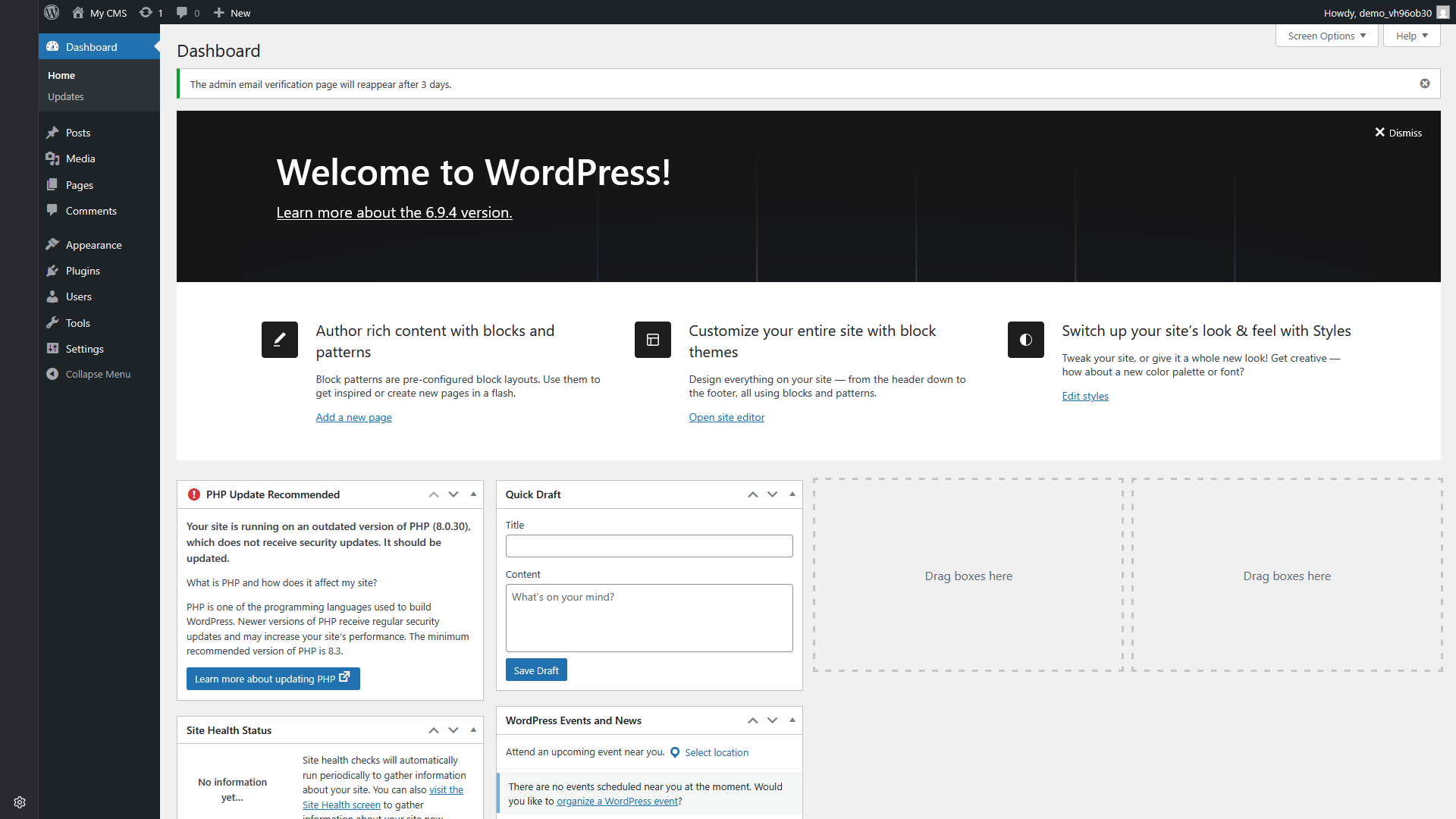
This might seem complex at first, but most of the time, you just interact with it via the user-friendly WordPress admin dashboard. The WordPress admin dashboard is your control panel for most of this. From a browser, you log in at yourdomain.com/wp-admin and manage content, themes, plugins, users, and settings from there.
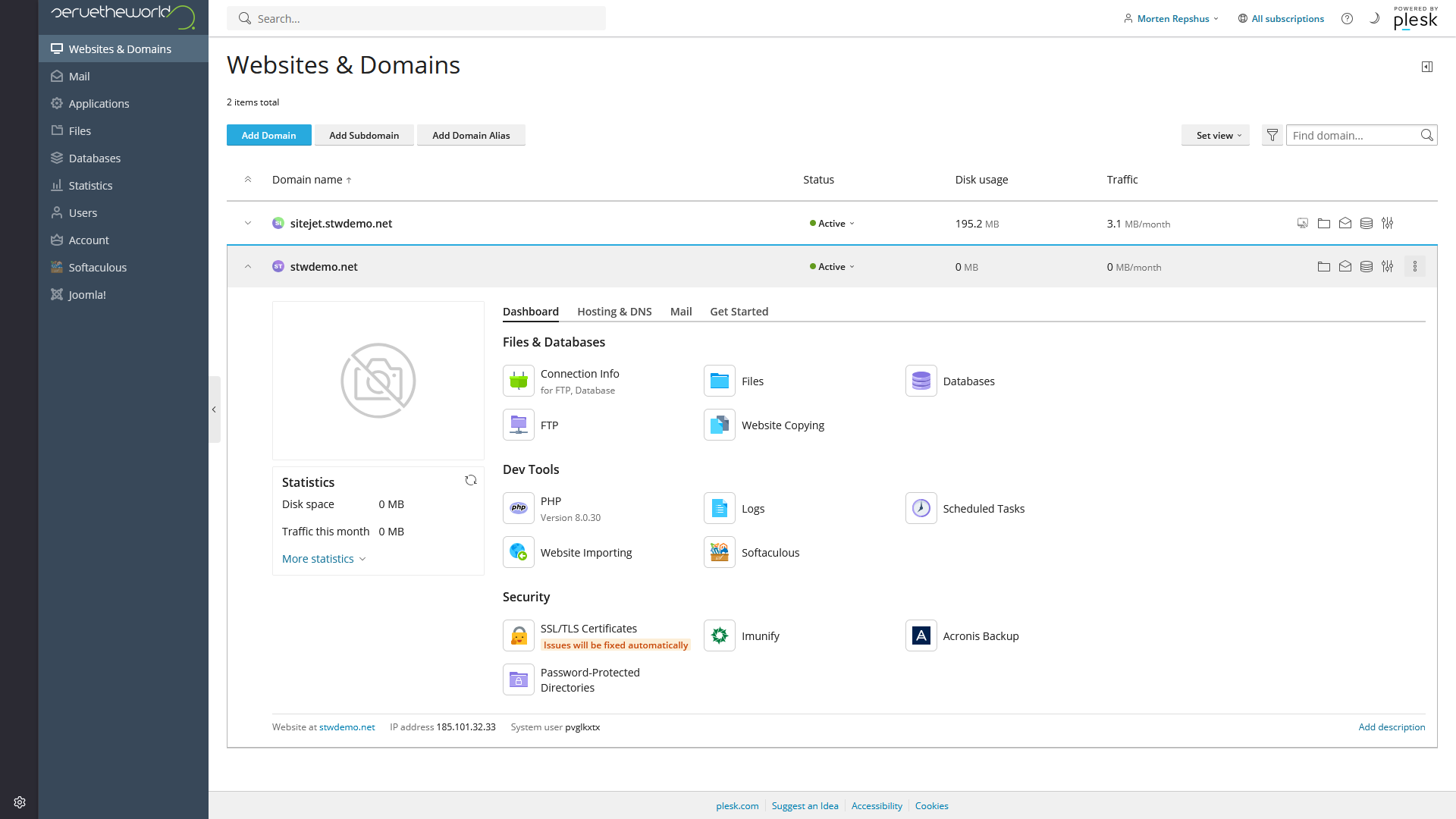
On STW hosting, there’s also a hosting-level control panel. The common path is my.servetheworld.net → Products → My Products → Manage → Plesk, which opens Plesk. Plesk handles server-side tasks like database management, file access, PHP settings, and backups. WordPress Hosting plans also include WP Toolkit, a Plesk add-on that simplifies WordPress installation, updates, staging, and security checks.
The two panels serve different purposes. The WordPress dashboard manages your site. Plesk manages the hosting environment your site runs in.
Why WordPress Still Makes Sense Today
WordPress has been the dominant CMS for years. That staying power isn’t accidental.
- You own your site. Your content sits in a database on a hosting account you control. You can export it, back it up, migrate it, or rebuild it on a completely different server. No vendor can shut you out of your own data.
- You choose where it runs. Unlike closed platforms, WordPress doesn’t tie you to a single provider. If your current host raises prices, slows down, or stops meeting your needs, you move. Your theme, your plugins, your content, and your database all come with you.
- The plugin ecosystem is unmatched. Whatever your site needs to do, there’s almost certainly a plugin or a combination of plugins that handles it. Contact forms, analytics, SEO, caching, e-commerce, memberships, multilingual support, and thousands of other capabilities are available without writing custom code.
- It scales with your ambitions. A WordPress site can start as a five-page brochure on shared hosting and grow into a full e-commerce operation on a VPS (Virtual Private Server, where you get your own dedicated resources) or dedicated server, without switching platforms.
- It has a massive support ecosystem. The WordPress community is one of the largest in open-source software. When you run into a problem, the odds are strong that someone has already solved it and written about it. Official documentation, community forums, developer blogs, and video tutorials cover almost every scenario.
What You Still Need Alongside WordPress
WordPress handles content, design, and functionality, but hosting is a separate requirement. Your host is responsible for the server maintenance, infrastructure security, and firewalls. Meanwhile, you’re responsible for managing backups, either through your hosting dashboard or a dedicated WordPress plugin.
Conclusion
WordPress is powerful open-source website software that you install on a hosting account you control. It offers you a browser-based dashboard to manage content, design, and functionality. WordPress keeps the core system, themes, database, and plugins separate, making the system highly flexible. And, if you ever need to, you can move the entire operation to a different host without starting over.
In Part 2, we put WordPress side by side with closed site builders like Wix and Squarespace. The real question is which gives you more control over your own site in the long run.
Next steps: