

Introduction
If your site is set up from our WordPress dashboard tutorial, the next decision is your theme.
A lot of first-time WordPress users treat the theme as the biggest decision they’ll make. It does shape almost everything a visitor sees, but the decision is more forgiving than it looks. One of the benefits of WordPress is your content sits in a WordPress database and stays there no matter which theme is active. Switch themes and your content remains, with only the presentation changing.
This tutorial covers what themes control, why lightweight themes perform better, and then walks you through installing and configuring Astra as a practical starting point. By the end, your site will have a proper theme with custom typography and a working header layout.
What a Theme Actually Controls
A theme is a collection of files that tells WordPress how to display your content. It handles layout, typography, colors, header and footer structure, menu locations, and how different content types are presented. A blog post, a category archive page, an image gallery, and a 404 error page each look different because the theme provides separate templates for each one.
What the theme does not control is your actual content. Posts, pages, images, and settings are all stored in the WordPress database separately from the theme files. That separation between content and presentation is one of WordPress’s most practical design decisions, and it means you can redesign a site without rebuilding it.
Core functionality like caching, SEO, contact forms, and security belongs in plugins or your hosting environment. When a theme bundles these features directly into its own code, it creates dependencies that make switching themes much harder later. A well-built theme instead handles presentation and stays out of the way.
Why Lightweight Themes Are Worth It
Every time a visitor loads a page on your site, their browser downloads and processes the theme’s code before any of your content appears. A theme that ships dozens of CSS files, registers scripts for features the visitor never sees, and initializes everything at once burns time and bandwidth on every single page load.
Visitors do not give slow pages much grace. Google’s web.dev performance guidance says 53% of users abandon sites that take longer than three seconds to load.
A lightweight theme won’t solve every speed problem on its own, but it keeps you from wasting that narrow window on code your visitors never asked for. They load a small default footprint and add code only for features that are in use on a given page.
Astra (the lightweight theme we discuss later in this tutorial) has a small base load in a vanilla installation, giving you a lot of headroom for plugins, images, and content before performance becomes a concern.
Speed effects more than user experience. Google’s Core Web Vitals, a set of performance measurements used as search ranking signals, factor directly into how your site places in search results. A fast-loading theme starts those measurements in good shape. Heavy themes make search engine placement recovery harder regardless of what performance plugins you add later.
At STW, WordPress hosting plans include AccelerateWP for server-level caching. It works best when the theme itself cooperates. Starting with a lightweight theme means everything from caching to image optimization, compounds rather than trying to compensate for issues in your theme.
The problem with multipurpose themes
Search “best WordPress themes” and you’ll find Avada, Divi, and similar multipurpose themes featured prominently. These are popular products with millions of users, but they were built around a different philosophy. They load everything by default and let you disable what you don’t want.
The trouble is that “disabled” and “not loaded” are two different things. Many multipurpose themes register scripts and styles on every page regardless of whether those features are in use. They also tend to include proprietary page builder functionality that;ll keep you locked in to using that theme. Move to a different theme and your layouts may break because they depend on that theme’s specific shortcodes (special tags that a theme or plugin converts into HTML) or structure.
What matters is what your site looks like with only your content and only the features you actually need. That stripped-down profile is what a lightweight theme starts with by default.
Installing Astra
For our example of a lightweight theme, we use Astra. Astra is installed the same way as any free WordPress theme, directly from the WordPress theme directory inside your admin panel. In your first day in the WordPress dashboard, you deleted the extra default themes and kept Twenty Twenty-Five as your active theme. Now you’ll replace it with something built for real sites.
- In your WordPress admin, go to Appearance → Themes.
- Click Add New Theme at the top of the page.
- Type “Astra” in the search box.
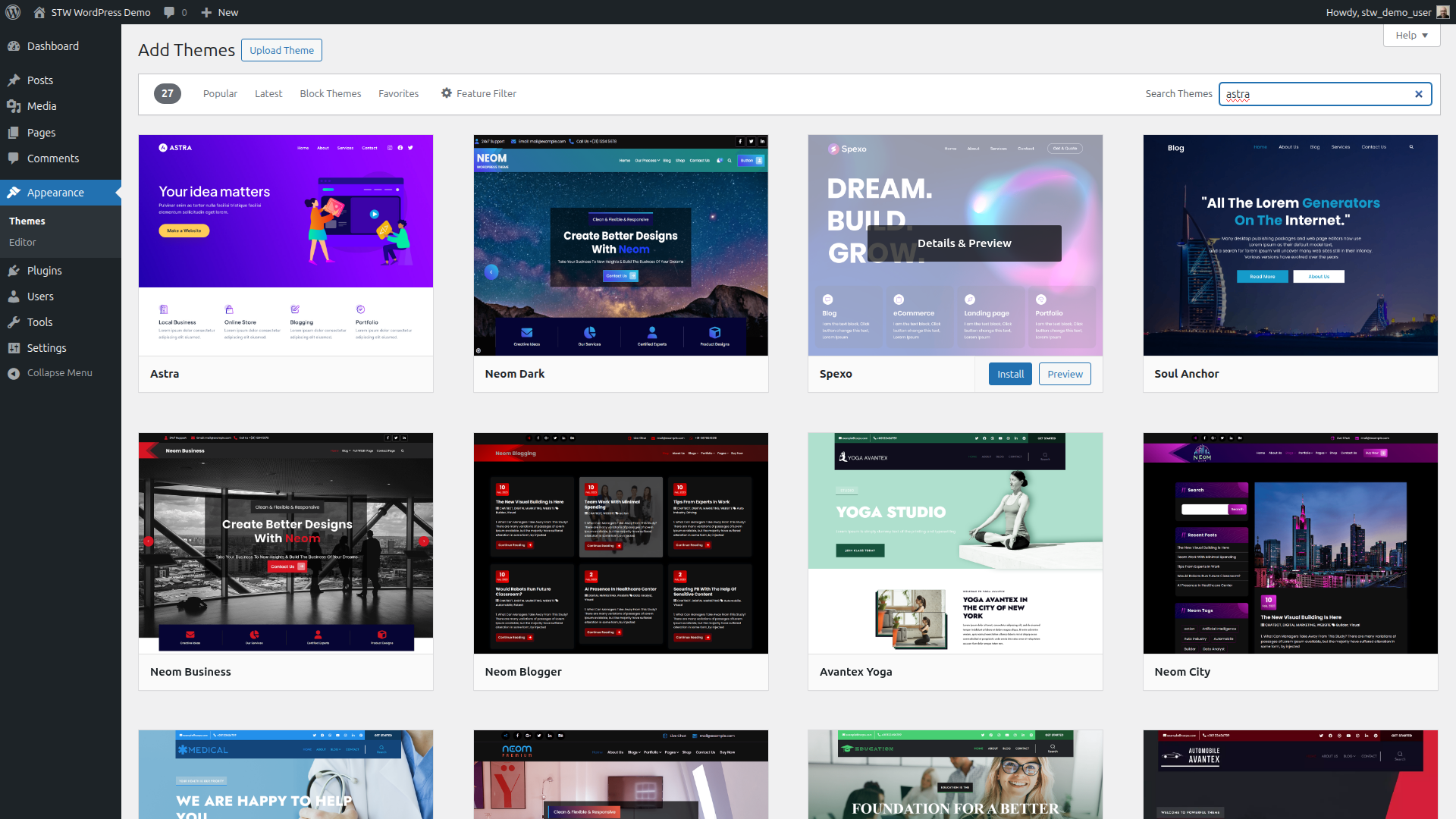
Astra will appear near the top of the results. It’s developed by Brainstorm Force and has millions of active installations.
- Hover over the Astra card and click Install. WordPress downloads the theme files to your server. After a few seconds, the button changes to Activate.
- Click Activate.
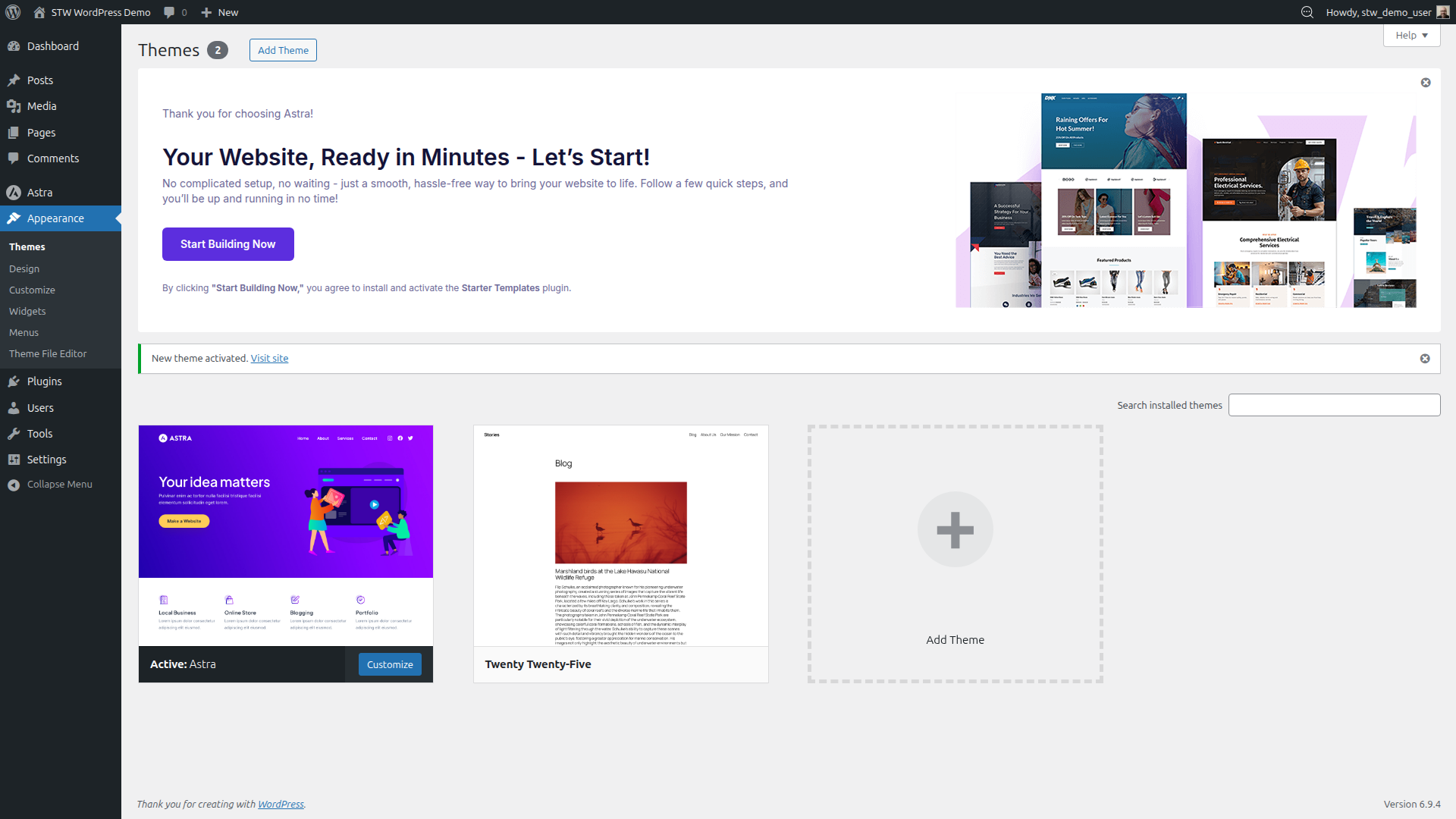
Astra is now running your site. The previous default theme stays installed as a fallback, which is fine. WordPress recommends keeping one backup theme available.
If you visit the front end of your site now, you’ll notice the layout has changed immediately. Astra applies its own default styling for the header, typography, and overall structure. All your content is still there, exactly as you left it. Only the presentation is different.
The Astra Dashboard
After activating Astra, a new Astra item appears in the left-hand admin menu. Click it to open the Astra dashboard.
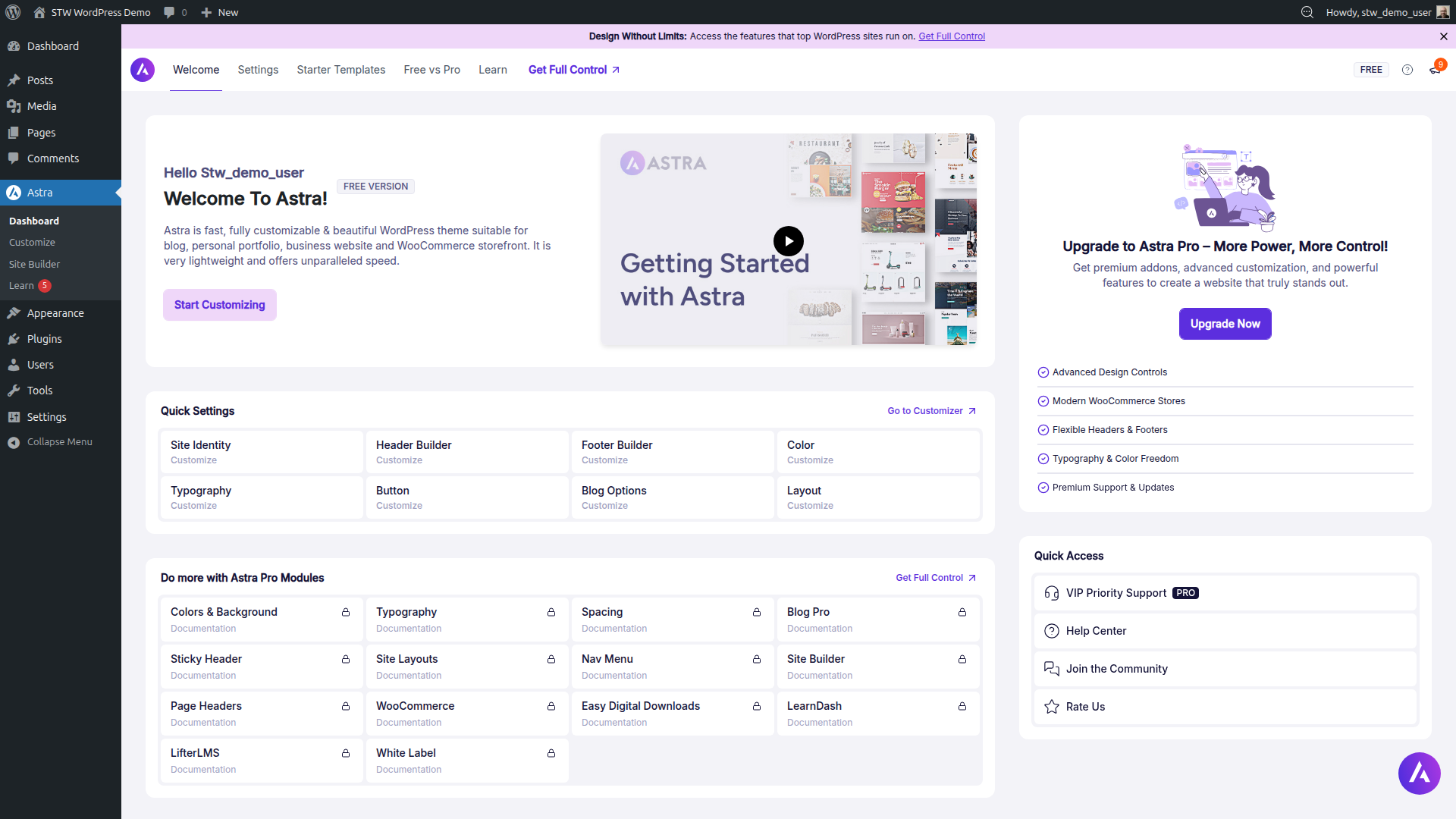
The dashboard gives you shortcuts to the Customizer, Starter Templates, useful links, and your current Astra version. You don’t need to configure anything on this page right now, but it’s a useful home base when you want to find Astra-specific options later.
Setting Your Site Style in the Customizer
The Customizer is where you control how Astra presents your site, from fonts and colors to header layout and container widths. Open it from Appearance → Customize or through the link on the Astra dashboard.
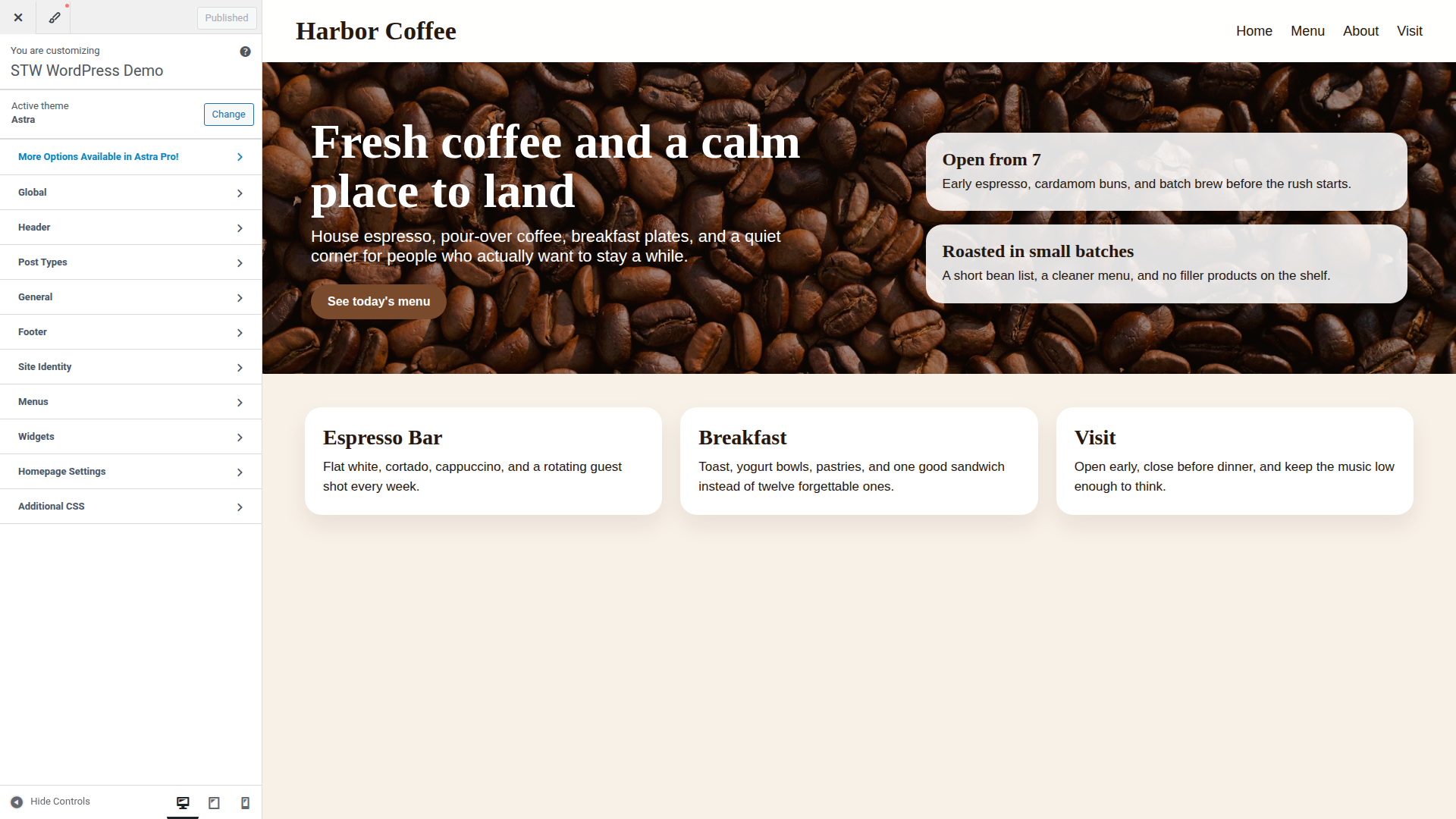
The left panel shows your customization categories while the right side displays a live preview. Every change you make in the left panel updates the preview in real time, so you can see exactly what visitors will see before you publish anything.
Global settings
Click Global to find settings that apply across your entire site.
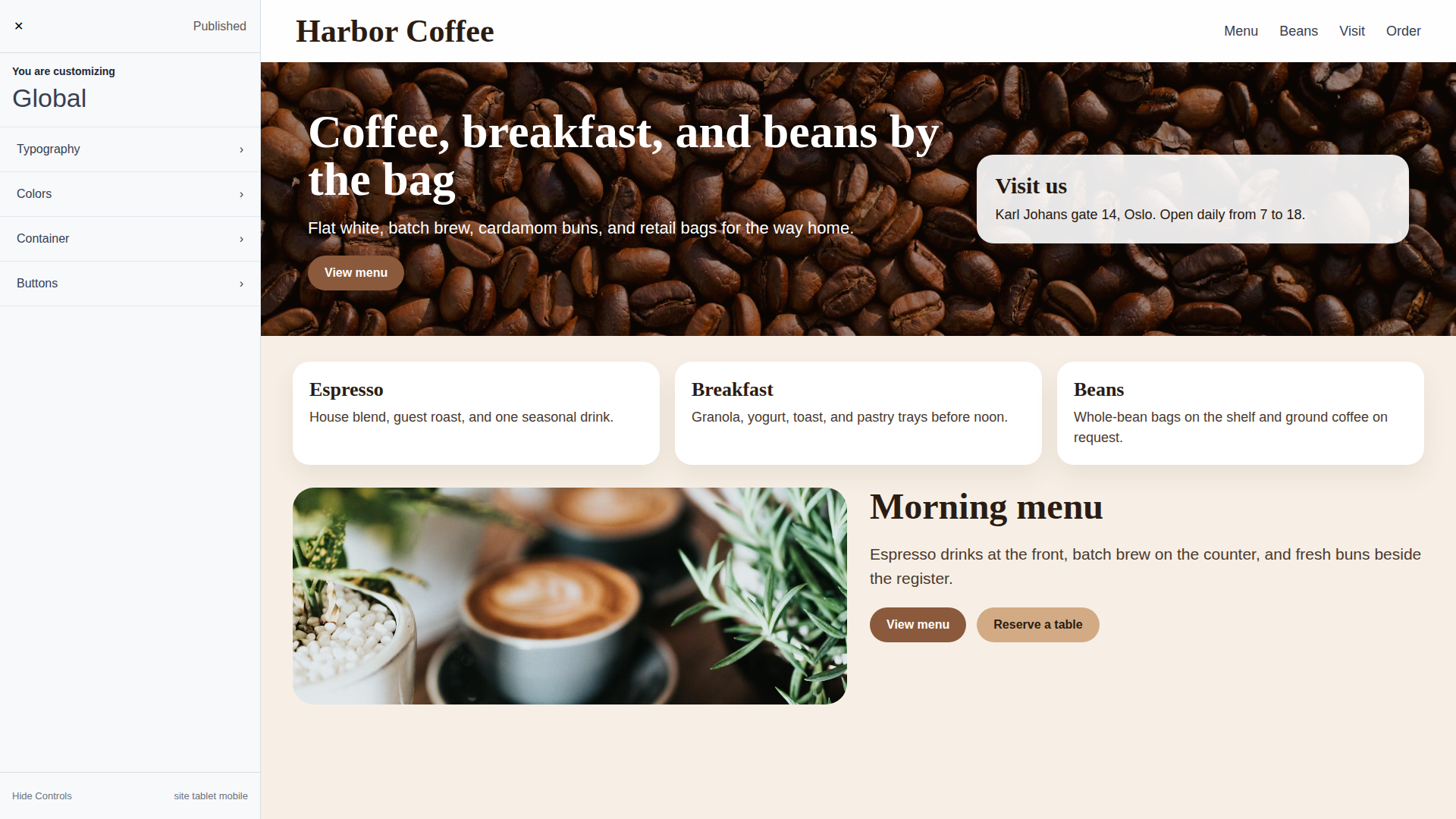
This is where you set your site’s color palette and base spacing. The Colors subsection lets you pick primary and accent colors that Astra applies consistently to links, buttons, and headings throughout the site. If you have brand colors, set them here first. Everything else inherits from these choices.
Typography
Typography controls the fonts and sizing used site-wide.
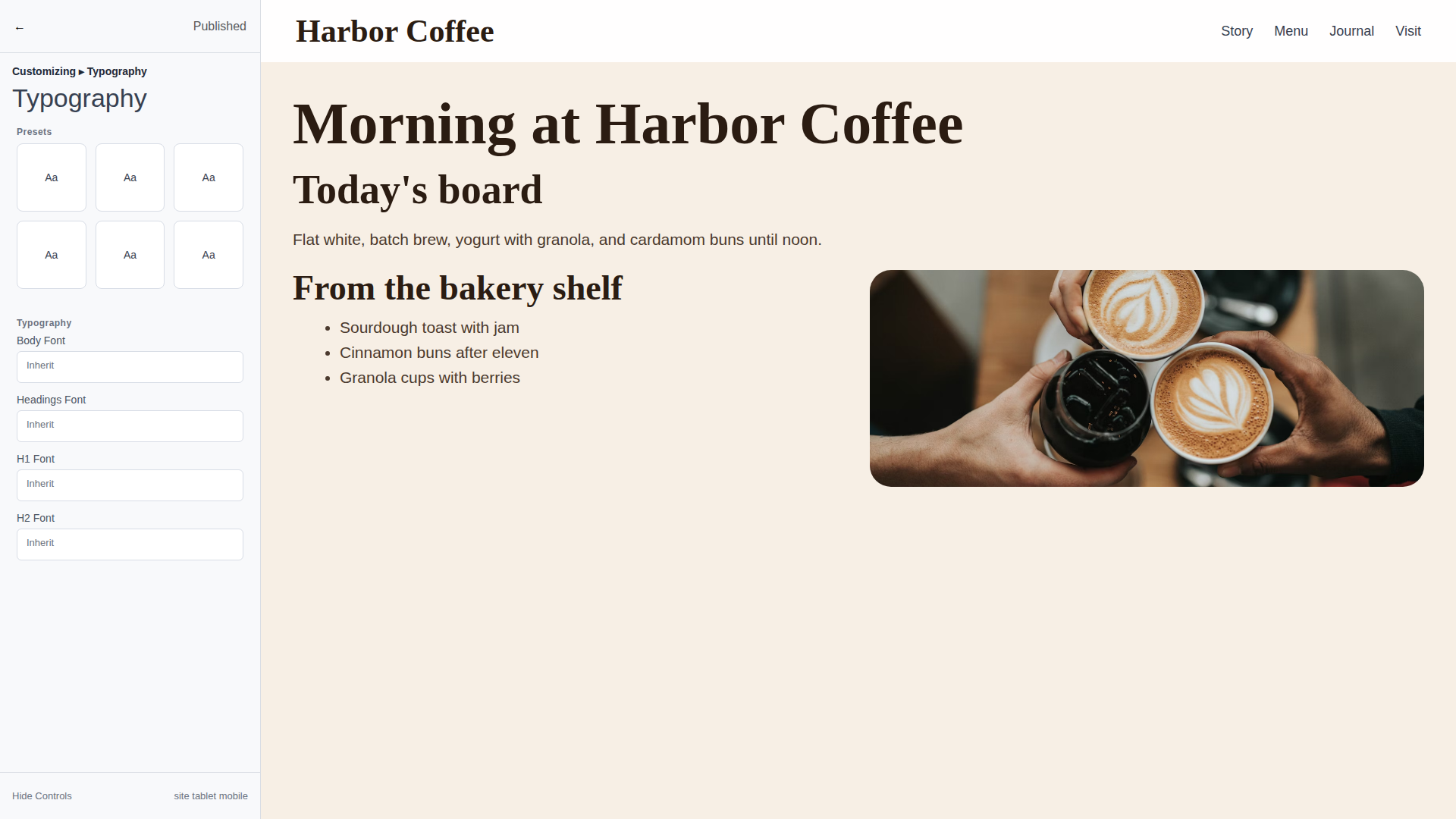
You can set separate fonts for body text and headings. Astra connects to Google Fonts by default, giving you hundreds of options. For body text, stick with something highly readable at small sizes. Headings give you more room to pick something with personality. Set the base font size here and Astra will scale headings proportionally.
If you’re not sure about fonts yet, Astra’s defaults are reasonable. Come back to this section once you have real content on the page and can see how different choices look with your actual text.
The Header and Footer Builder
Click Header Builder in the Customizer sidebar to open Astra’s drag-and-drop header editor.
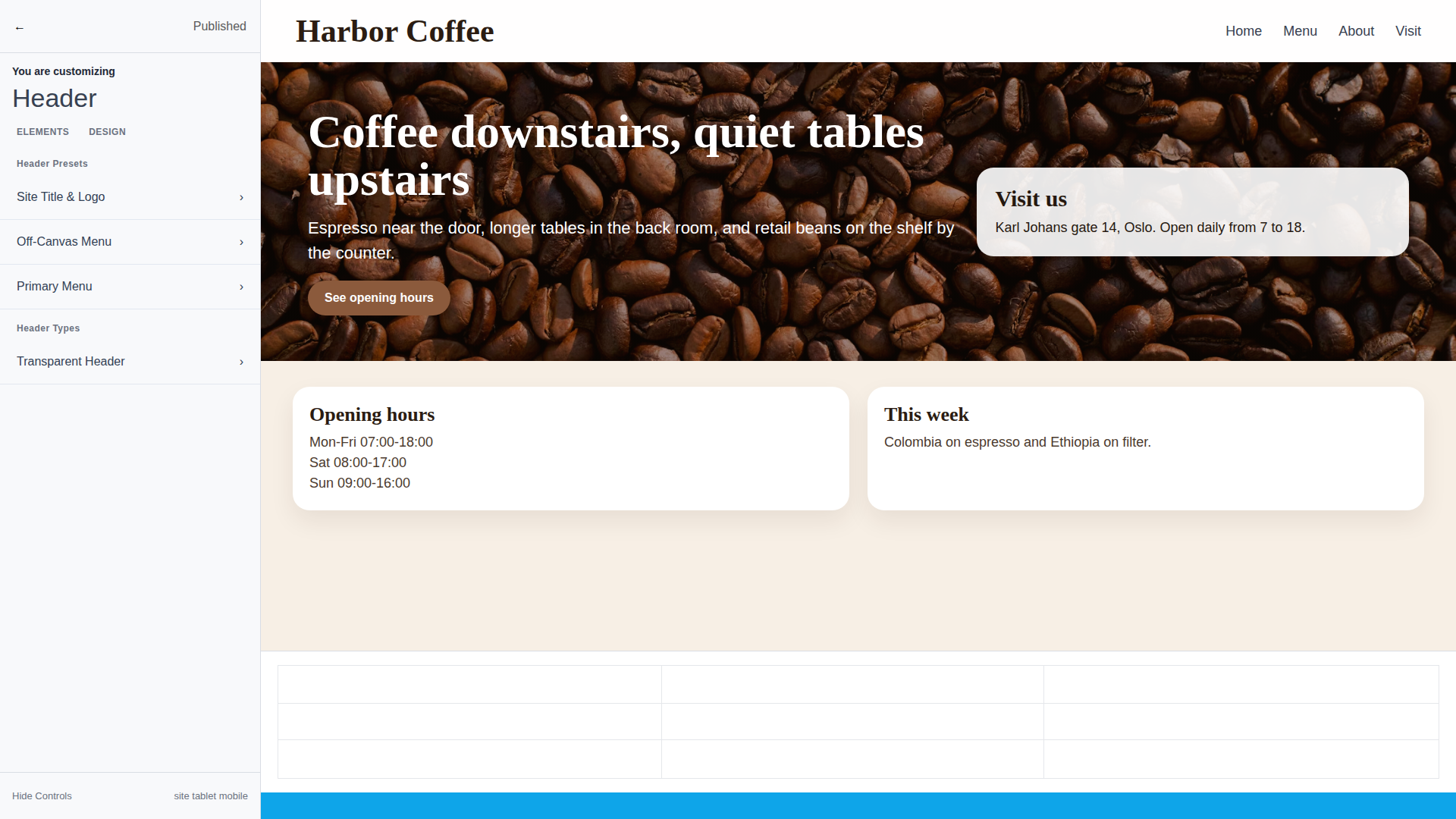
The builder splits your header into rows and columns. You can drag components like your site logo, navigation menu, search icon, and a call-to-action button into different positions. The visual grid at the bottom of the screen shows where each element sits.
This is where Astra handles the structural header and footer work that many themes require plugins or custom code for. You can build a header with a logo on the left, navigation in the center, and a button on the right, all without touching code. The Footer Builder works the same way, available from its own section in the Customizer sidebar.
For a first site, a clean header with your logo and a main navigation menu is enough. You can revisit the builder later as the site grows and your navigation needs become clearer.
Starter Templates — An Optional Shortcut
Astra offers a companion plugin called Starter Templates that provides full site designs you can import with a few clicks. They’re complete starter site layouts with sensible structure, typography presets, and placeholder content you replace with your own.
To try them, go to Plugins → Add New Plugin, search for “Starter Templates,” and install and activate the plugin by Brainstorm Force. Then visit Appearance → Starter Templates to browse the library.
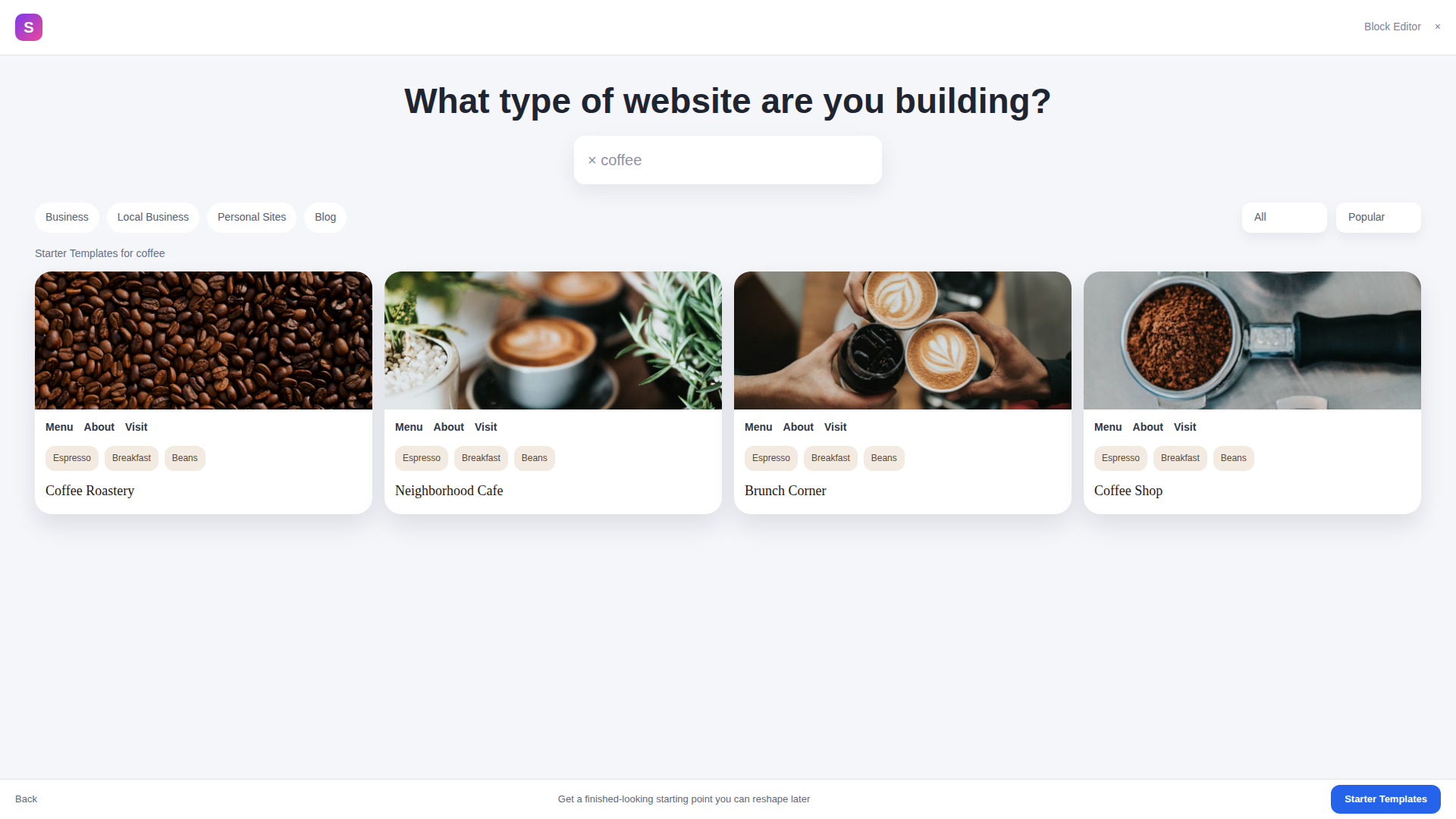
This is entirely optional. If you’d rather build your pages from scratch using the block editor or Elementor, skip Starter Templates. They’re a time-saver for people who want a finished-looking site to work from, not a requirement for using Astra.
Other Lightweight Themes Worth Knowing
Astra is the reference theme in this series, but it isn’t the only solid option. If you’re doing your own research, many alternatives follow the same lightweight philosophy.
- GeneratePress has a similar performance profile with a slightly more developer-oriented customizer and a strong free tier.
- Kadence leans into the block editor with growing Full Site Editing support. The free version includes a useful component library.
- Hello Elementor is an extremely minimal theme built by the Elementor team as a blank canvas. It works best when you want Elementor to handle most of the page design, especially if you plan to use Elementor Pro’s Theme Builder. More on this in Part 9.
- Twenty Twenty-Five is the current default WordPress theme. It’s fine for testing, but limited for production sites that need real customization options.
A theme that loads fast, updates regularly, works cleanly with the block editor, and doesn’t create proprietary lock-in is a good theme. Astra checks those boxes consistently, and so do the alternatives listed here.
Conclusion
Your site now has a real theme running. Astra gives you a lightweight base with proper customization tools built in, from global typography and colors to the drag-and-drop header builder. Everything you set up here carries forward into the rest of the series, whether you build pages with the native block editor or add Elementor later.
Next steps: