

Introduction
WordPress doesn’t give search engines much understanding of what’s on your pages out of the box. It’ll generate a basic page title from whatever you named your post, and modern WordPress includes a basic XML sitemap, but it won’t add structured data that tells Google whether your site belongs to a business or a person, or give you a dedicated place to write the meta description Google may use in search results.
Despite AI changing the way people search for things online, webmasters still use an SEO plugin in WordPress because the fundamentals still matter. Search tools need clear titles, crawlable pages, readable content, internal links, and structured information they can understand.
This tutorial explains what SEO plugins handle and how you might choose between the two most popular options – Yoast and Rank Math. We’ll show you how to set each of these up, too.
What SEO Plugins Handle for You
An SEO plugin handles the technical and editorial basics that search engines expect from a well-built site. It also gives you useful prompts while you write, so you can catch missing titles, thin descriptions, weak internal links, and other problems before you publish.
Meta titles and descriptions
Every page on your site can have a meta title and meta description that search engines may use in results. WordPress generates a basic title from your page name, but it gives you no separate description field at all. An SEO plugin adds editable fields for both, right in the post editor, so you give Google a better title and summary to work with when your page appears in someone’s search.
Meta descriptions don’t directly boost your ranking, but they affect whether someone clicks your result or keeps scrolling. The difference between “Home – My Business” and “Bespoke furniture built in Oslo, delivered across Norway” is the difference between being invisible and getting a visit. You’re writing the pitch that appears on the search results page, and without an SEO plugin, WordPress gives you no way to write it.
XML sitemaps
An XML sitemap is a file that lists every page on your site in a format search engines can easily read. Think of it as a table of contents you’re handing directly to Google. It helps search engines discover new content and understand how your site is organized.
WordPress added basic sitemap support in version 5.5, but SEO plugins generate more detailed sitemaps and give you control over which content types are included, so you can keep thin or private pages out of Google’s index.
On-page content analysis
Both plugins watch as you write and offer suggestions in real time. They’ll flag whether you’ve used your target keyword in the title, headings, and body text, whether your sentences are running long, whether you’re linking to other pages on your site, and similar factors that tend to correlate with pages that perform well in search.
These scores are useful prompts, but don’t treat them as gospel. A green light from Yoast or a 100/100 from Rank Math means your page follows their checklist, not that it deserves to rank. Thin content that ticks every SEO box will typically still lose to a helpful page that skips a few checks. Write for your reader first, and use the plugin scores to catch things you missed.
Structured data and schema
Structured data (also called schema markup) is code that tells search engines what your content actually represents. It might describe a business with an address and opening hours, an article with an author and publish date, or a product with a price and star rating.
When Google understands this structure, your page may become eligible for richer search results, the kind with star ratings, business hours, product details, or other enhanced details that make your listing more eye-catching than a plain blue link.
Generative AI search visibility
Search now includes more than a list of blue links. Google AI Overviews, AI Mode, ChatGPT, Perplexity, and similar tools can summarize answers before someone clicks through to a website. SEO plugins help here in the same way they help traditional search. They make your pages easier to crawl, describe, structure, and understand.
Current Google guidance treats AI search visibility as an extension of normal SEO fundamentals. A plugin can help you manage the creation of content, but you still need is clear, well-structured content with accurate titles, descriptions, internal links, and schema that matches what visitors can actually see on the page.
Yoast vs. Rank Math — How They Compare
Two plugins dominate the space. Yoast SEO is trusted by over 13 million users and has been around since 2010. Rank Math has over four million active installations and has grown fast by offering more features in its free tier. Both are well-maintained and actively developed, and they’ve both been proven on serious production sites.
Pricing
Both Yoast and Rank Math have free tiers and premium subscriptions.
Yoast’s free version gives you one focus keyword per page, readability analysis, XML sitemaps, and structured data. If you want to optimize for multiple keywords on a single page, manage redirects, or get internal linking suggestions, those are locked behind Yoast Premium, currently listed at $118.80 per year per site before VAT.
Rank Math’s free version is more generous. You get up to five focus keywords per page by default, a built-in redirect manager (supporting 301, 302, and other redirect types), a 404 error monitor that catches broken links visitors are hitting, and Google Search Console integration built right into your WordPress dashboard.
Rank Math PRO is currently advertised at $107.39 per year before taxes. It adds rank tracking for 500 keywords, more advanced schema features, and tools like AI Link Genius for internal linking.
Rank Math’s PRO license covers unlimited personal websites that you own, while Yoast charges per site. For a single site, the price gap is close enough that you should just choose the plugin with the features you need. If you manage multiple WordPress sites, Rank Math’s licensing model saves real money because you’re not paying per site.
Content analysis
Yoast separates its feedback into two tracks.
- SEO analysis checks your focus keyword usage, meta description length, and internal linking.
- Readability analysis runs separately, scoring your writing for sentence length, passive voice, paragraph structure, and transition words using the Flesch-Kincaid reading scale.
This can help you focus on writing quality first and keyword placement second, which is a healthy habit when you’re learning to write for the web.
Rank Math combines everything into a single score from 0 to 100, displayed in the editor sidebar. It rolls keyword density, heading structure, link counts, and basic readability into one number. The score is motivating and easy to scan, but the feedback on individual items tends to be less detailed than what Yoast gives you.
If you’re trying to understand why a suggestion matters, Yoast’s explanations are usually more helpful.
Who each plugin suits best
Yoast is a little easier to get started with for those without any SEO experience. If you want an SEO plugin that guides you without overwhelming you, especially if SEO is new territory, Yoast is the easier starting point.
Rank Math shows more controls from the start. A modules dashboard lets you toggle features like the 404 monitor, redirect manager, schema markup, and sitemap controls individually. That’s powerful if you want visible control over every piece, but it can feel busy if you’re new to SEO and not sure what half the modules do.
Yoast is the safer pick if you want fewer decisions. Rank Math is the better pick if you already know you want redirect management or multi-keyword tracking without paying for a premium tier.
One Plugin at a Time
It’s best to run only one full SEO plugin at a time. Having both Yoast and Rank Math active on the same site creates duplicate sitemaps, conflicting structured data, and competing meta tags. Google sees contradictory signals from the same site, and that can hurt your visibility rather than help it.
If you want to try both before committing, install one, explore it for a few days, then deactivate and delete it before activating the other. Both plugins include import tools that carry over your titles, descriptions, and settings, so switching later doesn’t mean starting from scratch.
Setting Up Yoast SEO
Install Yoast the same way you’d install any WordPress plugin. Go to Plugins → Add Plugin, search for Yoast SEO, click Install Now, then Activate.
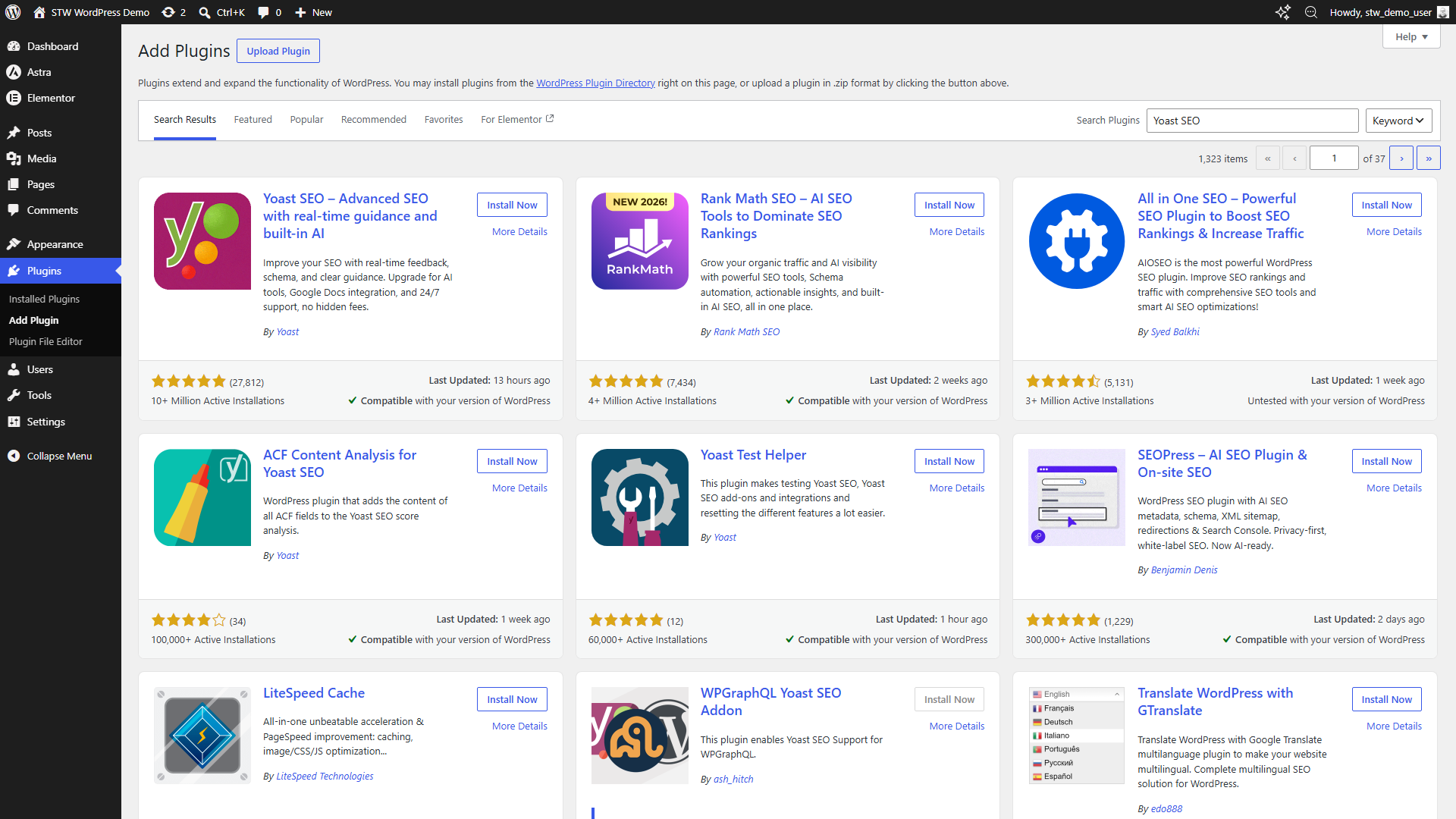
After activation, Yoast adds a new Yoast SEO menu to the sidebar. Open Yoast SEO → General and click the First-time configuration tab to start the setup wizard. Yoast walks you through five steps, and most of them take under a minute.
Step 1 — SEO data optimization
The first step runs an SEO data optimization. Yoast scans your existing content and builds an internal index it uses later for linking suggestions and content analysis. On a fresh site with a few pages, this finishes in seconds. On a larger site with hundreds of posts, it can take a minute or two.
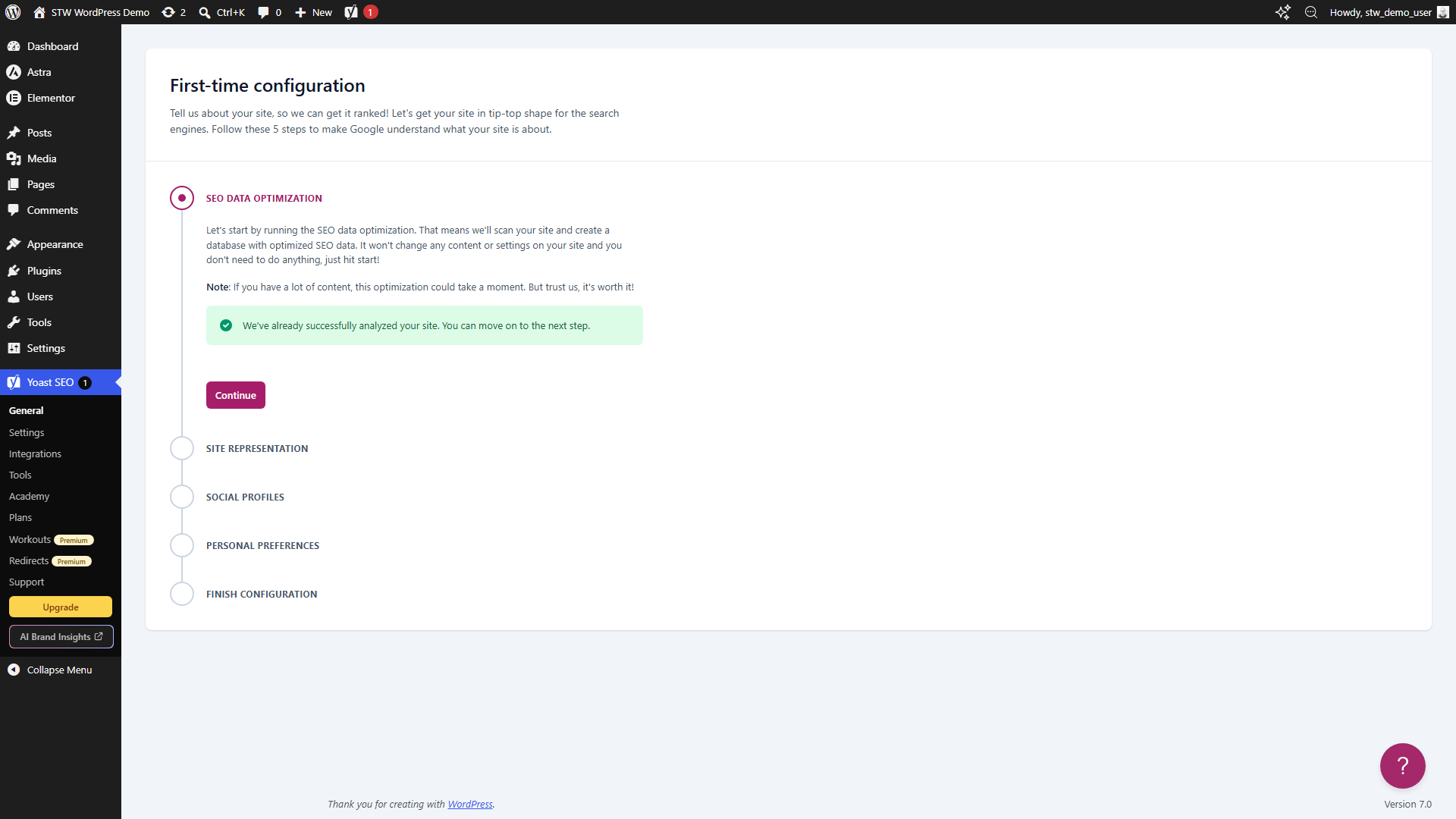
If you see the green checkmark and “We’ve already successfully analyzed your site” message, the optimization ran automatically during activation. Click Continue to move on.
Step 2 — Site representation
Yoast asks whether your site represents an Organization or a Person. For a business site, choose Organization and enter your business name.
This choice feeds directly into the structured data Yoast generates. Google uses that data to figure out who’s behind the site, which is how businesses end up with a Knowledge Panel (that info box that appears alongside search results for established brands).
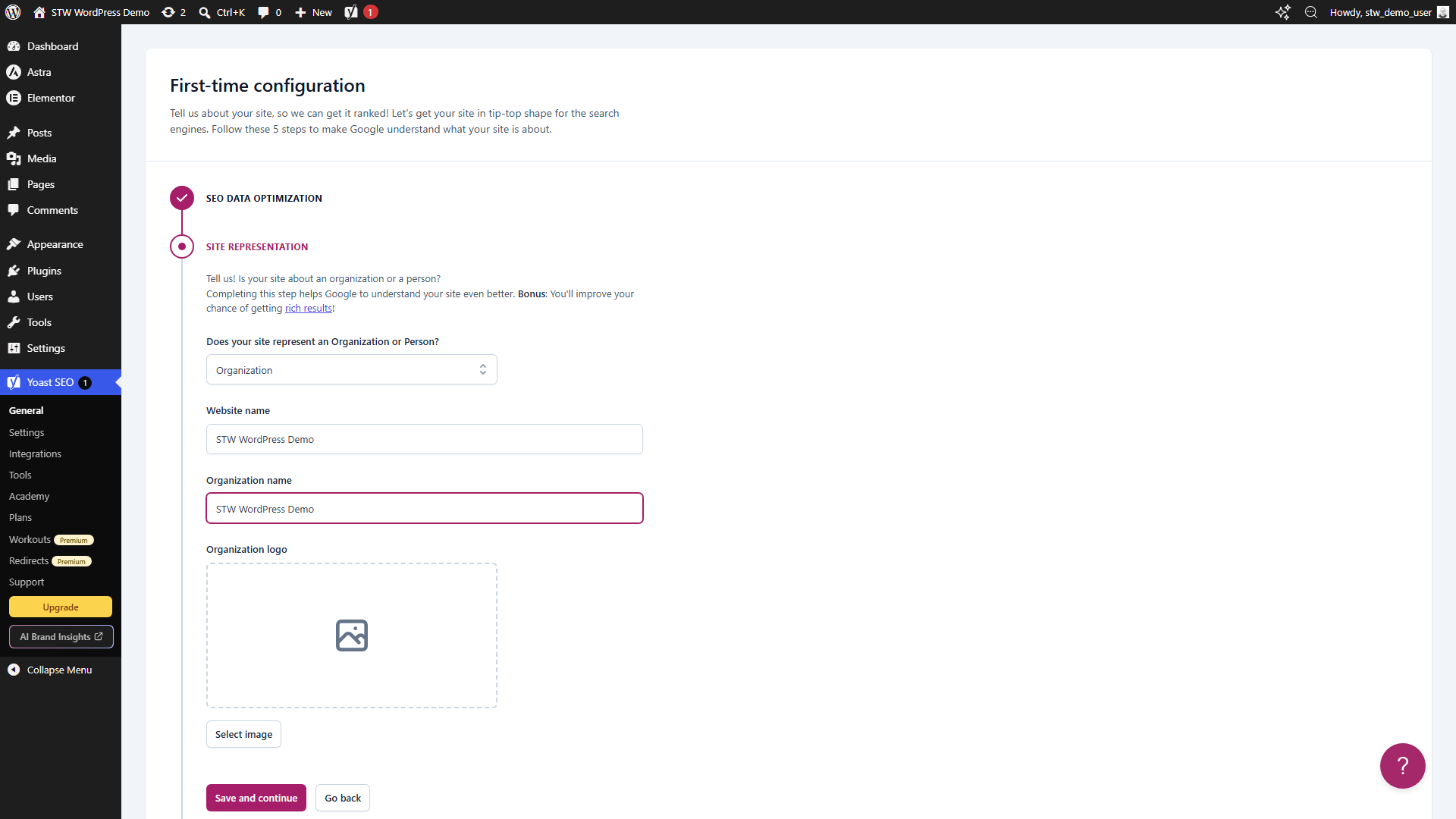
Click Save and continue when you’ve filled in your details.
Step 3 — Social profiles
Yoast asks for your social media profile URLs. These also get embedded in your site’s structured data, helping search engines connect your website to your official accounts on Facebook, Instagram, LinkedIn, or wherever you’re active. Add what you have, skip what you don’t. You can always come back to this later through Yoast SEO → Settings.
Step 4 — Personal preferences
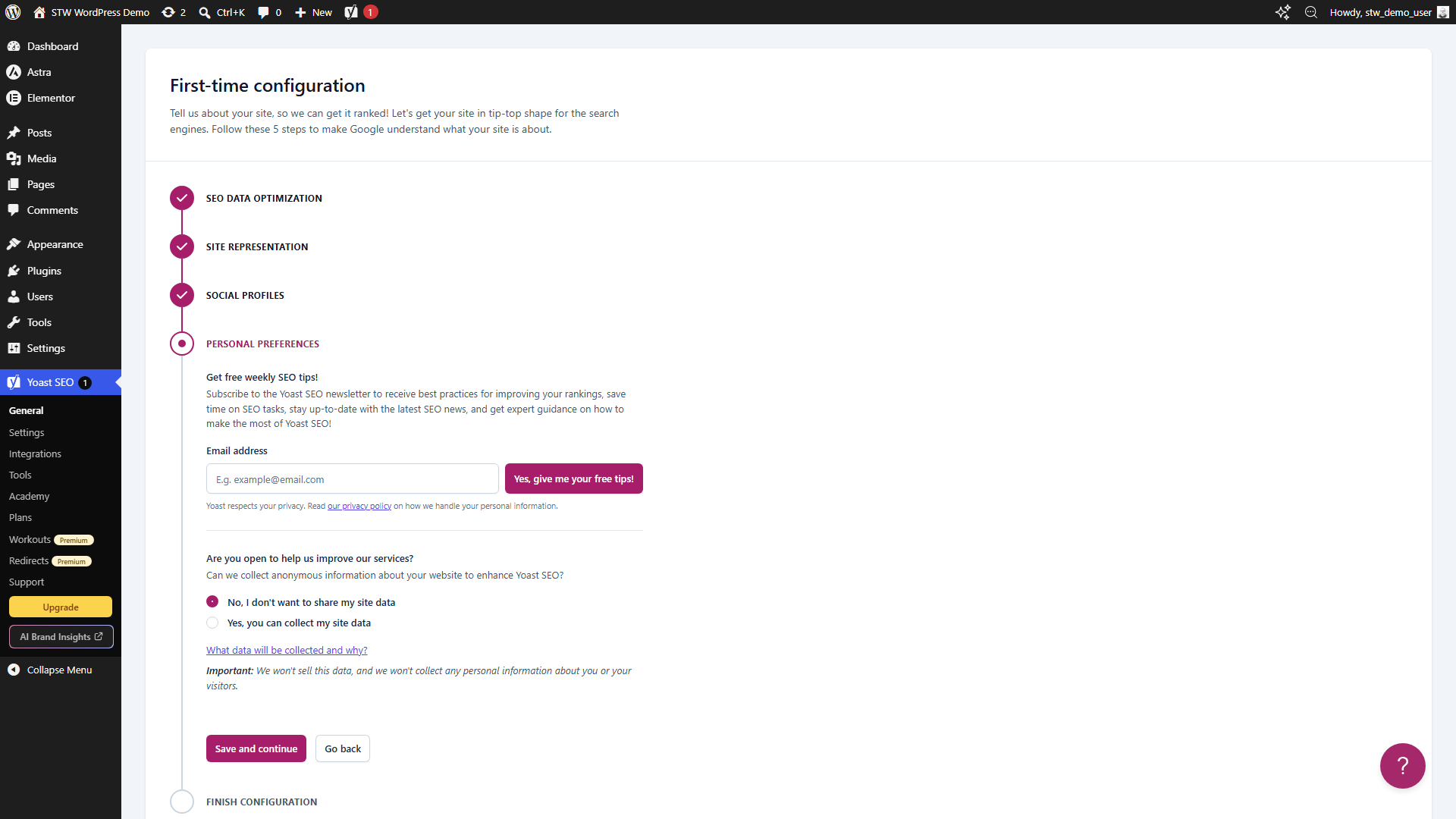
The final wizard step covers Yoast’s newsletter signup and anonymous usage tracking. Neither affects your site’s SEO or how the plugin works. Make your choices and click Save and continue to finish.
Step 5 — After the wizard
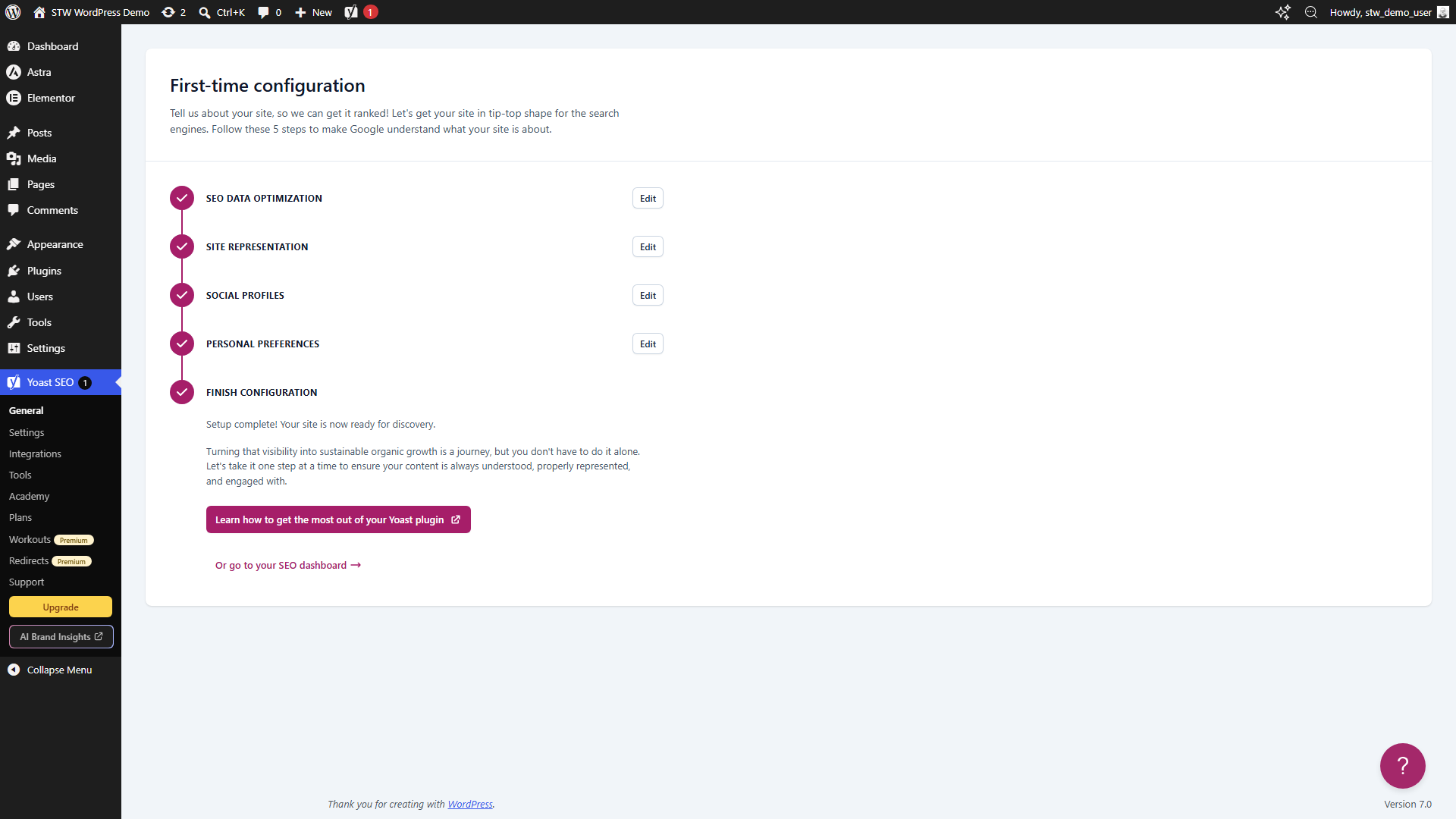
With the wizard done, take a quick look at two areas before you start creating content.
In the Yoast menu, Settings → Site features shows toggles for Yoast’s main capabilities. Make sure SEO analysis and Readability analysis are both enabled. These are the tools that give you real-time feedback in the post editor as you write. The XML sitemaps toggle should also be on.
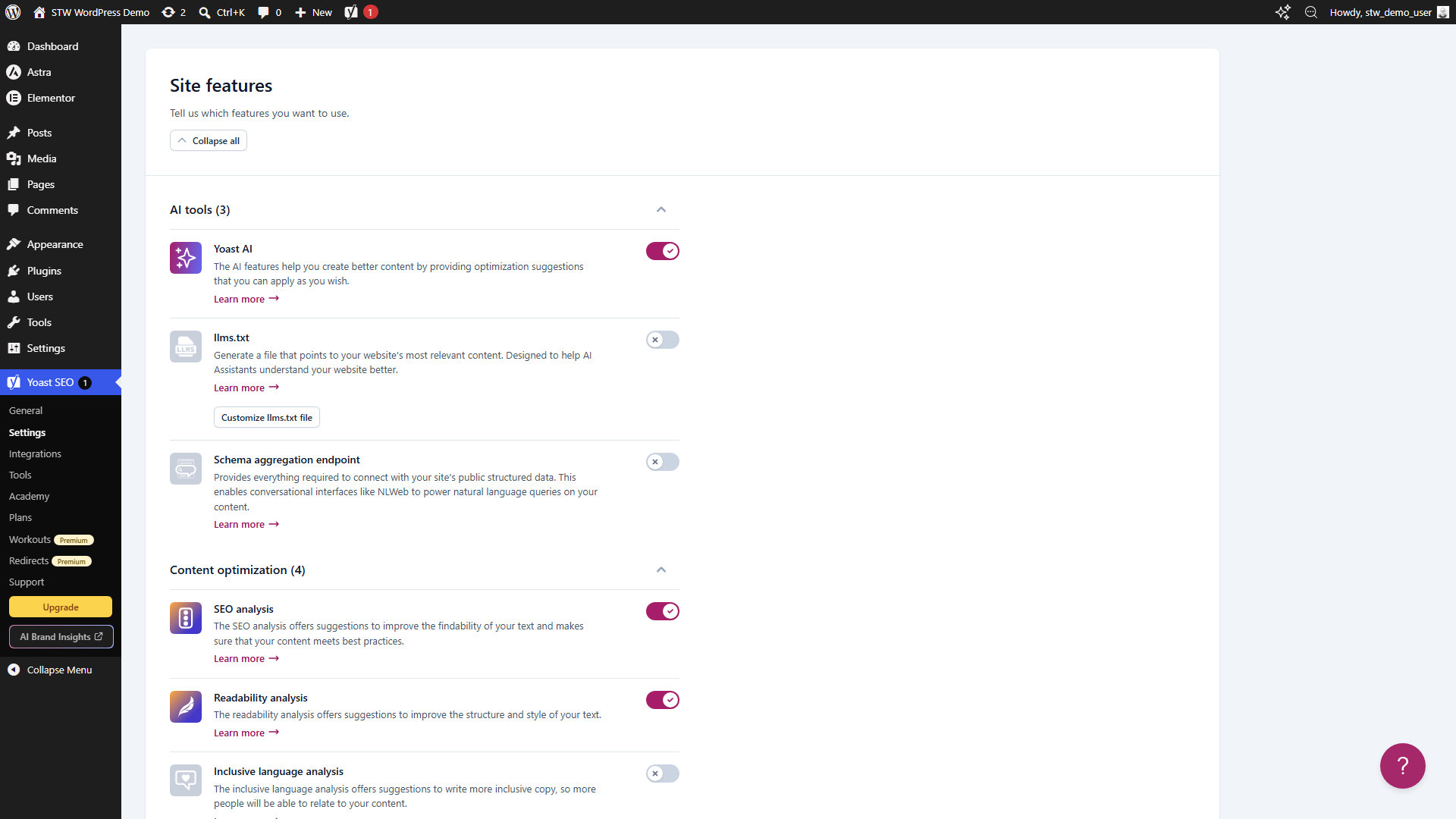
Settings → Site basics holds your site name, tagline, and organization details. Verify that the information you entered during the wizard carried over correctly. If anything looks wrong, fix it here rather than later.
Yoast is now running. When you create or edit a post, you’ll see the Yoast SEO panel available in the editor with fields for your focus keyphrase, SEO title, and meta description, plus the traffic-light indicators that show how your content stacks up against Yoast’s checklist. Green means the checks pass, orange means there’s room to improve, and red means something important is missing.
Setting Up Rank Math
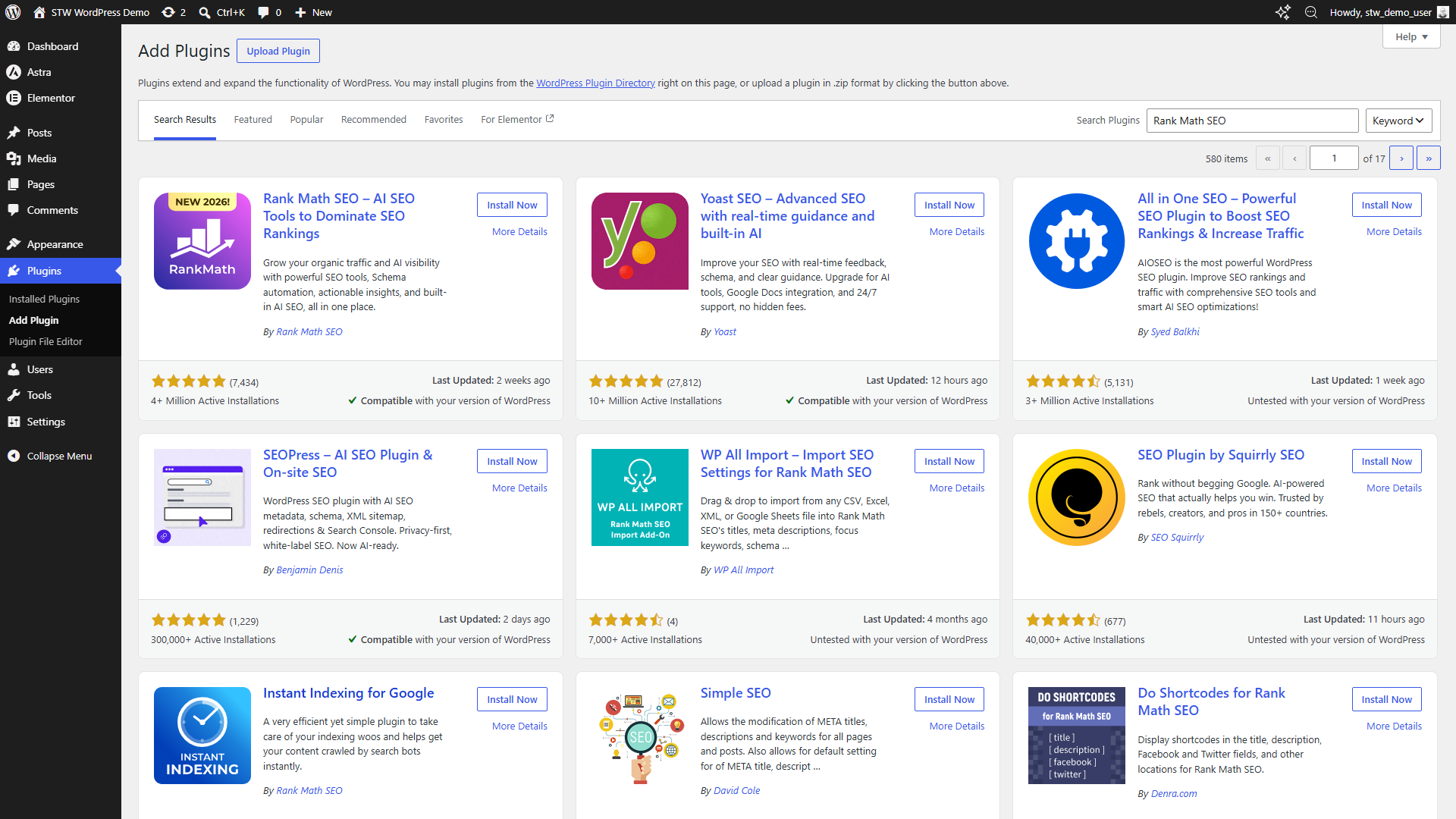
To install Rank Math, go to Plugins → Add Plugin, search for Rank Math SEO, click Install Now, then Activate.
Rank Math’s setup wizard has more steps than Yoast’s, but each one is straightforward.
Step 1 — Connecting a Rank Math account
The first screen after activation asks you to connect a free Rank Math account. Clicking Connect Your Account takes you away from WordPress to rankmath.com, where you can sign in with Google, Facebook, WordPress.com, or an email address.

Connecting an account unlocks keyword suggestions and the SEO Analyzer tool, both of which are handy once you’re writing content. You can click Skip Step if you want to get through the basic setup first and connect later. The core SEO features, sitemaps, meta fields, structured data, and on-page analysis, all work without an account, so there’s no rush.
Step 2 — Choosing a setup mode
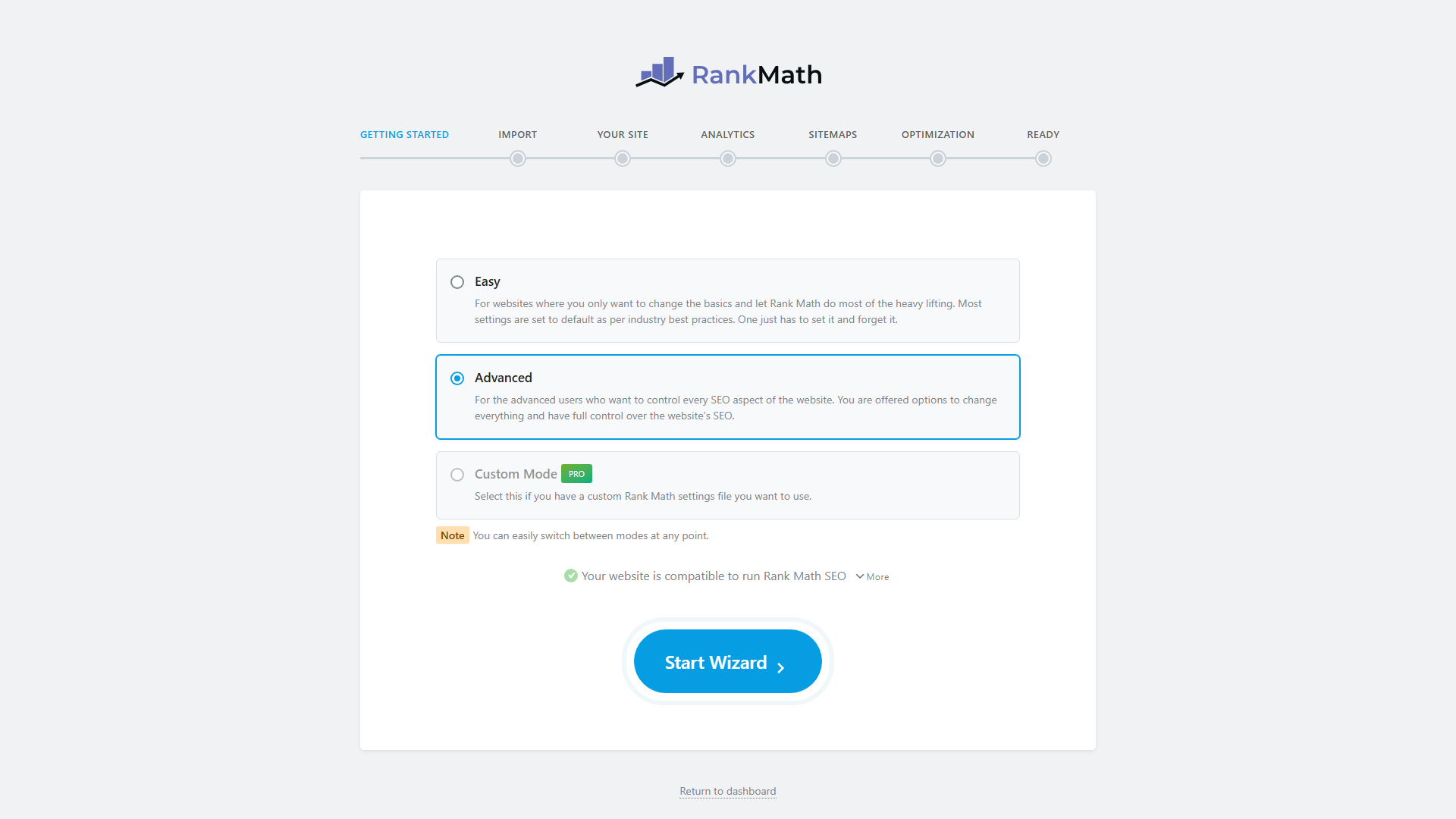
Rank Math offers three modes. Easy, Advanced, and Custom. Stick with Easy for a first setup. It configures sensible defaults and keeps the more technical options out of sight until you’re ready for them. You can switch to Advanced mode later through Rank Math SEO → Dashboard whenever you want more control.
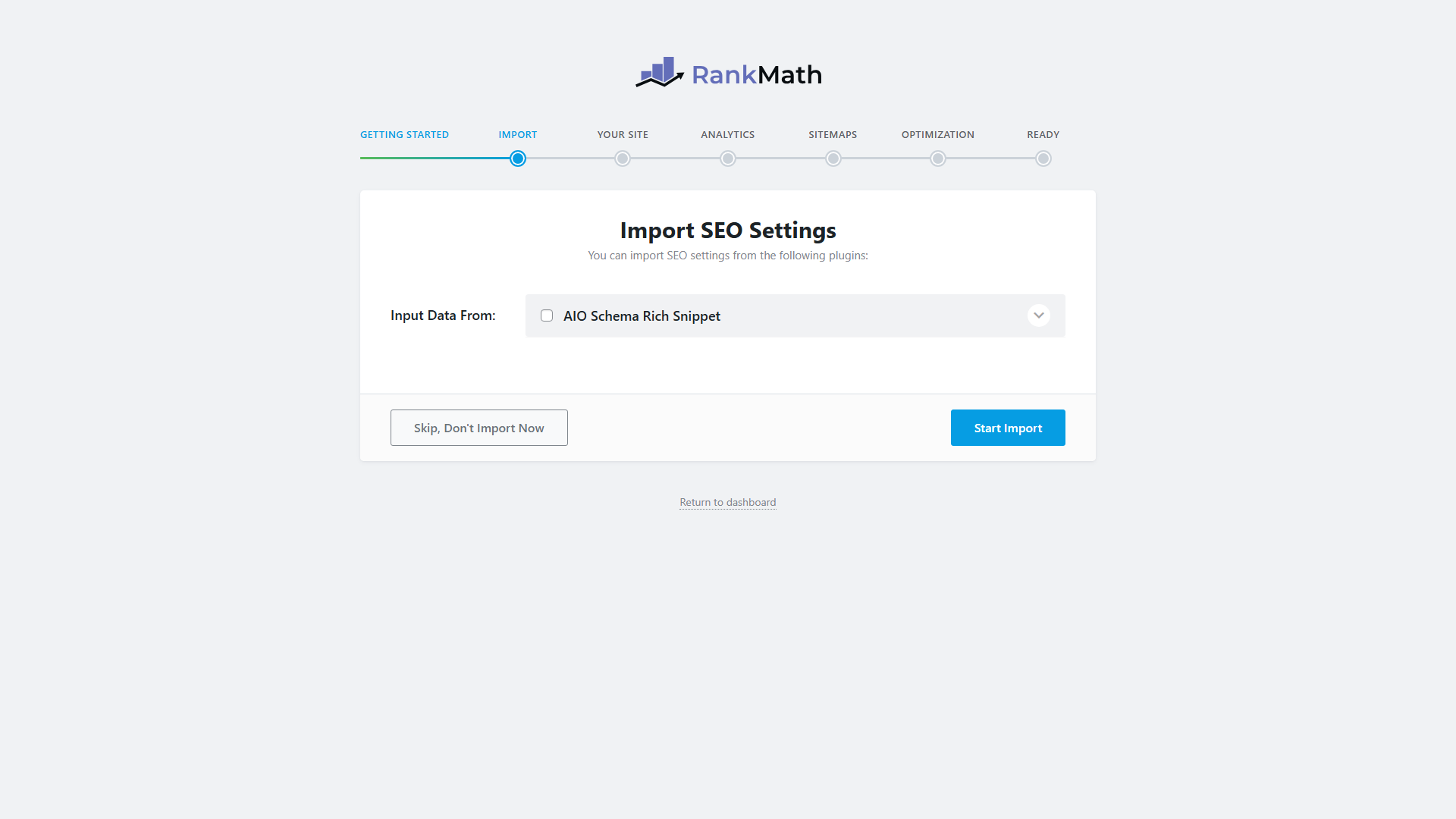
Step 3 — Importing from another SEO plugin
If you’re switching from Yoast (or another SEO plugin you tried first), Rank Math can import your existing titles, descriptions, and settings so you don’t lose work. On a fresh site with no prior SEO plugin data, there’s nothing to import, so click Save and Continue.
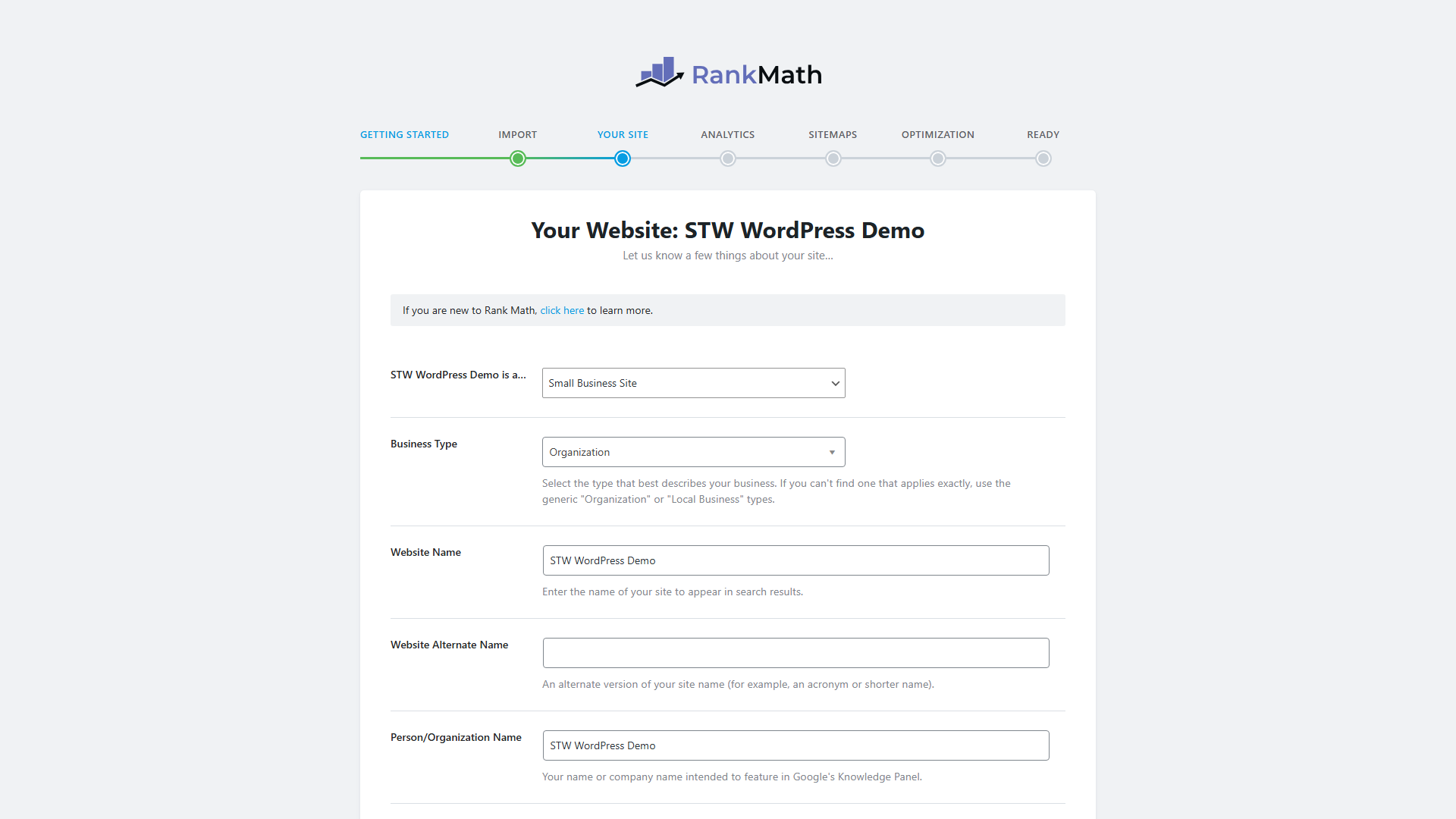
Step 4 — Your site
This step asks about your site type, business type, and name. Select Small Business Site for a typical business website, leave Business Type as Organization, and enter your site and business name. Like Yoast’s Site Representation step, this information feeds directly into the structured data Rank Math generates, so Google knows whether it’s dealing with a business, a blog, or an individual.
Step 5 — Analytics
Rank Math can connect to Google Search Console and Google Analytics to display search performance data inside your WordPress dashboard. That’s worth setting up once your site is live and Google has started indexing it, but during initial setup there’s nothing to see yet. Skip it for now and connect later through Rank Math SEO → Analytics.
When you do connect, use the actual site owner’s Google account, not a shared or test account, because the connection grants access to that account’s search data.
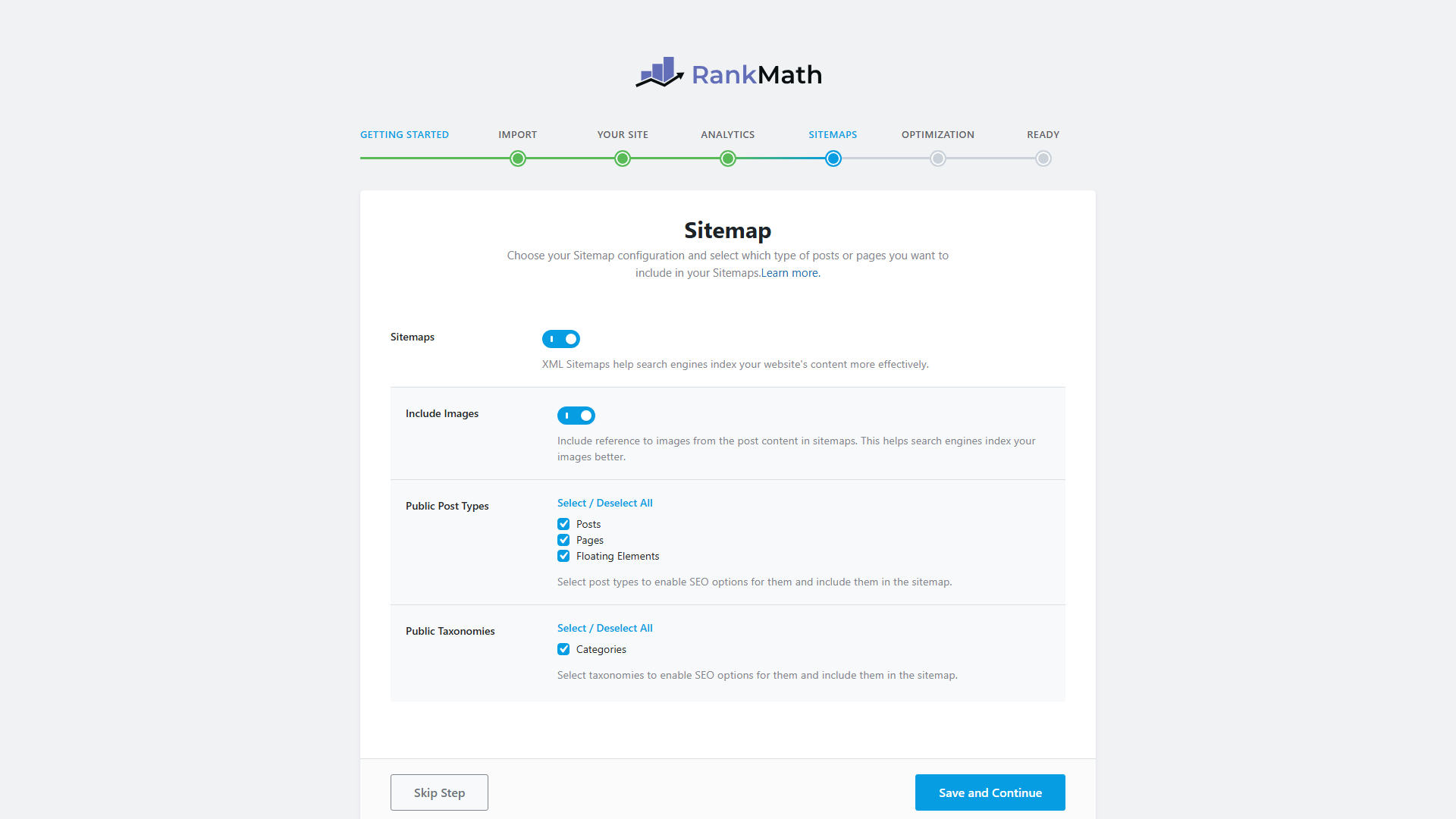
Step 6 — Sitemaps
Keep XML sitemaps enabled. Rank Math generates sitemaps for your posts, pages, and other public content types automatically. The defaults work well for most sites.
Step 7 — SEO Tweaks and finishing up
The SEO Tweaks step offers a few automatic optimizations.
- Noindex Empty Category and Tag Archives is enabled by default, which is smart. If you create a category but haven’t added any posts to it yet, that empty archive page has no useful content. Telling Google not to index it keeps those thin pages out of your search results.
- Open External Links in New Tab/Window is also on by default.
- The Nofollow External Links toggle is off, and you can leave it that way. Adding nofollow to every external link would tell search engines you don’t vouch for any site you link to, which isn’t usually the signal you want to send.
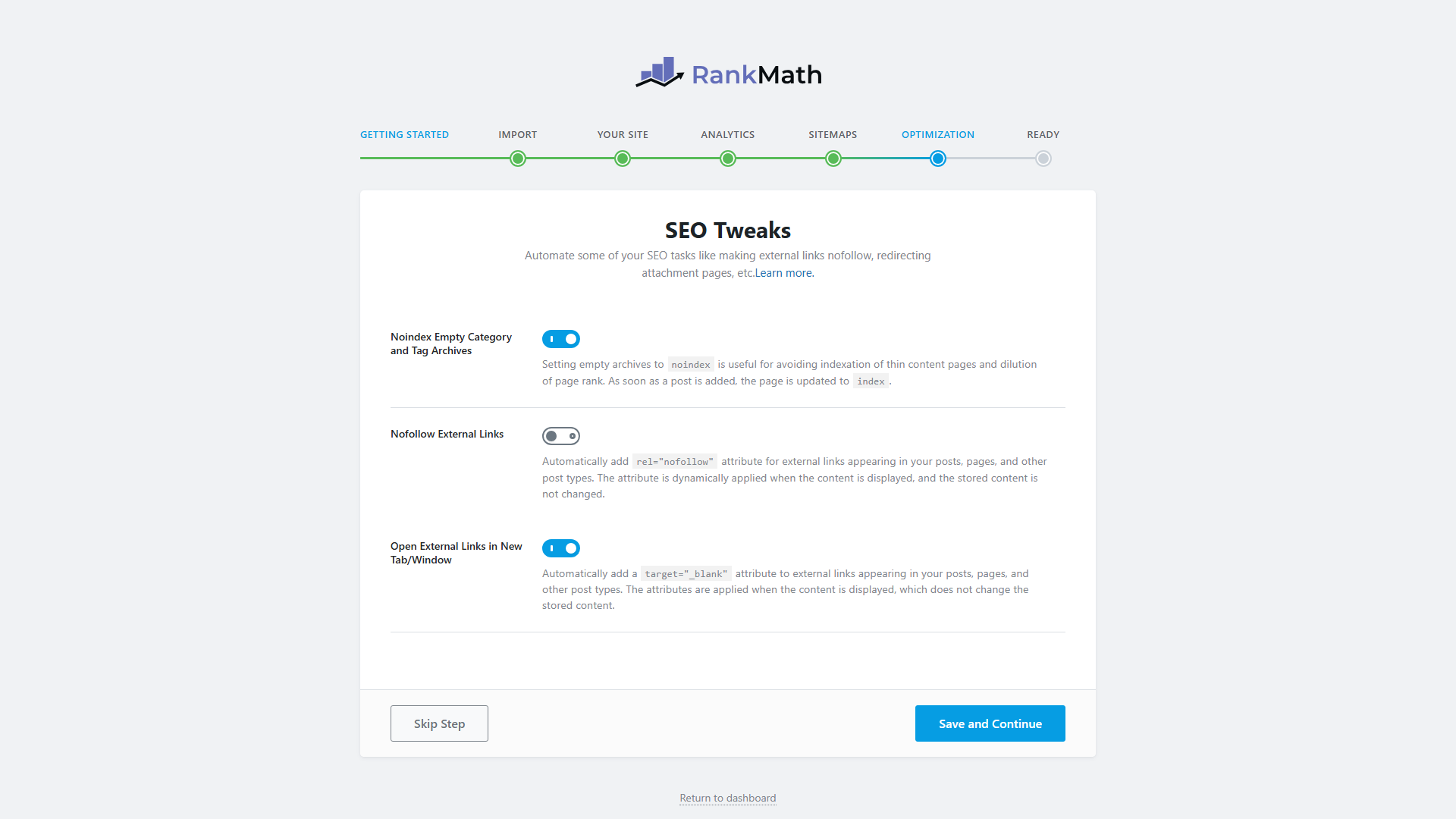
Click Save and Continue to reach the Ready screen, then choose Return to Dashboard.
Step 8 — After the wizard
Rank Math’s post-setup dashboard is busier than Yoast’s, and the Modules page is the main reason why.
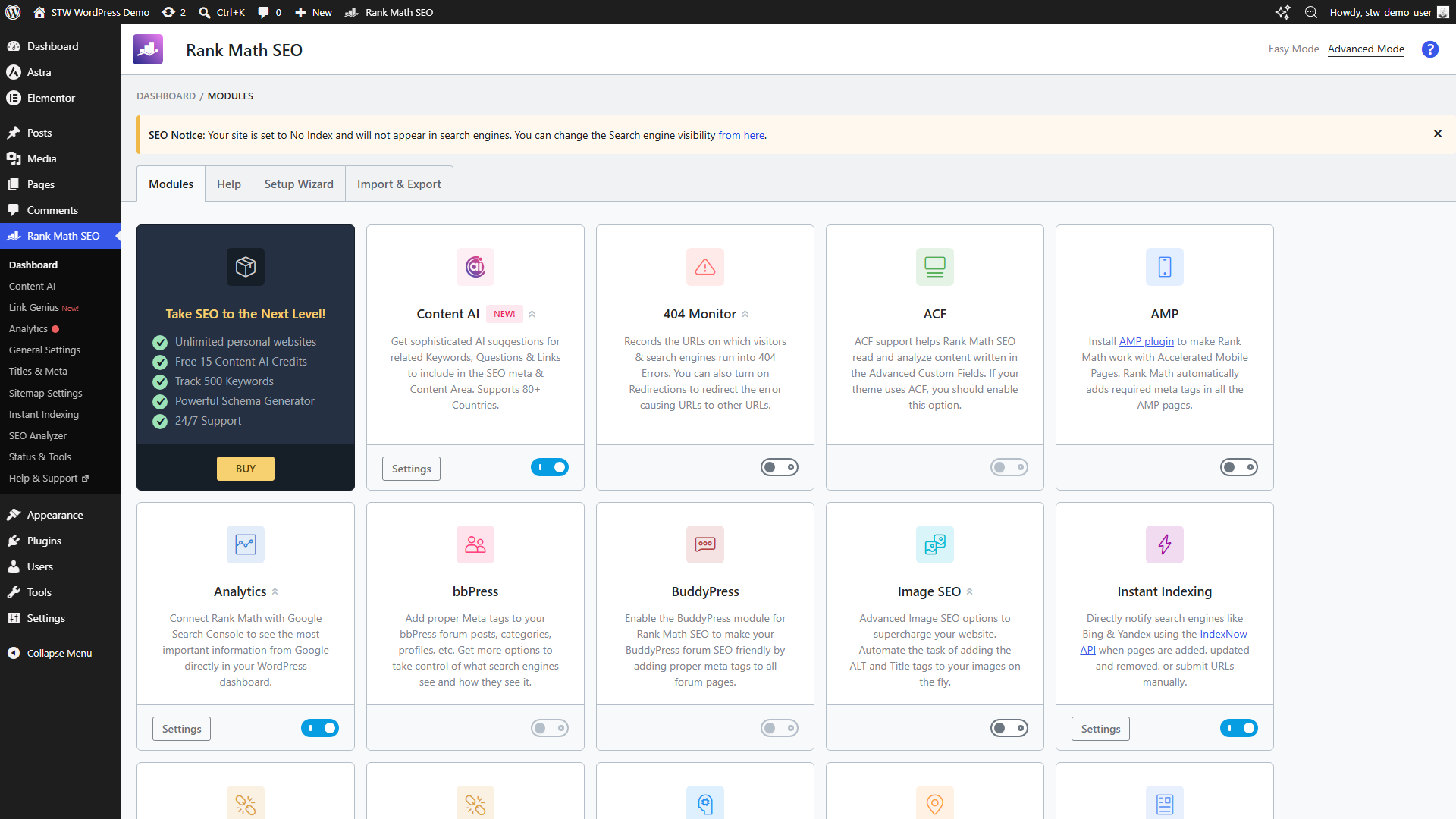
Each card represents a feature you can turn on or off.
- SEO Analysis, Sitemaps, and Schema (Structured Data) should stay on.
- The 404 Monitor is useful once your site has real traffic, because it catches URLs that visitors (or search engines) are trying to reach but getting errors on, so you can set up redirects.
- Redirections pairs with it.
- Content AI, Link Genius, and Analytics are worth exploring later but aren’t needed for this initial setup.
Leave modules off until you have a clear reason to turn them on. Enabling everything “just in case” adds clutter to your dashboard and creates extra database work for your server, but it won’t improve your SEO.
A few other areas worth checking in Rank Math after setup:
- Titles & Meta controls how your homepage, posts, pages, and categories appear in search results. Open it and check that your homepage title and description read well. This is the text Google will show in search, so it’s worth getting right early.
- Sitemap Settings lets you fine-tune which content types appear in your sitemap. The defaults are usually fine.
- General Settings covers breadcrumbs, image SEO, webmaster verification codes, and similar site-wide options. Most of these can wait until you have a specific reason to change them.
Conclusion
Both Yoast and Rank Math handle the SEO fundamentals well. Yoast is the more guided experience, with strong readability feedback and a focused interface that works well if you want clear direction without extra settings to think about. Rank Math gives you more tools in its free tier and flexible licensing for multiple sites, which makes it attractive if you want that extra control.
Pick one, run through the setup wizard, and check that your site’s structured data and sitemap are working. After that, focus on the thing that actually moves the needle with search engines, like publishing useful content that answers real questions better than the other search engine results.
Next steps: