

Introduction
You can’t run WordPress on your laptop and have the world see your site, so before you install anything you need somewhere to put it. The three main types of hosting you’ll run into are shared hosting, WordPress hosting, and VPS (Virtual Private Server).
They’re often presented like a ladder where bigger is better, but that’s not always the case. Each splits the work differently between you and the hosting company, and for most people building a first WordPress site, the simplest option is usually the right one.
1 — Shared Hosting
On shared hosting, your site sits on a server alongside other customers’ sites. It’s a secure system where everybody gets their own files, databases, and resource allocation.
The web host handles everything on the server side, from operating system updates and security patches to firewall configuration and network maintenance. You don’t need to touch any of that. You get a control panel and through it you manage the things that actually matter to your website.
ServeTheWorld’s shared hosting plans
For example, STW’s shared hosting comes in three plans (GH20, GH21, and GH22).
| Plan | Disk space | Databases | Websites | SSH |
|---|---|---|---|---|
| GH20 | 10 GB | 1 | 1 | No |
| GH21 | 150 GB | 25 | 5 | Yes |
| GH22 | 300 GB | 50 | 15 | Yes |
All three use NVMe storage, a fast type of solid-state drive that makes a noticeable difference in how quickly your hosting reads and writes files. They also include free SSL certificates through Let’s Encrypt. SSL is the encryption that puts the padlock in your visitors’ browsers and tells them the connection is secure. On STW hosting it’s set up automatically.
Plesk and the tools you’ll use
On STW shared hosting, you get Plesk, a popular hosting control panel that works through your browser. Through Plesk, you can manage databases, upload files, create email accounts, change your PHP version (the programming language WordPress runs on), configure domains, and handle SSL settings.
You get to Plesk through my.servetheworld.net → Products → My Products → Manage → Plesk, which opens it in a new tab.
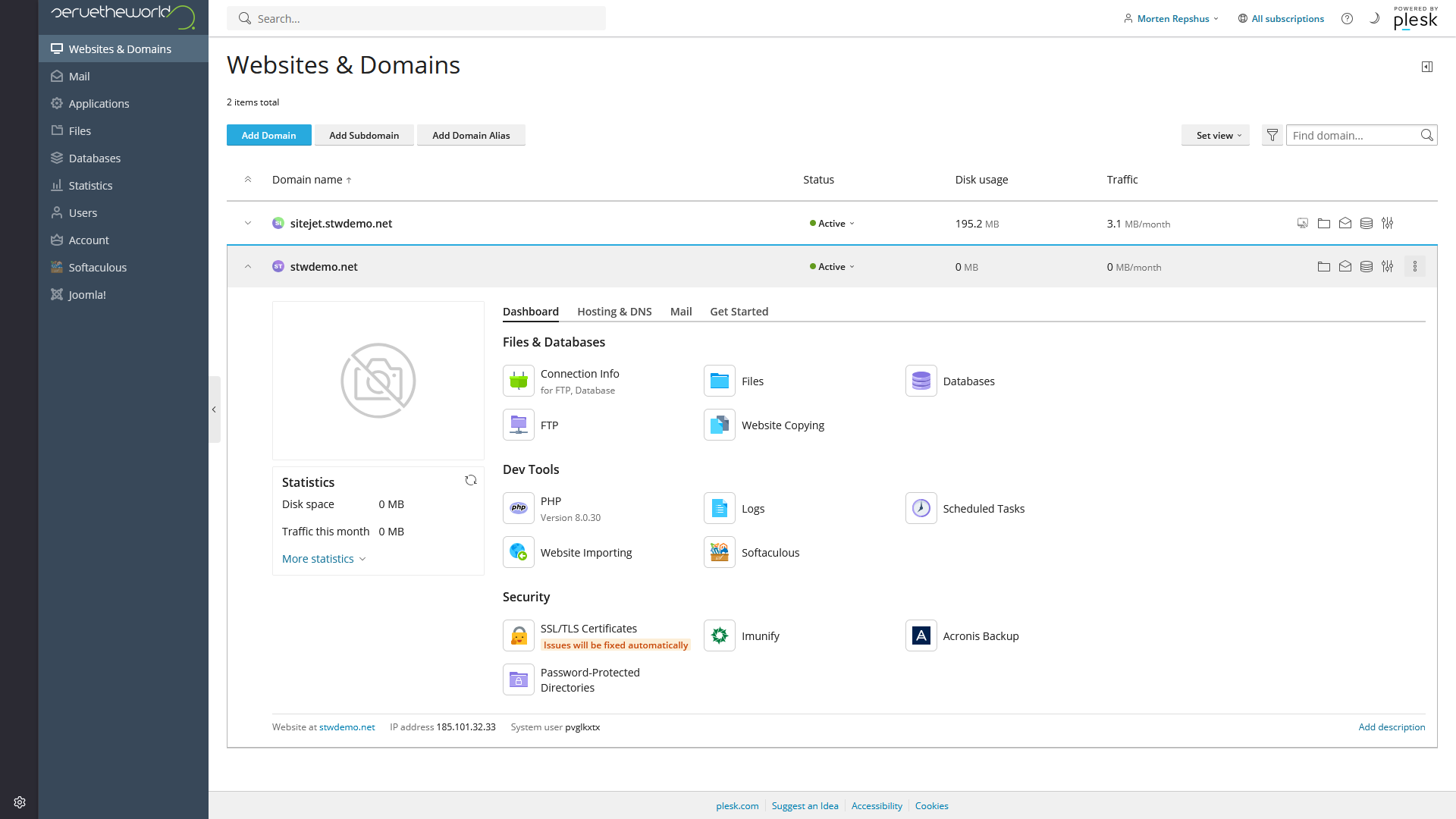
WordPress can be installed through Plesk using an in-built installer or Softaculous, a third-party script installer. We’ll look at this process in the next tutorial.
Shared hosting is a good starting point
Shared hosting is general-purpose. You can run WordPress on it, but you could also run a different PHP application, a static HTML site, or a custom web app if you want.
Getting started with WordPress is easy. The installation tutorial is built around shared hosting, so every step maps to what you’ll see in your own Plesk panel.
ServeTheWorld’s GH21 and GH22 shared hosting plans also include SSH access, which lets you connect to your hosting through a command-line terminal instead of the visual Plesk interface. That’s useful later for tasks like running WordPress maintenance commands or transferring files in bulk, but for a first site where you’re doing everything through Plesk, it’s more of a “nice-to-have”.
2 — WordPress Hosting
STW’s WordPress hosting plans (WP10, WP11, WP12) are similar to the shared hosting plans but the entire environment is built with WordPress in mind. They run on Proxmox cluster nodes based on high-frequency, low-latency AMD EPYC CPUs, essentially making WordPress hosting lightning fast. They also come with tools that shared hosting doesn’t include automatically.
WordPress is pre-installed when you sign up, daily backups run without you configuring anything, and unlimited databases are included, which becomes useful when you start making staging copies (test copies of your site where you can try changes before they go live).
Because the environment is purpose-built, the included tools are designed to work together. AccelerateWP, for example, integrates best when you use its companion WordPress plugin, and the server-level caching assumes you’re not layering a third-party caching plugin on top of it. You get a lot for free, but you’re also opting into the provider’s way of doing things.
Three WordPress-specific performance and management tools also come built in. We’ll discuss these in further detail in later tutorials, but it helps to understand what they are now.
AccelerateWP and page caching
Every time someone visits a WordPress page, the server normally has to run PHP code, pull content from the database, assemble the page, and send it back, fresh, for every visitor.
AccelerateWP caches the finished result so the next visitor gets the pre-built page directly and the server skips all that assembly work. For pages that don’t change often, like your homepage or an about page, the speed difference is significant.
Caching plugins inside WordPress do something similar, but AccelerateWP works at the server level, catching requests before WordPress even loads. That makes it faster and more efficient than other plugins.
On WordPress hosting, AccelerateWP also handles CSS and JS preprocessing (combining and cleaning up the code files that control your site’s appearance and interactive features) and page preloading (visiting your own pages in the background so they’re already cached when a real visitor arrives).
ServeTheWorld WP11 and WP12 plans include AccelerateWP Premium, which adds automatic image compression and Critical Path CSS, a technique that identifies the most important styling needed to display the visible part of a page and loads it first so the page appears faster.
We’ll cover all of this in detail in the caching and CSS/JS optimization tutorials.
Redis and database caching
Redis is a different kind of cache. Where AccelerateWP caches finished pages, Redis caches the results of database queries.
WordPress makes a lot of database calls on every page load for things like menu structure, widget settings, active plugins, site options, and user session data. On a busy site these queries add up. Redis stores the answers in the server’s fast memory so the database doesn’t get asked the same questions over and over.
All three STW WordPress hosting plans include Redis.
WP Toolkit and Smart Update
WP Toolkit gives you a single dashboard for WordPress updates, plugin management, security settings, staging, and one-click admin login.
WP11 and WP12 plans add Smart Update, which copies your site, applies the update to the copy, and checks for problems before touching the live version. It’s useful insurance against a bad update causing visible downtime.
3 — VPS (Virtual Private Server)
A VPS gives you your own virtual machine with dedicated CPU, memory, and storage, along with your own operating system and full administrator access to everything on the server (called “root access” in the hosting world). You can install any software, change any setting, and configure the server however you want.
On shared hosting, you rarely think about the web server software, the PHP installation, or the operating system because STW handles all of it. On a VPS, those become your job. You’re choosing and installing the web server software (Apache, Nginx, or something else), installing PHP and keeping it updated, setting up the database server, configuring firewall rules to control what traffic reaches the server, applying security patches, and monitoring everything to catch problems before your visitors do.
The day-to-day feels very different. On shared hosting, if PHP needs updating you pick a version from a dropdown in Plesk. On a VPS, you’re typically connecting via SSH (a terminal connection to the server), running update commands, checking that your existing sites still work, and restarting services. If something goes wrong at 2 AM, there’s no managed layer catching it for you.
When something breaks on shared hosting, the problem is almost always something that needs to be fixed in WordPress. It might be a plugin conflict, a theme bug, or a misconfigured setting in Plesk. On a VPS, every diagnosis has twice as many suspects. Is the issue in WordPress, or did the web server run out of memory? Did a security patch restart a service? Things are a little more complicated.
When you’d actually want a VPS
WordPress on a VPS becomes the right choice for you, if:
- Your site has outgrown managed hosting and you’ve already optimized caching, images, plugins, and database performance. The hosting itself is the bottleneck. You’ll know because the slow pages will be the dynamic ones that can’t be cached, like checkout flows or user dashboards, while your static pages load fine.
- You need to install software on the server that Plesk doesn’t support, or you need a specific database version or mail server configuration that managed hosting can’t provide.
- Someone on your team already manages servers and actively wants that control. A web agency running client sites, or a developer building a custom stack.
A lot of performance problems people blame on hosting are actually caused by oversized images, too many plugins, a heavy theme, or no caching at all. We’ll cover all of them in the caching, image optimization, and plugin management tutorials.
Growing Into Bigger Hosting Later
You don’t have to predict where your site will be in three years. If the site outgrows your current plan, you can upgrade within the shared hosting range first. STW lets you change plans from the customer panel through Products → My Products → Manage → Change Plan, and the upgrade takes effect once payment goes through.
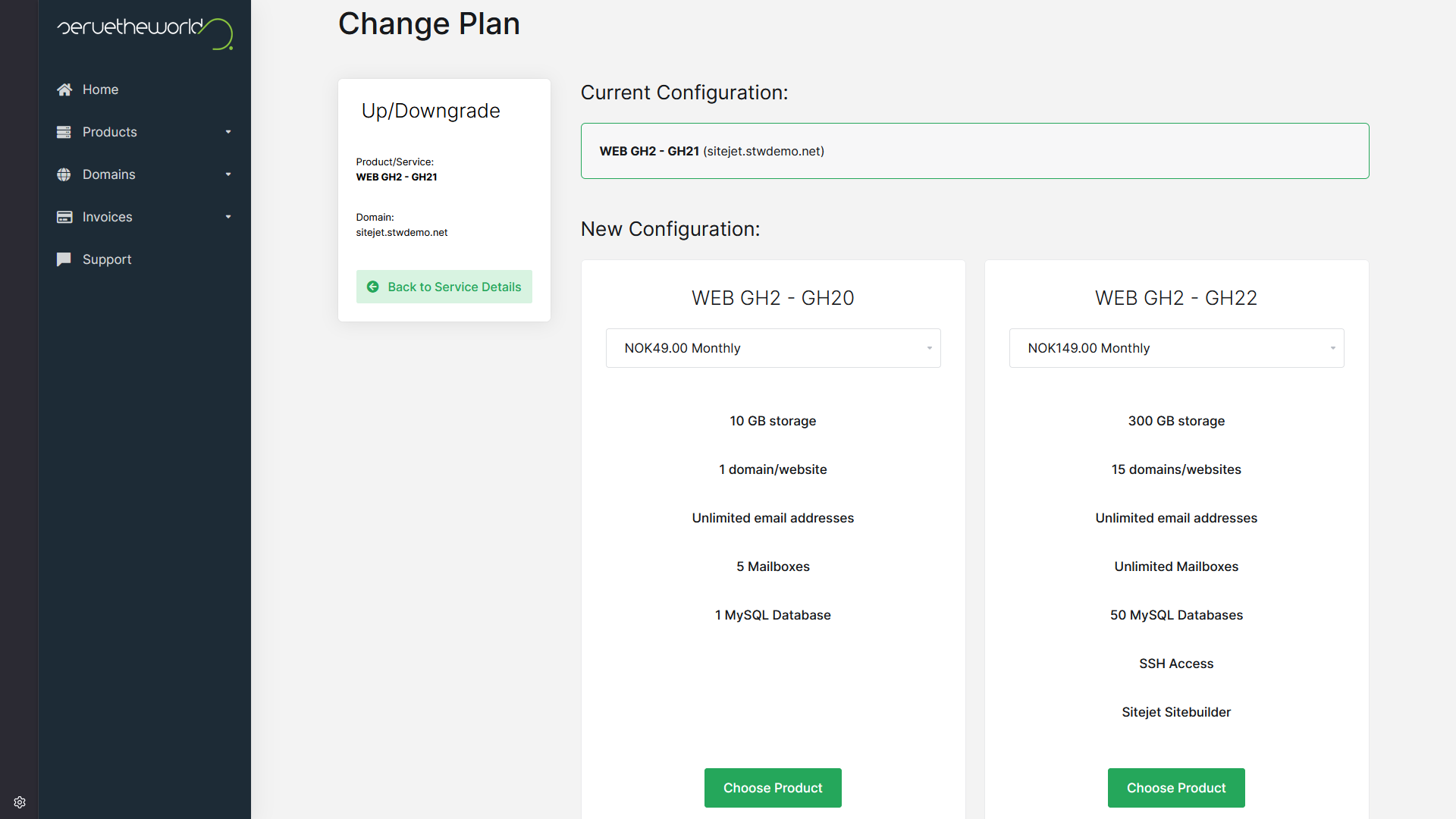
If the project eventually needs a VPS, we offer these too, along with VDS (which gives you dedicated physical CPU cores instead of shared) and full dedicated servers. WordPress itself doesn’t care which type of hosting it runs on, so the move is about upgrading the environment underneath, not rebuilding your site.
Most WordPress sites never need to leave managed hosting. A well-configured site on GH20 or WP10 comfortably handles typical small-business traffic.
Conclusion
For a first WordPress site, shared hosting or WordPress hosting is usually the right starting point. Shared hosting gives you a general-purpose account with more flexibility and a hands-on setup process. WordPress hosting gives you a WordPress-focused environment with AccelerateWP, Redis, daily backups, and WP Toolkit ready from day one. VPS is there when the project earns it, but many sites never need it.
| If your site is | Start here |
|---|---|
| A first business site, portfolio, or blog | STW shared hosting (GH20) or WordPress hosting (WP10) |
| Multiple sites, or you want staging and SSH | GH21/GH22 or WP11/WP12 |
| WordPress for sure, and you want performance tools built in | WordPress hosting (WP10, WP11, or WP12) |
| Custom server needs or a large-scale project | VPS |
Next, we’ll walk through installing WordPress on shared hosting step by step.
Next steps: