
WordPress will run on almost any web host, but where you host it makes a real difference to how fast your site loads and how much work it takes to look after. Our WordPress Hosting is built around WordPress, with faster servers, caching that’s set up for you, and tools that make updates and changes safer, whether you’re launching a new site or moving an existing one.
If you’re still deciding between our services, Website Hosting or WordPress Hosting? How to choose the right plan explains the difference.
1. A WordPress site that’s ready to use
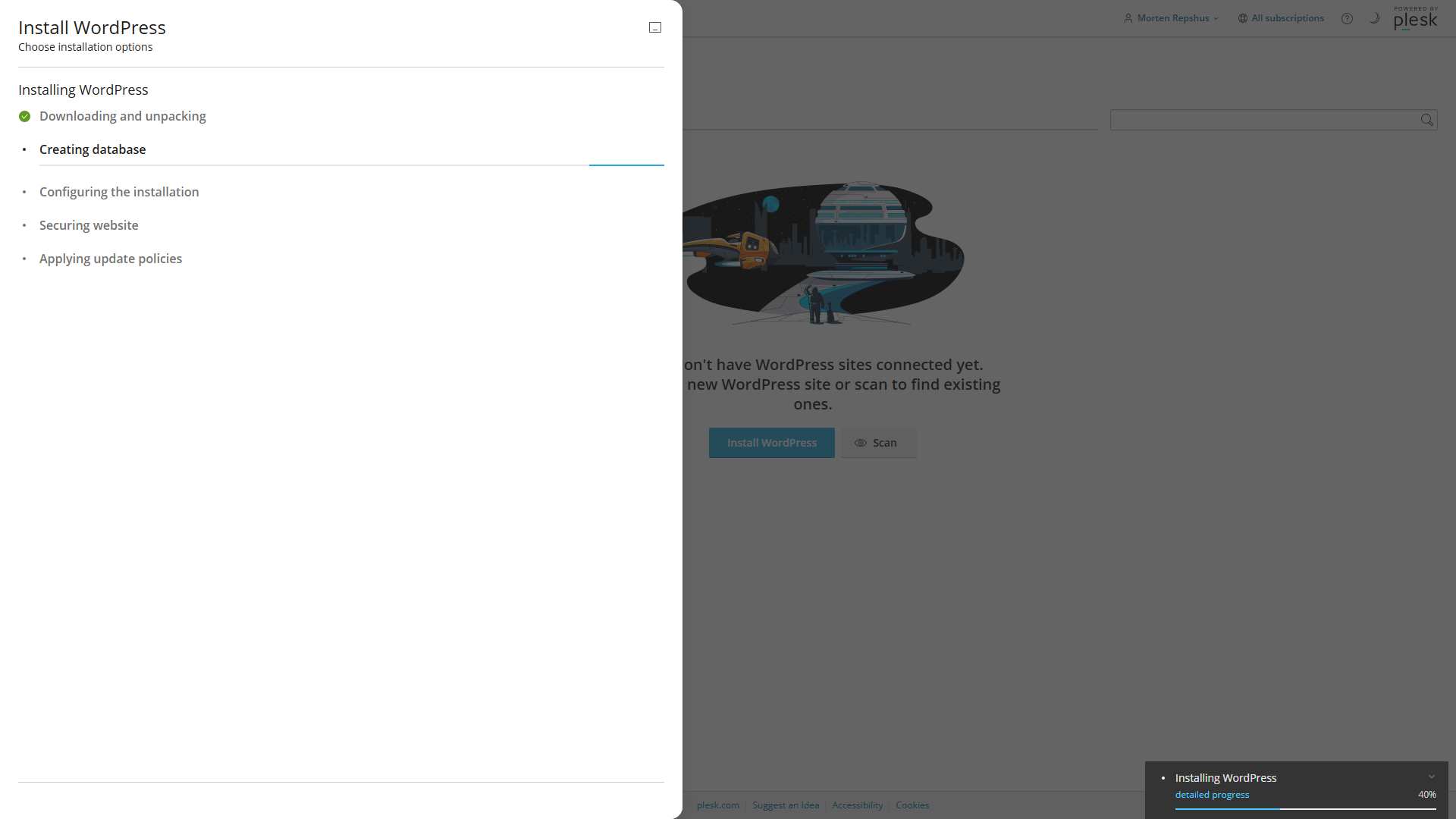
WordPress Hosting takes care of the setup jobs that usually come before you can start building. When you add your domain in the control panel and choose WordPress, you get:
- WordPress installed in one click, with its database created for you
- Page caching and Redis switched on, so your site is fast from the start
- Security hardening already applied
- Automatic updates for WordPress itself, with plugin and theme updates left under your control
- One-click login to your WordPress dashboard from WordPress Toolkit
2. Faster processors that build pages quicker
Each time someone opens a page on a WordPress site, the server has to build the page. The server runs the WordPress software, your theme, and your plugins, fetches your content from the database, and puts the page together before sending it to the visitor’s browser.
Each plan includes a set number of vCPUs, which are shares of the server’s processing power, each roughly equal to one processor core. More vCPUs let your site serve more visitors at once, but WordPress builds each page on a single vCPU, so the speed of the processor decides how quickly the page is ready.
Our WordPress Hosting normally runs on dedicated server nodes with high-frequency AMD EPYC processors, chosen for their excellent speed per core.
3. Page caching for near-instant pages
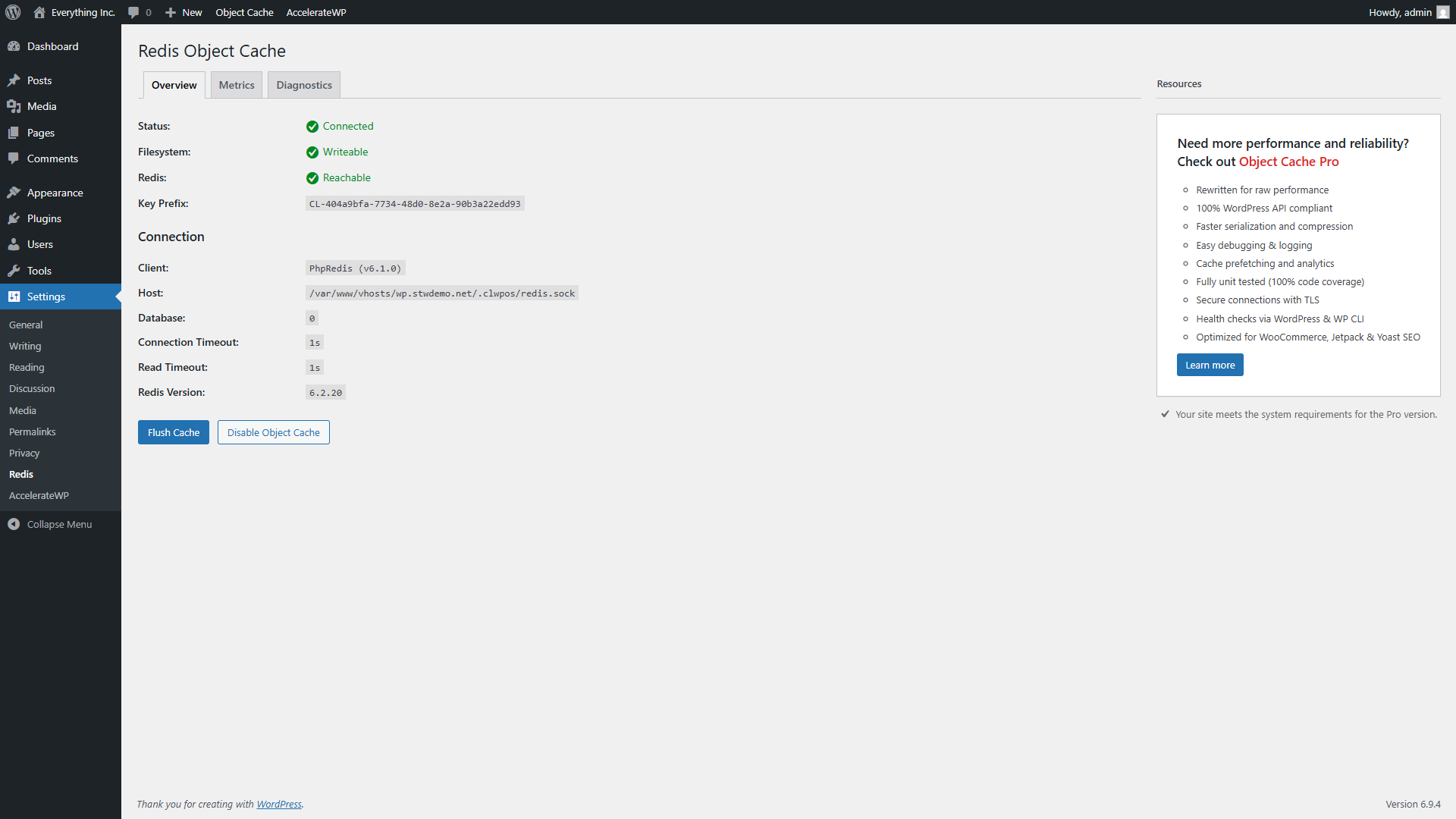
AccelerateWP, included and set up on our WordPress plans, saves a finished copy of each page after it’s built. The next visitor gets that copy straight away, with no building needed, so the page loads almost instantaneously. AccelerateWP also works through your sitemap in advance, so pages are ready before the first visitor arrives, and it can shrink your CSS and JavaScript files so browsers have less to download.
4. Redis for faster shops and member areas
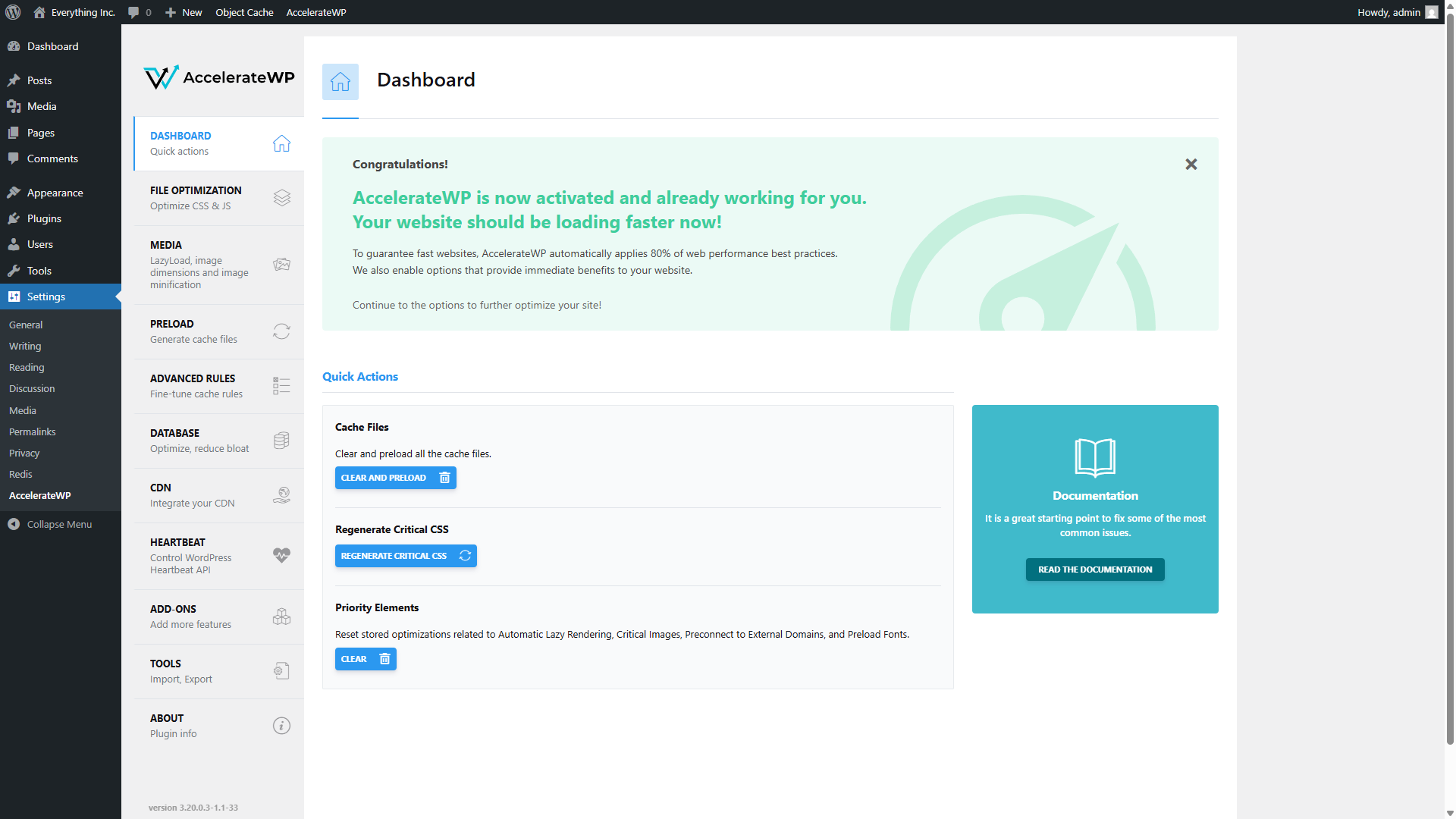
However, some pages can’t be saved as finished copies because they’re different for each visitor, such as a WooCommerce basket, a members’ area, or your WordPress dashboard. This is where Redis, also included on our WordPress plans, speeds these up by keeping the answers to common database queries in memory, so WordPress doesn’t have to ask the database for them again. If you run an online shop in WordPress, you’ll see a big difference in site speed.
5. A staging copy to test changes
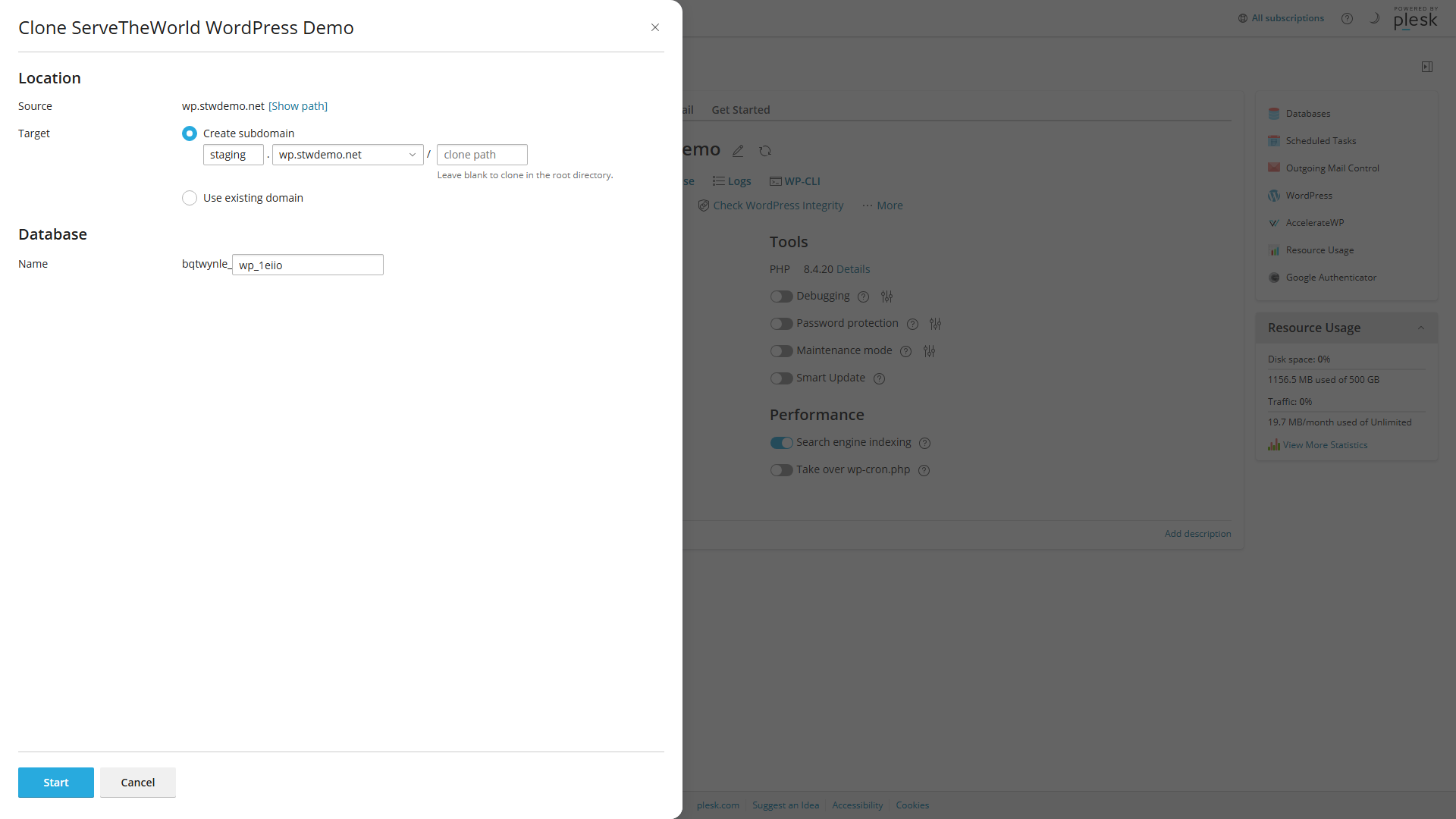
Updating a plugin or making a design change is a common way to unwittingly break a WordPress site. Every WordPress plan lets you check a change on a staging copy first, which is a private clone of your site, files and database included, on a separate address. You can create one in a few clicks and try changes there while your live site carries on as normal.
Let’s say you want to change your contact form plugin to a new one. On the staging copy, you install the new plugin, rebuild the form, check that messages arrive, and look at it on your phone. When you’re happy, WordPress Toolkit copies the changes to your live site at the click of a button.
6. Updates tested before they go live
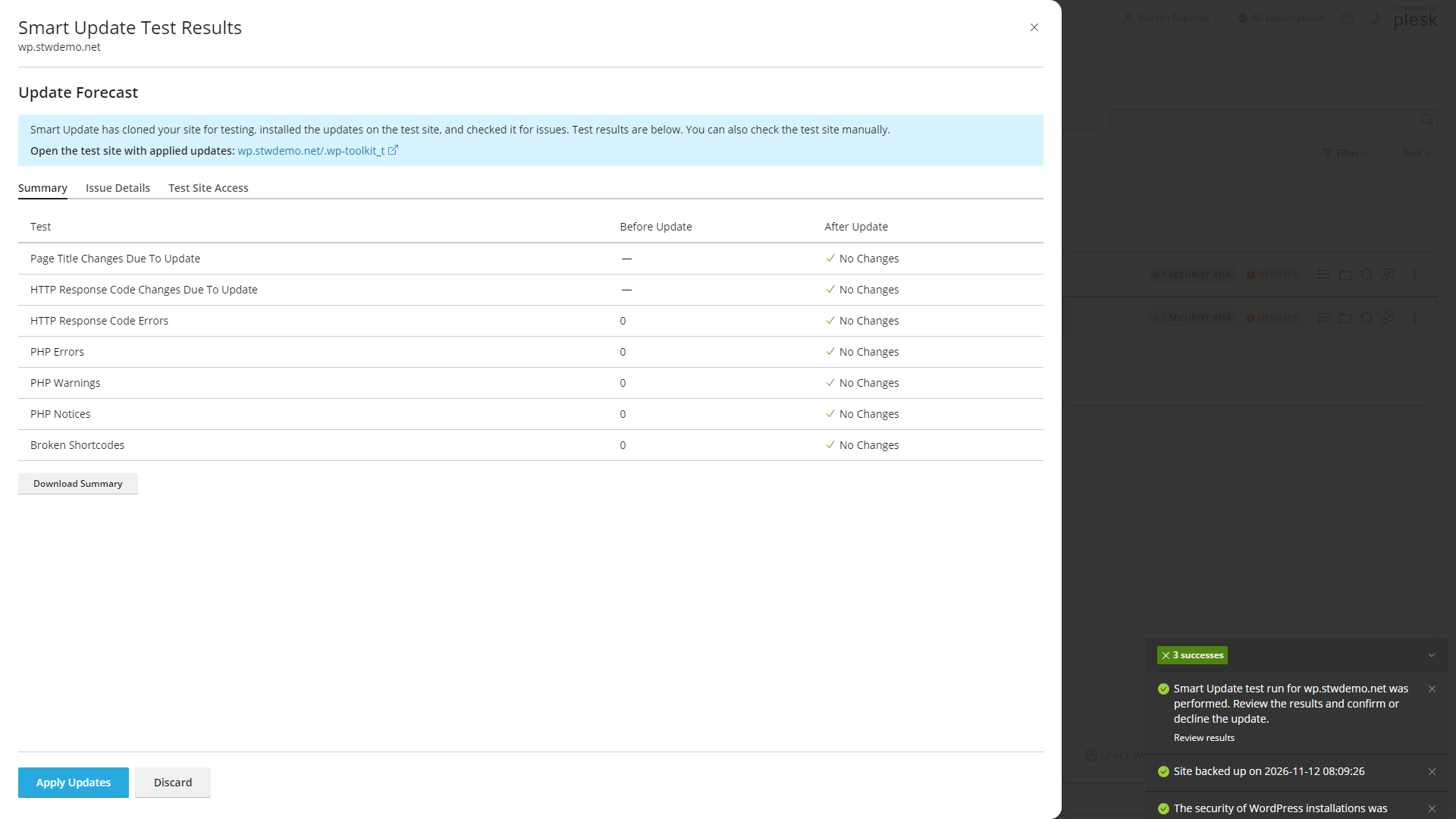
On our larger WordPress plans, Smart Update tests your updates before they reach your live site. It makes a temporary copy of your site, checks a set of pages, applies the updates to the copy, and checks the same pages again. If an update breaks something, such as an error message, a page that won’t load, or a plugin feature that stops working, the report shows you first. A typical plugin update takes a couple of minutes to test.
You can run Smart Update yourself and decide whether to apply the updates, or switch it on for automatic updates. Updates that pass are then applied for you, and any that fail are held back, with an email telling you which.
7. Backups you can restore yourself
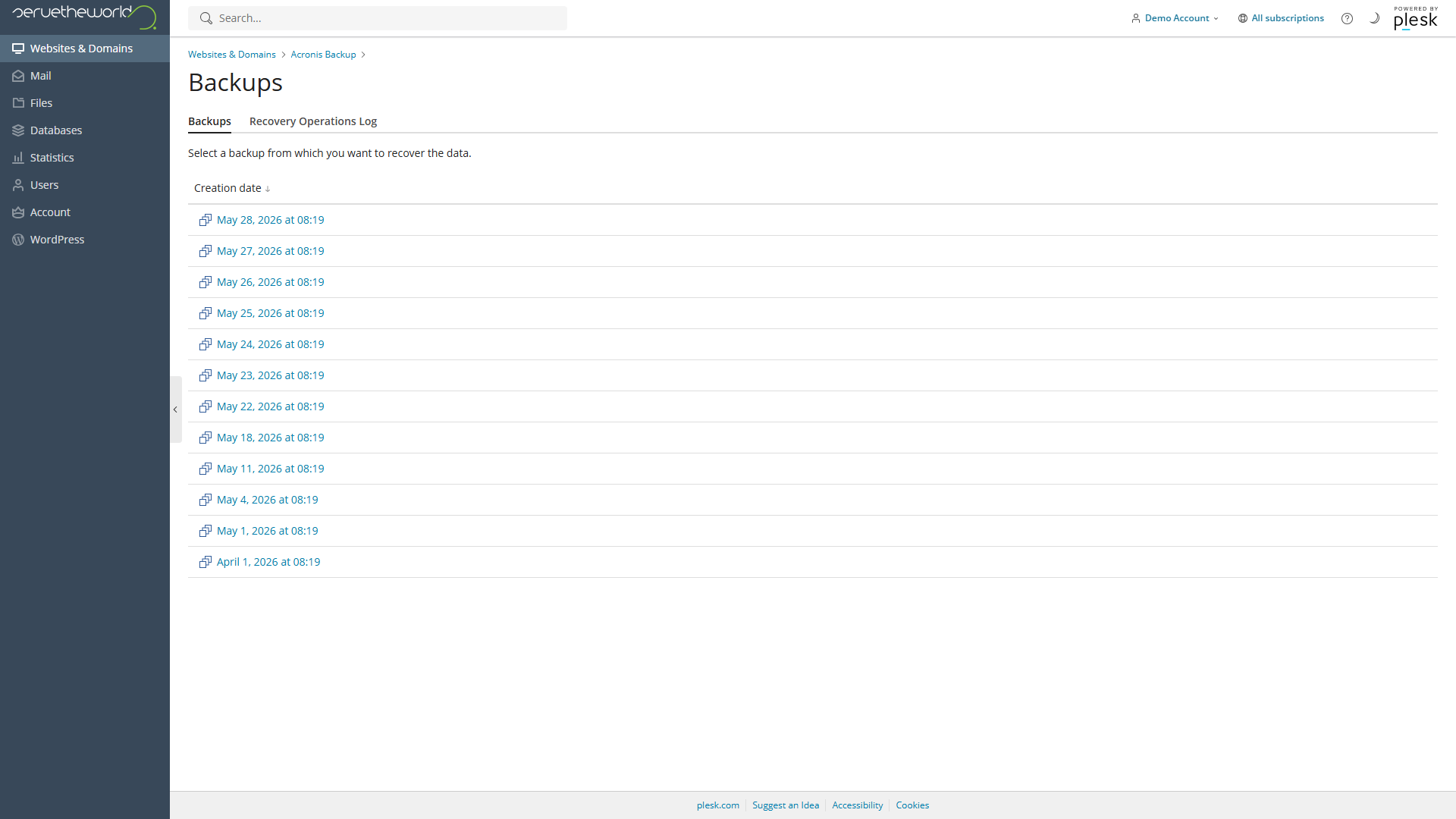
We back up your whole hosting account every day. If something goes wrong, you can restore it yourself without waiting for support. You can restore individual files or databases to where they were, or download them. A single file comes back in seconds, and our support team can do it for you if you’d prefer.
Before making any big changes on your site, you can choose to manually take a backup of your own. WordPress Toolkit makes one in a click, and a backup plugin can help you keep regular copies outside your hosting account for absolute peace of mind.
Essentially, we look after the platform, including the servers, network, security patches, malware protection, and daily backups. You look after WordPress itself, meaning your content, plugins, and updates, with the tools above to help.
8. Command-line access when you want it
If you’re comfortable in a terminal, our larger WordPress plans include SSH access and WP-CLI, WordPress’s command-line tool. With it, you can update plugins, manage users, or run a search-and-replace on your database (handy after a domain change), across one site or all of them at once. Git and Composer, PHP’s package manager, are available too.
More on WordPress
Our WordPress tutorial series covers each of these tools step by step, using the same screens you’ll see in your account. If your site eventually needs root access or dedicated resources, we can help you move it to one of our VPS plans. And if you’d like help choosing a plan or moving a site, contact us.
Compare the plans: WordPress Hosting
Richard Sutherland,
Technical writer, ServeTheWorld