

Introduction
In Part 1, we discussed how DNS translates domain names into IP addresses. In Part 2, you met the players who make that happen — registries, registrars, DNS hosts, and web hosts. Now it’s time to look at the actual information stored inside DNS: the records.
Each record has a specific type and a specific job. One points web visitors to your server. Another tells the world where to deliver your email. A third might prove to Google that you actually own the domain.
DNS records are instructions stored in a domain’s DNS zone that tell the internet how to route traffic. They define where your website, email, and services are hosted.
By the end of this article, you’ll understand the four most common record types — A, MX, CNAME, and TXT — and know how to read any DNS record by breaking it into its component parts.
The Zone: Your Domain’s Instruction Sheet
Every domain managed by a DNS host has a zone — a collection of all the DNS records for that domain. It contains every instruction the DNS system needs to route traffic for your domain.
In the ServeTheWorld control panel, the DNS Manager is where you view and work with these zones. You’ll find this in the Domains menu, under Manage Domains. The first tab you’ll see is DNS Zones, which lists your domains. Click on a domain and you’ll see its records laid out in a table:
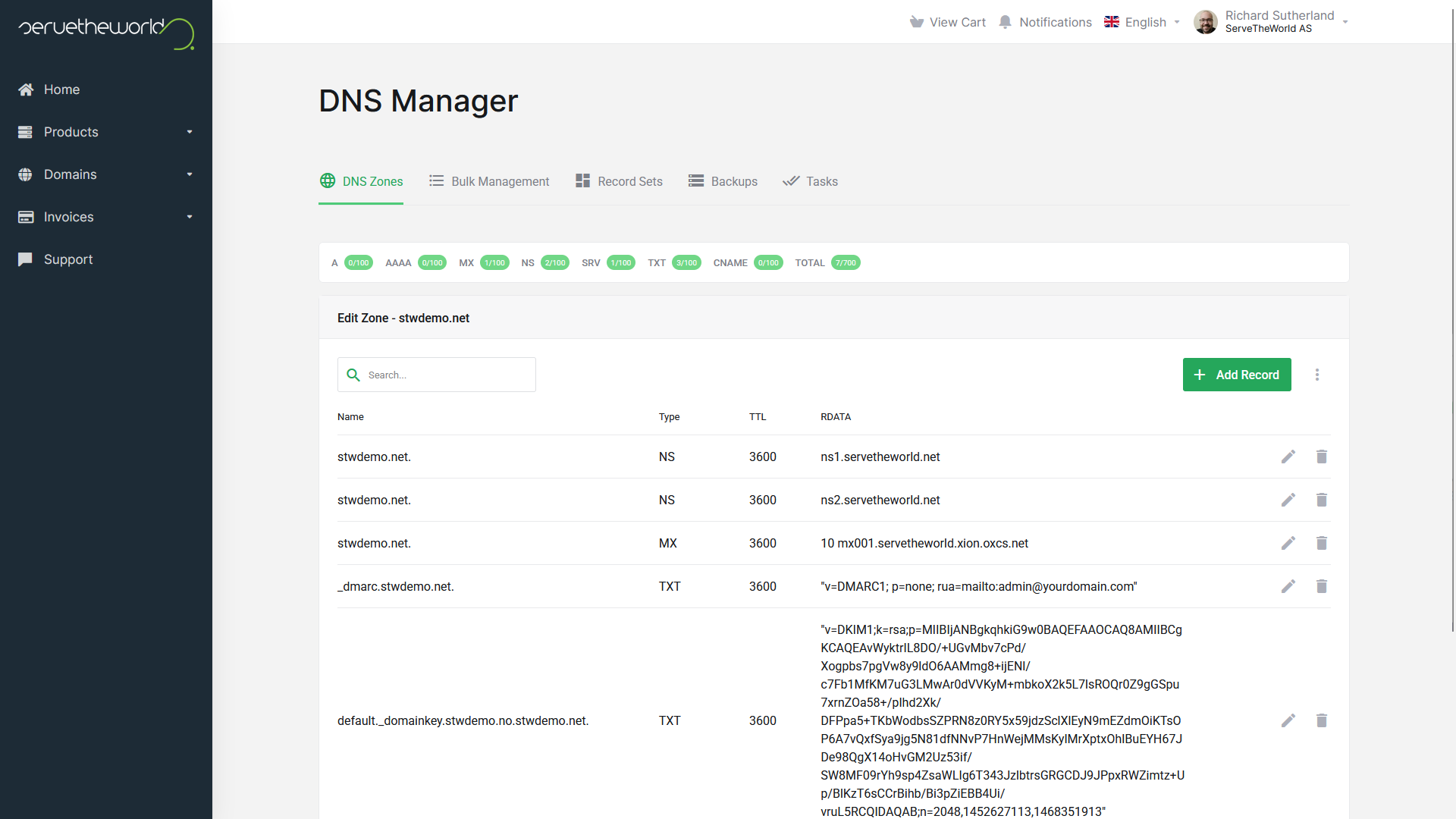
Each row is a single DNS record. The columns — Name, Type, TTL, and RDATA — are the four fields that define every record, and we’ll break each one down shortly. A typical domain might have a handful of records, or it might have dozens, depending on how many services are connected to it.
The Big Four DNS Record Types
A Record — “Send Web Traffic Here”
The A record (Address record) is the most fundamental DNS record. It maps a domain name directly to an IPv4 address — the numerical address of a specific server.
When someone types stw.no into their browser, DNS looks up the A record for stw.no and returns the IP address stored there. The browser then connects to that server to load the website.
| Name | Type | TTL | RDATA |
|---|---|---|---|
stw.no. |
A | 3600 | 203.0.113.10 |
This record says: “When someone asks for stw.no, send them to the server at that IP address.”
Common uses of A records:
- Pointing your root domain (
yourdomain.com) at your web server. - Pointing subdomains (
blog.yourdomain.com,shop.yourdomain.com) at different servers. - Connecting your domain to a ServeTheWorld VPS.
We’ll cover A records in detail — including subdomains and IPv6 (AAAA records) — in Part 5.
MX Record — “Deliver Email Here”
The MX record (Mail Exchanger record) tells the internet where to deliver email for your domain. Without MX records, email sent to you@yourdomain.com has nowhere to go.
MX records include two extra pieces of information beyond the basics. In the STW DNS Manager, you’ll see these labeled Preference and Exchange:

- Preference is a priority number. Lower numbers mean higher priority — sending mail servers try the lowest-numbered server first.
- Exchange is the hostname of the mail server that should receive the email.
Our example above says: “Deliver email for stwdemo.net to the mail server mx001.servetheworld.xion.oxcs.net, with priority 10.” If you had a second MX record with Preference 20, that would be the backup that’s tried only when the primary is unavailable.
Common uses of MX records:
- Routing email to your hosting provider’s mail servers.
- Connecting your domain to STW Mail or another email service.
- Setting up backup mail servers for reliability.
We’ll go deeper into MX records and email deliverability (including SPF) in Part 6.
CNAME Record — “This Name Is an Alias for That Name”
The CNAME record (Canonical Name record) creates an alias — it points one domain name to another domain name, rather than directly to an IP address.
The most common use is mapping www.yourdomain.com to yourdomain.com. Instead of maintaining two separate A records that could get out of sync, you create a CNAME that says “www is an alias for the root domain, so go look up that IP address instead.”
| Name | Type | TTL | RDATA |
|---|---|---|---|
www.stw.no. |
CNAME | 3600 | stw.no. |
Notice the trailing dot in stw.no.. It marks a fully qualified domain name and prevents resolvers from appending your zone name.
The key advantage is easy maintenance. If you move your website to a new server and the IP changes, you update one A record. The CNAME follows along automatically because it points at the name, not the number.
Common uses of CNAME records:
- Pointing
wwwto your root domain. - Mapping subdomains to third-party services (e.g.,
blog.yourdomain.comto a hosted platform). - Creating aliases for cloud services that give you a hostname instead of a fixed IP.
A rule to remember: A CNAME record cannot coexist with other record types for the same name (except certain DNSSEC-specific records). You can’t have both a CNAME and an MX record on
yourdomain.com. This is why CNAMEs are typically used for subdomains (likewww) rather than the root domain.
TXT Record — “Here’s Some Extra Information”
The TXT record (Text record) stores arbitrary text data associated with your domain. Unlike A, MX, and CNAME records, TXT records don’t route traffic. They carry information that other systems look up and verify.
In the STW DNS Manager, when you edit a TXT record, the value field is labeled TXT data:
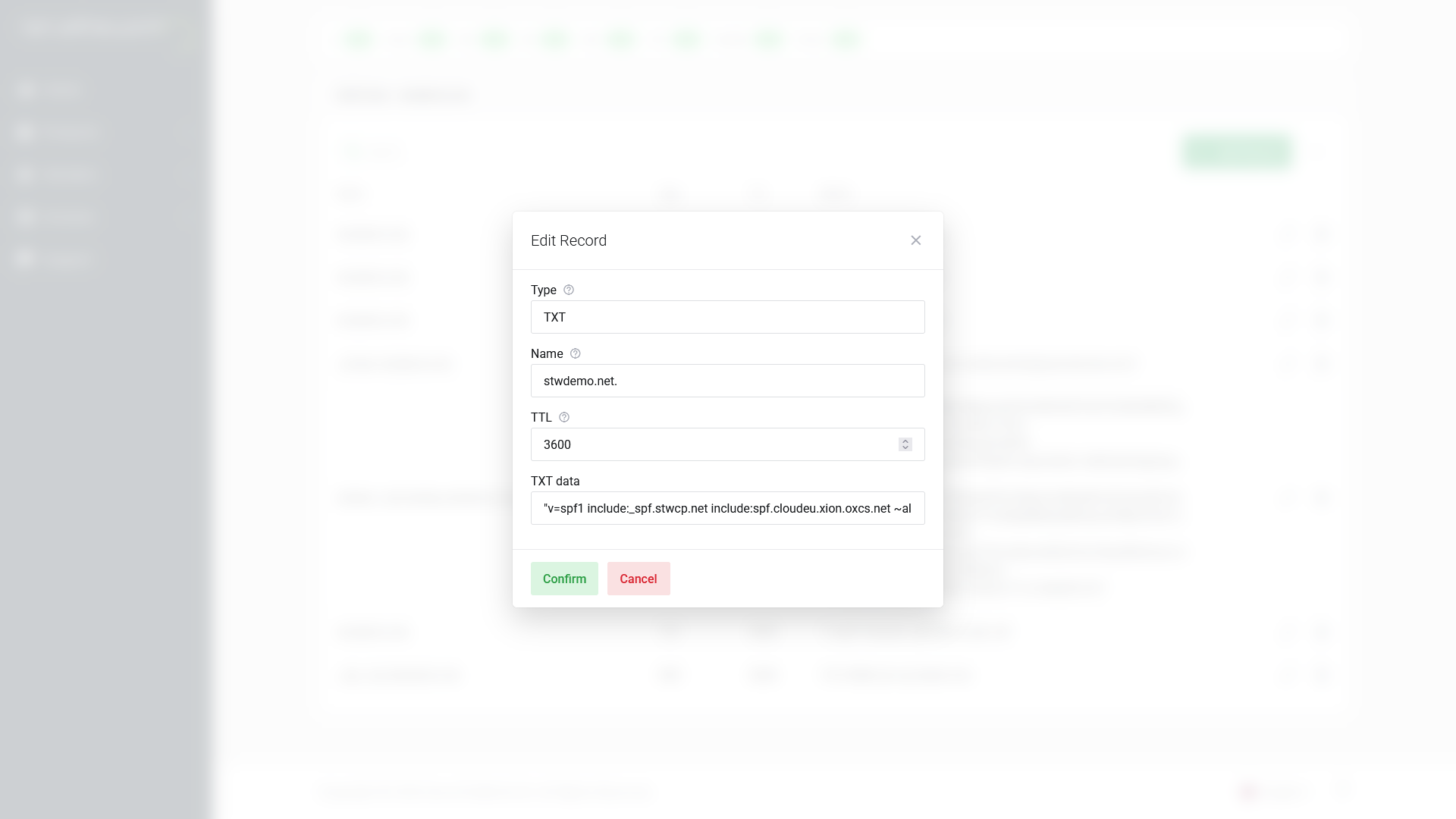
In this case, the TXT value is an SPF record (Sender Policy Framework) — it tells email servers which systems are authorized to send email on behalf of this domain. We’ll unpack SPF fully in Part 6. For now, the takeaway is that TXT records are the “Swiss Army knife” of DNS: they carry data for a wide range of purposes.
Common uses of TXT records:
- SPF — Declaring which servers can send email for your domain (reduces spam/spoofing).
- Domain verification — Proving to services like Google Search Console or Microsoft 365 that you control the domain. They give you a unique string, you add it as a TXT record, and they look it up to confirm ownership.
- DKIM — An email authentication method that publishes a cryptographic key as a TXT record (covered in Part 6).
- DMARC — A policy record telling receiving servers what to do with email that fails SPF/DKIM checks.
How to Read Any DNS Record
Every DNS record, regardless of type, follows the same basic structure. Once you know the four core fields, you can read anything:
| Field | What it means | STW label | Example |
|---|---|---|---|
| Name | The domain or subdomain this record applies to. A trailing dot marks it as a fully qualified name. @ is shorthand for the root domain itself. | Name | stw.no., www.stw.no.,@ |
| Type | What kind of record this is. | Type | A, MX, CNAME, TXT |
| TTL | Time to Live – how long (in seconds) other DNS servers should cache this record before checking for updates. | TTL | 3600 (1 hour), 86400 (24 hours) |
| Value | The destination or data the record provides. The label varies by record type. | RDATA, Exchange, TXT data | 203.0.113.10, mx0101.servetheworld.xion.oxcs.net |
Some record types add extra fields. MX records have Preference (priority). But these four columns are always present.
A Brief Note on TTL
TTL affects every record type. When you update a DNS record, the change doesn’t take effect everywhere instantly. DNS servers around the world have cached the old value and will keep using it until the TTL expires.
A TTL of 3600 means other servers will cache the record for one hour. A TTL of 86400 (24 hours) means a full day could pass before everyone sees the new value. This is why DNS changes sometimes feel slow — it’s caching, working as designed.
You can see a cached TTL in action. On macOS or Linux, dig shows the remaining cache lifetime directly when you query a public resolver:
dig @8.8.8.8 A stw.noLook at the answer section – the second column is the number of seconds remaining before Google’s resolver fetches a new copy:
;; ANSWER SECTION:
stw.no.         3247    IN      A       203.0.113.10
Here 3247 means the record was cached with a 3600-second TTL and about 6 minutes have already elapsed. Run the same command a minute later and the number will be smaller. Once it hits zero, the resolver goes back to the authoritative server for an update.
Why not nslookup? We used
nslookupin previous examples as it’s pre-installed on Windows, butnslookupdoesn’t display TTL in its standard output, makingdigthe right job for this specific tool.digis pre-installed on macOS and most Linux distributions and Windows users can get the same view from the Google Admin Toolbox Dig Tool – select the record type, enter the domain, and look for the TTL column in the results.
In Part 4, we’ll cover how to use TTL strategically when you’re planning changes. For a deeper look at propagation mechanics, see Part 9.
Quick Reference
| Type | Purpose | Points to | Example use |
|---|---|---|---|
| A | Maps a name to an IPv4 address | IP address | Hosting a website on a STW VPS |
| MX | Routes email delivery | Mail server hostname | Using STW Mail for your domain |
| CNAME | Creates an alias for another name | Another domain name | Pointing www to the root domain |
| TXT | Stores text data for verification and policy | Text string | SPF email authorization, domain verification |
These four cover the vast majority of DNS tasks you’ll encounter. As the series continues, we’ll also introduce AAAA records (IPv6, Part 5), SRV records (service discovery, Part 7), and PTR records (reverse DNS, Part 8).
Conclusion
You now know the four most common DNS record types and how to read any record by identifying its name, type, value, and TTL.
In Part 4, we move from reading records to editing them. You’ll learn where and how to safely make DNS changes, what TTL settings to use during migrations, and which common mistakes cause real downtime.
Next steps: