

Introduction
Every time you type a web address into your browser, something important happens behind the scenes. Your computer doesn’t actually know what stw.no means. It needs a number — a specific numerical address — to find the right server on the internet. The system that translates between the names we type and the numbers computers use is called the Domain Name System, or DNS.
DNS (Domain Name System) is the system that translates human-readable domain names into numerical IP addresses so computers can locate servers on the internet.
This is the first article in the ServeTheWorld Guide to DNS, a ten-part series designed to provide a comprehensive look at managing your own domain infrastructure. Here’s where we’re headed:
- DNS Fundamentals (this article) — What DNS is and why it exists
- DNS Players — Registrars, registries, and hosts: who does what
- Record Types — The different kinds of DNS records and what they do
- DNS Updates — How and where to change your DNS records
- A Records & Subdomains — Connecting names to servers
- MX Records & SPF — Making email work (and keeping it out of spam folders)
- SRV Records — Specialised services like VoIP and game servers
- Reverse DNS — Why server reputation depends on it
- DNS Propagation — The waiting game: why changes aren’t instant
- DNS Security — DNSSEC and protecting your domain from hijacking
By the end of this article, you’ll understand the core problem DNS solves, know the foundational terms used throughout the series, and see how to run a DNS lookup to verify a domain’s actual location.
The Problem: Computers Speak Numbers, Humans Don’t
The internet runs on numbers. Every device connected to it — every server, laptop, and phone — has a unique label called an IP address (Internet Protocol address). An IP address for a website might look like 203.0.113.10 (your output will differ). That string of digits is perfectly natural for a computer, but it’s a pain in the neck for a human being trying to remember where their favorite websites live.
Imagine if, instead of typing stw.no into your browser, you had to remember and type an IP address every time. Now multiply that by every website, email server, and online service you use in a day. You’d need a spreadsheet just to check your inbox.
Among performing other duties, domain names solve this from the human side. A domain name like stw.no is memorable, brandable, and easy to share. But your computer still needs the number behind it. DNS is the bridge between the two. It takes the name you type and returns the number your computer needs, all in a fraction of a second.
How DNS Works: The Address Book Analogy
Think about your phone’s contact list. When you want to call someone, you don’t punch in their eleven-digit number from memory. You tap their name, and your phone looks up the number for you. DNS works exactly like this for the entire internet. Every domain name has a corresponding “phone number” and the DNS system is the global address book that stores all of them.
More Than a Translation Layer
Translating names to numbers is what DNS is famous for, but it does more than that. Three benefits are worth highlighting early on, because they come up repeatedly as you manage your own domains:
- Service mobility. Servers change. If you upgrade from one Virtual Private Server (VPS) to another, the IP address of your server might change. Without DNS, every visitor would need to learn the new number. With DNS, you update one record (covered in depth in Part 5), and every visitor continues to reach the right place automatically.
- Multiple services under one name. Your domain can do more than host a website. DNS uses different types of records to route traffic. One record sends web visitors to your server, while another (called an MX record, covered in Part 6) routes incoming email to your email inbox.
- Memorability and branding. A domain name is your identity on the internet. It is much easier to print
stw.noon a business card or use it for your WordPress site than to rattle off an IP address.
Core Terminology
Before going further, let’s define three terms that will follow us through the entire series. We’ll build on these as we go, but this is the foundation:
- Domain Name — A human-readable address for a location on the internet. Examples:
stw.no,google.com. If you don’t have one yet, the ServeTheWorld Domain Search is where you start. - IP Address — The numerical address that identifies a specific server or device on the internet. Think of it as the GPS coordinates for a building, while the domain name is the building’s street name.
- Nameserver — A specialized server whose job is to answer DNS questions. When your computer asks “What’s the IP address for
stw.no?”, a nameserver provides the reply. They’re like the librarians who know exactly which shelf has the book you’re looking for.
Running a DNS Lookup
Reading about DNS is useful, but seeing it in action provides much better context. We’re going to use a tool called nslookup (Name Server Lookup) to ask the DNS system for the IP address of stw.no. This tool is already installed on Windows, macOS, and most Linux systems. Another popular alternative is dig.
Running the Command
- On Windows: Press the Windows key, type
cmd, and press Enter. - On macOS: Open Finder, go to Applications > Utilities, and open Terminal.
- On Linux: Open your preferred terminal emulator (such as Terminal, Konsole, or GNOME Terminal).
Type the following command and press Enter:
nslookup stw.noCommand not found on Linux? If your Linux distribution doesn’t have
nslookupavailable by default, the package is usually missing. On Debian/Ubuntu, you can install it with:sudo apt install dnsutils. On Fedora/CentOS/RHEL, you can install it with:sudo yum install bind-utils. It’s a useful toolset for server and network troubleshooting.
Reading the Output
Regardless of your operating system, you should see something similar to this:
Server:  192.168.1.1
Address: 192.168.1.1#53

Non-authoritative answer:
Name:    stw.no
Address: 203.0.113.10- Server / Address (top section): This is the local DNS server your computer asked first—usually your home router or a server provided by your Internet Service Provider (ISP). The
#53refers to port 53, the standard doorway for DNS traffic. - Non-authoritative answer: This indicates the answer came from a server that has the information cached (temporarily stored) rather than from the official, authoritative source. It is an efficient way for DNS to handle the massive volume of daily requests. We’ll explore the difference between “Middlemen” and “Official Sources” in Part 2.
- Name / Address (bottom section): Here is the result. The domain name
stw.noresolves to an IP address. That IP address is where your computer will connect to fetch the website.
Prefer a visual interface? If you’re not comfortable with the command line, you can get the same results using web-based tools like Google’s Admin Toolbox Dig Tool. It’s a great way to verify records without touching a terminal.
Under the Hood: The Journey of a DNS Query
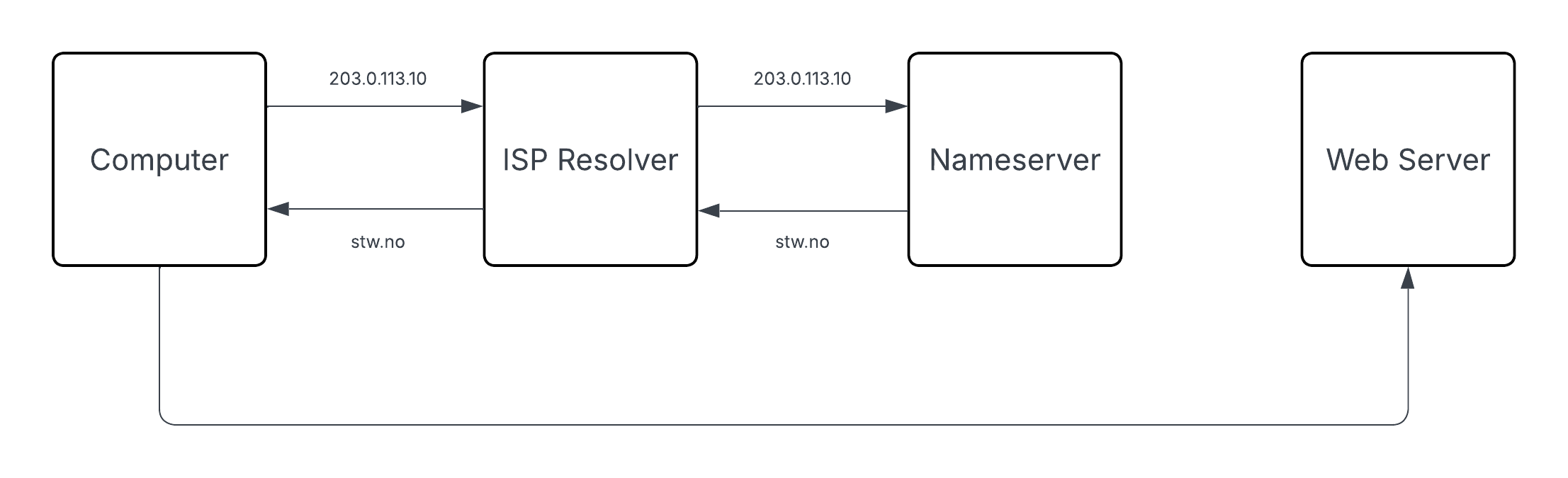
When you typed nslookup stw.no a moment ago, the answer came back almost instantly. But that answer actually passed through several stages to reach you.
Here’s what happens when a browser needs to find the IP address for a domain name:
- Your computer checks its local memory. Your operating system keeps a short-term cache of recent lookups. If you’ve visited
stw.noin the last few minutes, your computer already has the answer stored locally and doesn’t need to ask anyone else. - The question goes to a resolver. If the answer isn’t in memory, your computer sends the domain name (
stw.no) to a DNS resolver. This is usually a server run by your ISP that acts as your personal “assistant” for DNS queries. - The resolver tracks down the authoritative source. If the resolver doesn’t have a cached answer, it follows the domain name’s trail—starting from the root servers, moving to the
.noregistry, and finally arriving at the authoritative nameservers forstw.no. These are the servers that hold the official, current records. - The DNS answer travels back. The authoritative server replies with the specific IP address. This “original source” information travels back through the resolver to your computer. At every step, it gets cached, so the next person’s lookup is even faster.
- The browser connects to the web server. Now that your browser has the IP address, the DNS phase is complete. Your browser uses that number to establish a direct connection to the web server and requests the website files.
Conclusion
You now understand the fundamental problem DNS solves: computers need numbers, humans prefer names, and DNS acts as the essential bridge between them. You’ve verified the real-world IP of stw.no and seen exactly how that information reached your screen.
Every record type, propagation delay, and security measure we’ll cover later in the series builds on this “name vs. number” relationship.
In Part 2, we move from the “what” to the “who.” We’ll look at the DNS Players — registrars, registries, and hosting providers — and see where ServeTheWorld fits into that neighborhood.
Next steps: