

Introduction
So far in this series, every DNS record we’ve covered routes one of two things: web traffic (A records, CNAMEs) or email (MX records). But domains can host more than websites and inboxes. VoIP phone systems, chat platforms, game servers, and other client applications all need to find the right server — and the right port — to connect to.
That’s what SRV records (Service records) are for. An SRV record tells a client application: “The service you’re looking for runs on this server, on this port, and here’s how to prioritize it if there are multiple options.”
By the end of this tutorial, you’ll understand what SRV records do, how to read their extra fields, and when you’d add one. You’ll use the same DNS Manager workflow from Part 4 and the record structure concepts from Part 3.
What Makes SRV Different
A and MX records are specialized. An A record always points to an IP address. An MX record always points to a mail server. SRV records are more general — they can describe any service, as long as the client application knows to look for them.
The trade-off is that SRV records have more fields than other record types. Where an A record has one value (an IP address) and an MX record has two (priority and hostname), an SRV record has four: priority, weight, port, and target.
Step 1 — Anatomy of an SRV Record
Here’s an SRV record from the STW Mail DNS setup documentation:
| Name | Type | TTL | RDATA |
|---|---|---|---|
_imaps._tcp |
SRV | 3600 |
0 0 993 imap.stw.no |
That single record packs in a lot of information. Let’s break it apart.
The Name field: service and protocol labels
The Name field for SRV records follows a specific format:
_service._protocol
_imaps— the service name. This identifies what type of service the record describes. The leading underscore is required by the SRV standard to distinguish service labels from regular subdomains._tcp— the transport protocol (TCP or UDP). Most services use TCP.
These labels are defined by standards bodies (IANA maintains the official registry), so client applications know exactly what to look for. When an email client like Thunderbird wants to find the IMAP server for your domain, it queries _imaps._tcp.yourdomain.com — not because someone told it to, but because that’s the agreed-upon lookup name.
The RDATA field: the four SRV values
The RDATA is four space-separated values:
| Value | In our example | Meaning |
|---|---|---|
| Priority | 0 |
Which server to try first (lower \= higher priority, same as MX) |
| Weight | 0 |
Load balancing between servers of equal priority (higher \= more traffic) |
| Port | 993 |
The network port the service listens on |
| Target | imap.stw.no |
The hostname of the server providing the service |
Priority works the same way as MX record priority (see Part 3) — lower numbers are tried first.
Weight adds a second layer. Among servers with the same priority, weight determines how traffic is distributed. A server with weight 70 gets roughly seven times more traffic than one with weight 10. If you only have one server (or all servers should be treated equally), weight is 0.
Port makes SRV records especially useful. Other DNS records tell you which server to connect to, but they don’t specify which door to knock on. SRV records do. IMAP uses port 993. SMTP submission uses port 587. A VoIP system might use port 5060. The client doesn’t have to guess or hardcode these because DNS provides them.
Target is the hostname of the server, just like the exchange field in an MX record.
Step 2 — Real-World SRV Examples
Email client autoconfiguration (STW Mail)
These SRV records let email clients discover the correct connection settings automatically:
| Name | Priority | Weight | Port | Target |
|---|---|---|---|---|
_imaps._tcp |
0 |
0 |
993 |
imap.stw.no |
_pop3s._tcp |
0 |
0 |
995 |
pop.stw.no |
_smtps._tcp |
0 |
0 |
465 |
smtp.stw.no |
_submission._tcp |
0 |
0 |
587 |
smtp.stw.no |
When a user sets up their email client and enters just their email address, the client queries these SRV records to find the server, port, and protocol — no manual server configuration needed.
Microsoft 365 / Teams
Microsoft Teams uses an SRV record for federation with external organizations. If your organization uses Microsoft 365 and needs external federation (the ability for your Teams users to communicate with people in other organizations), you’ll need:
| Name | Priority | Weight | Port | Target |
|---|---|---|---|---|
_sipfederationtls._tcp |
100 |
1 |
5061 |
sipfed.online.lync.com |
If you have older sip.tls SRV records left over from a Skype for Business setup, these are no longer needed for Teams-only organizations.
VoIP / SIP
Voice over IP phone systems use SRV records to route calls. A SIP provider might require:
| Name | Priority | Weight | Port | Target |
|---|---|---|---|---|
_sip._udp |
10 |
100 |
5060 |
sip.example.net |
_sip._tcp |
20 |
0 |
5060 |
sip.example.net |
Here, the UDP server is preferred (priority 10) over TCP (priority 20). VoIP often prefers UDP for lower latency.
Game servers
Some multiplayer game servers use SRV records — most notably Minecraft (Java Edition), which looks up _minecraft._tcp.yourdomain.com to find the server address and port. If you’ve ever wondered how Minecraft servers let players connect with a clean domain name even when the server runs on a non-standard port, this is how. One SRV record does the trick.
Step 3 — Adding an SRV Record
In the STW DNS Manager, click + Add Record and select SRV as the type.
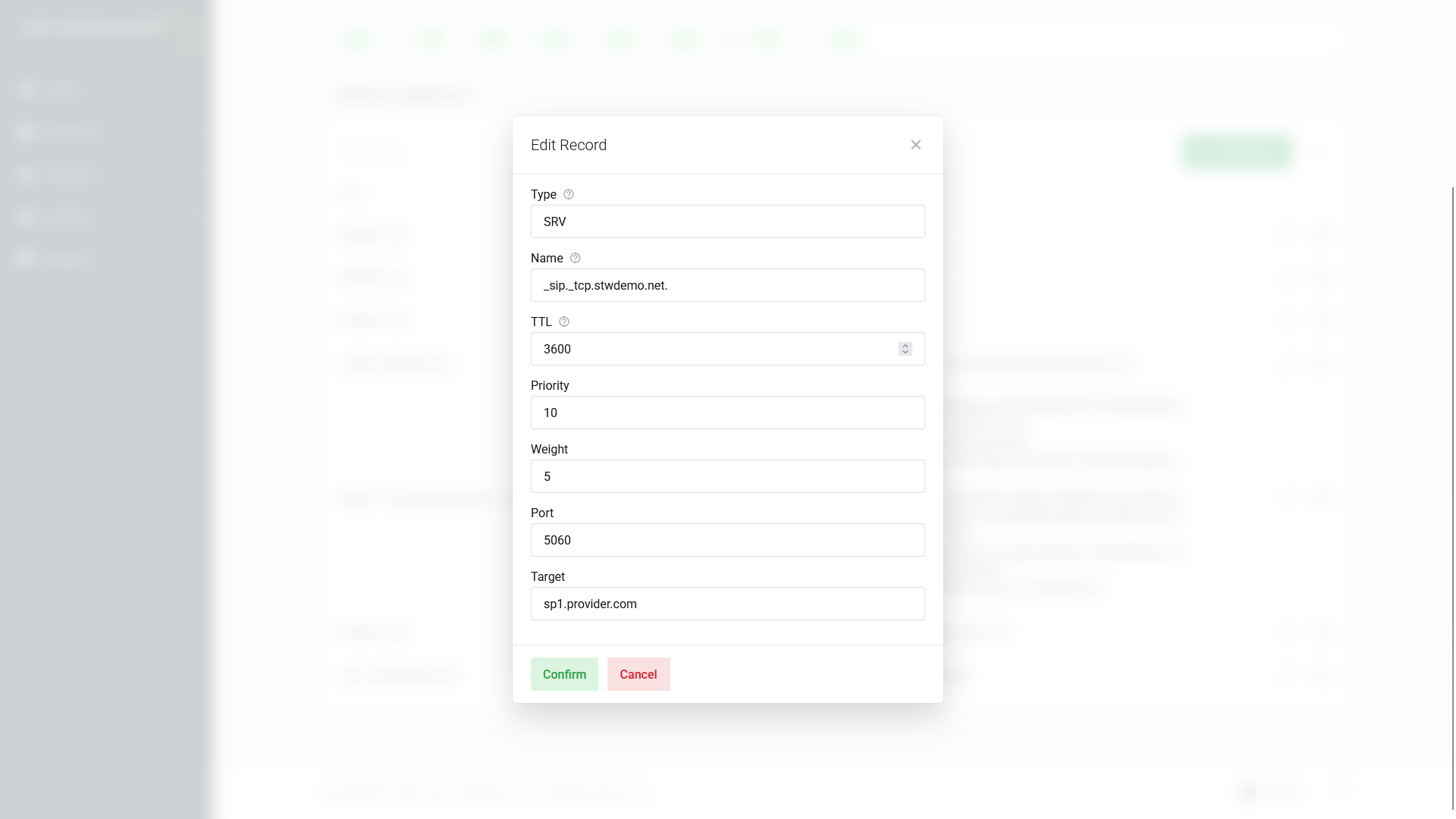
Fill in the fields:
| Field | Value (using IMAP as example) |
|---|---|
| Name | _imaps._tcp |
| TTL | 3600 |
| Priority | 0 |
| Weight | 0 |
| Port | 993 |
| Target | imap.stw.no |
Click Confirm to save.
Verify with dig
dig @ns1.servetheworld.net SRV _imaps._tcp.yourdomain.comExpected output:
;; ANSWER SECTION:
_imaps._tcp.yourdomain.com. 3600 IN SRV 0 0 993 imap.stw.no.
Common SRV Mistakes
SRV records have more fields than most DNS record types, which means more places to get something wrong. These are the mistakes we see the most often:
- Using an IP address as the target. The target field must be a hostname (
imap.stw.no). Entering an IP address (192.0.2.10) directly will break the record. The target hostname also needs its own A record (or AAAA for IPv6) that resolves. Without one, the client finds the hostname and then has nowhere to go. - Putting the service label in the wrong field. Some DNS panels have separate fields for service name, protocol, and hostname. Others combine them into a single Name field. If you enter
_imaps._tcpinto a field that already prepends the underscores or appends your domain, you’ll end up with a mangled record like_imaps._tcp._imaps._tcp.yourdomain.com. Check what your panel auto-fills before saving. - Protocol mismatch. If the service expects
_tcpand you enter_udp(or vice versa), the client’s lookup will return nothing. The protocol label must match what the client application queries for. - Trailing dot confusion. In raw DNS, hostnames end with a trailing dot (
imap.stw.no.). Some DNS panels add it automatically; others require you to include it. If your panel expects the dot and you leave it off, the target might be interpreted asimap.stw.no.yourdomain.com, which won’t resolve. When in doubt, add the dot and check the result withdig. - Priority/weight mix-up. Priority controls failover order (lower \= tried first). Weight controls load distribution among servers with the same priority (higher \= more traffic). Swapping them gives you the opposite of what you intended: a backup server handling all the load, or traffic not being distributed at all.
Proving Where the Failure Is
Let’s say you’ve added an SRV record and the service still won’t connect. The problem is either in DNS (the record is wrong or not visible yet) or in the application/service itself. You can work through these steps to narrow it down:
- Query DNS directly. Run
dig @ns1.servetheworld.net SRV _service._protocol.yourdomain.comagainst your authoritative nameserver. If the record doesn’t appear, the issue is in DNS. Go back and check the record. - Verify the target resolves. If the SRV record appears, take the target hostname and run
dig A imap.stw.no(or whatever the target is). If it doesn’t resolve to an IP, the SRV record is fine, but the target is broken. - Test the port. If both the SRV record and the target resolve correctly, test whether the service is actually listening. The
nc(netcat) command can do a quick connection check:nc -zv imap.stw.no 993. A refused or timed-out connection points to the service, not DNS. - Check from outside your network. If everything works from your server but fails from a client machine, the issue might be a firewall, NAT (Network Address Translation), or the client application not supporting SRV lookups for that service.
If the SRV record is correct in authoritative DNS but the service started failing recently, the issue is likely propagation: cached old values somewhere upstream. See Part 9 for how TTL and caching affect this.
When Do You Need SRV Records?
Most people won’t add SRV records proactively. They’ll add them because a service provider told them to. Microsoft 365, Google Workspace, VoIP providers, and certain hosting platforms include SRV records in their DNS setup instructions.
If no service is asking you for SRV records, you probably don’t need any. But knowing what they are means you won’t be confused when a setup guide asks you to add one, and you’ll understand what each field does instead of blindly copying values.
SRV vs. A records and CNAMEs
You might wonder: why not just use an A record or CNAME for these services? The answer is that A records and CNAMEs can point to a server, but they can’t specify a port. And they can’t express priority or weight for failover and load balancing.
SRV records solve all three problems in a single record. The trade-off is that the client application has to know to look for them — not all software does. Web browsers, for example, don’t query SRV records. But VoIP clients, email auto-discovery, and many enterprise applications do.
Conclusion
SRV records extend DNS beyond web and email. They let client applications discover not just which server provides a service, but which port to use, which server to prefer, and how to distribute load, all from a single DNS lookup.
Most SRV records come from setup instructions provided by a service (Microsoft 365, a VoIP provider), and many are automatically created by the service provider. When STW Mail is provisioned for your domain, for example, the required SRV records for email autoconfiguration are added for you.
Understanding the four fields — priority, weight, port, and target — means you can add them confidently and troubleshoot them when something doesn’t connect.
In Part 8, we look at DNS from the other direction. Instead of translating names to numbers, reverse DNS translates numbers back to names.
Next steps: