
We’ve been hard at work improving how you can manage DNS at ServeTheWorld. Your DNS records now have their own dedicated space, separate from your services. This means you can mix and match your hosting, VPS, and email exactly the way you want. If you ever decide to change your hosting plan or move a website to a new server, you won’t have to untangle your DNS settings to keep your email and other services running.
To go along with the new foundation, we’ve created a dedicated DNS control panel packed with features to make everyday DNS record management faster and easier.
Draft changes before publishing
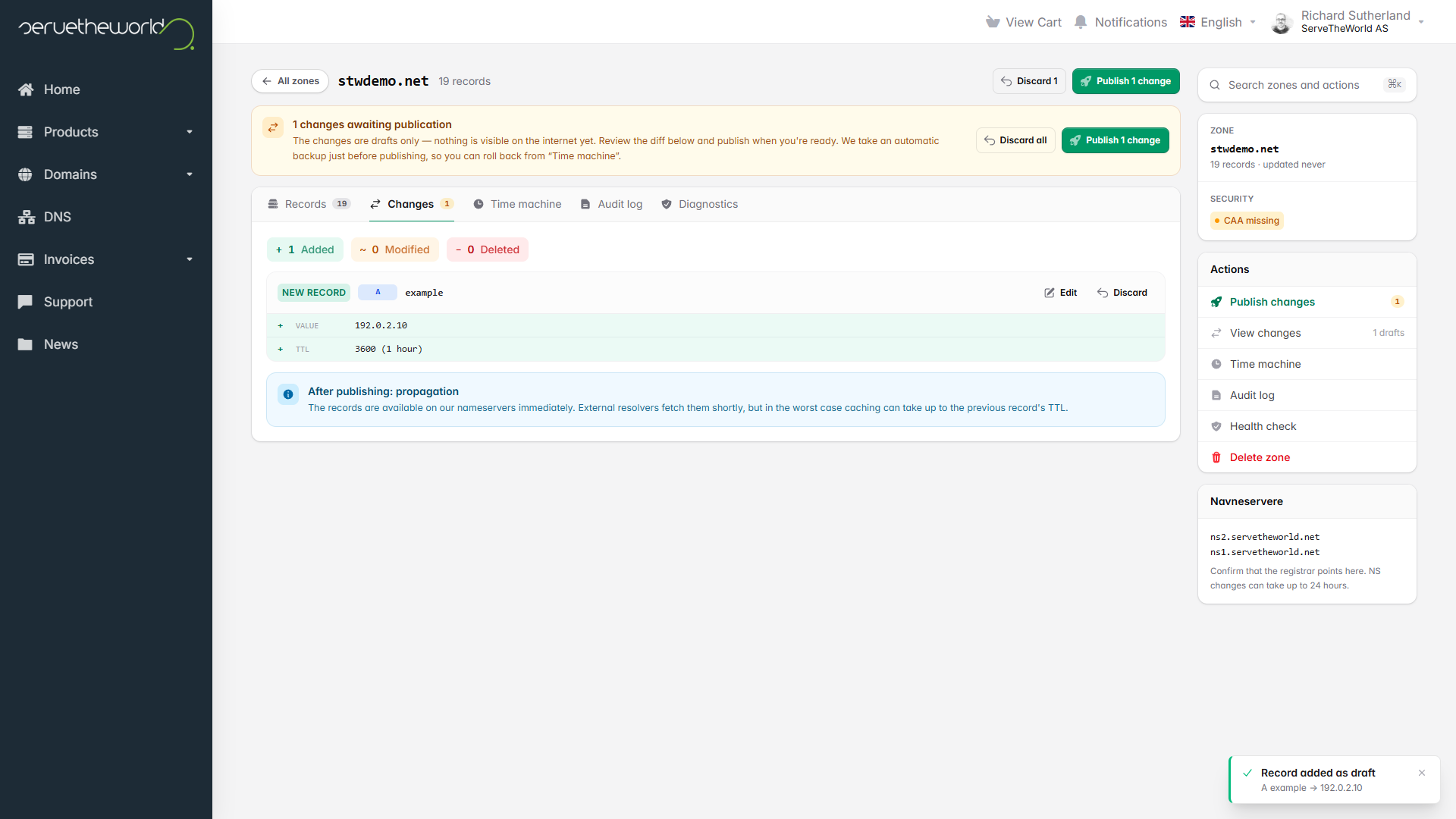
When you add, edit, or delete a DNS record now, your work will be saved as a draft. You can line up as many edits as you need, then open the Changes tab to compare the old and new values side by side.
This is great for getting a clear look at your exact changes before anything hits the live internet. If you decide to rethink a change, you can discard the draft and leave your live records completely untouched.
A faster way to manage records
So much of managing DNS involves tracking down values from one screen and pasting them into another. We’ve built the new panel specifically to cut out those repetitive steps.
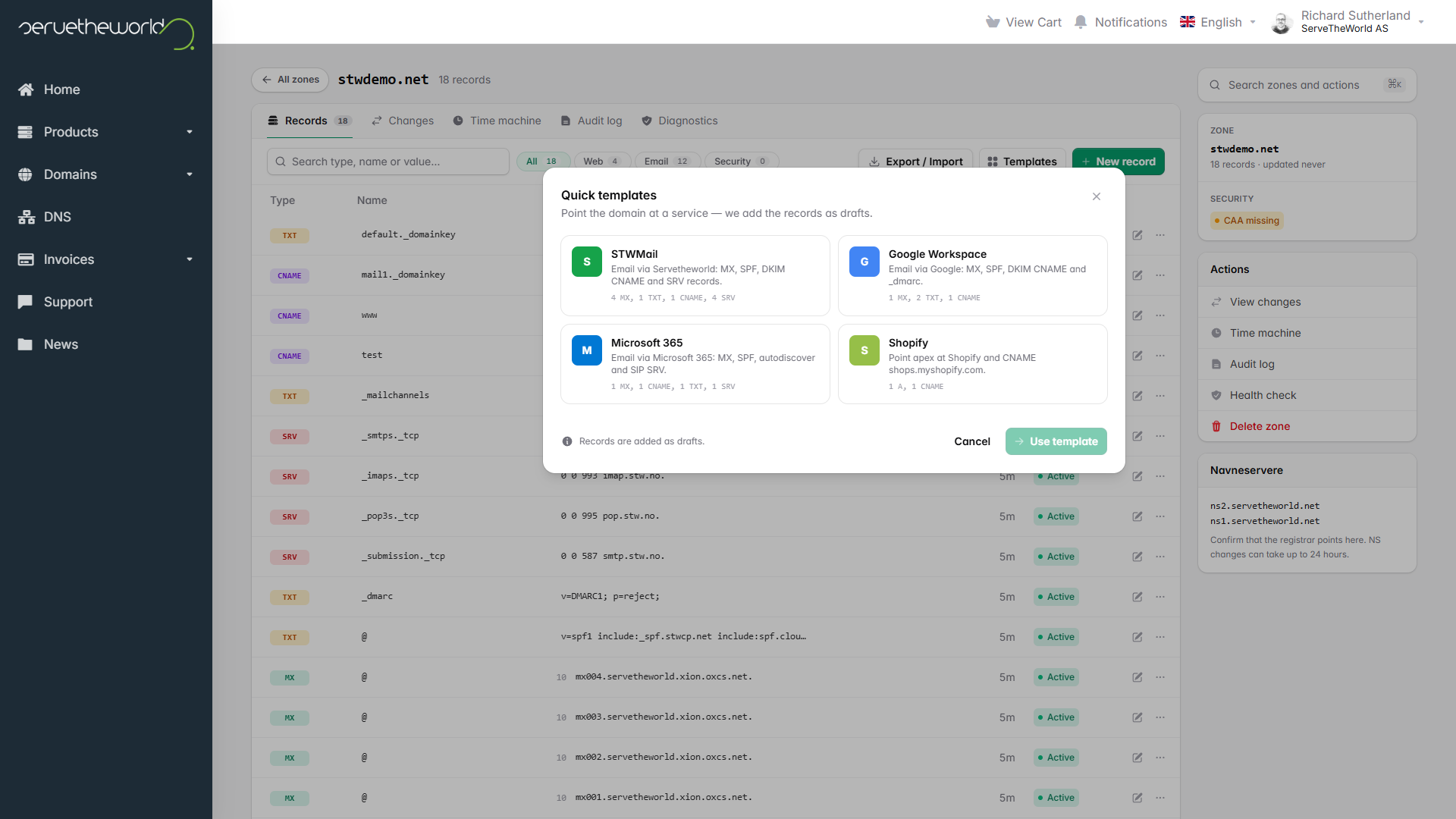
When you create a new A record, the system can automatically suggest the IP address from your existing STW services, saving you a trip to another menu. If you are moving a domain in from elsewhere, you can import BIND files directly into the panel rather than copying records over one by one. We’ve even added quick templates that let you apply the correct draft records for STWMail, Google Workspace, Microsoft 365, or Shopify with a single click.
For larger changes, our new find and replace tool lets you update selected records in bulk. You can swap an old mail server hostname across dozens of records in a single pass, review the resulting drafts under the Changes tab, and publish the entire batch together.
Smoother and faster navigation
We’ve focused on making the interface faster to navigate day-to-day. You can use quick keystrokes to drop in the most common records, including A, MX, SRV, and TXT. A new global search feature helps you find specific records across your entire account without digging through lists.
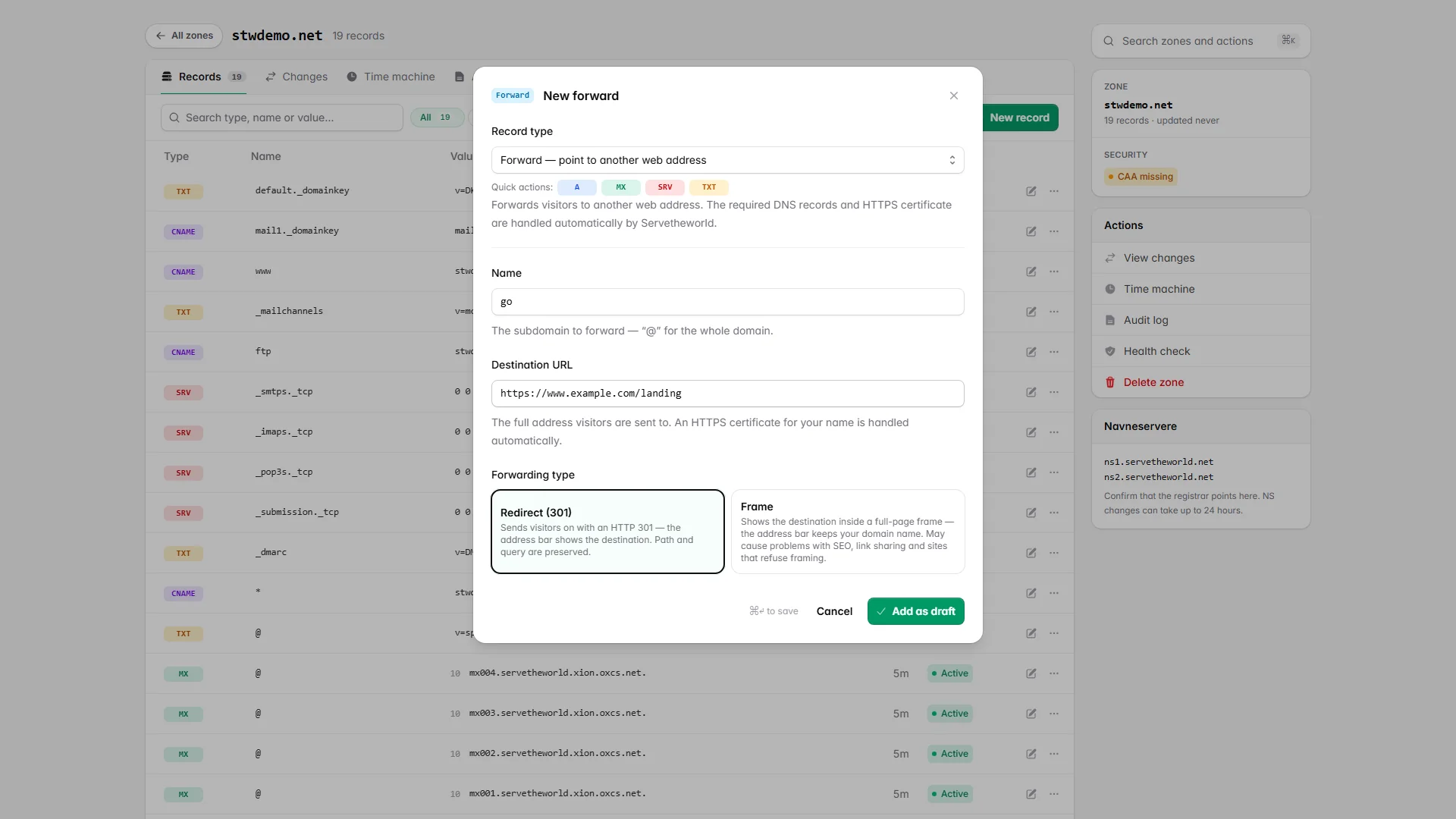
You can now set up web forwarding directly from the DNS screen. Just add a Forward record to point a domain or subdomain at another web address. The system handles the required DNS records and issues the HTTPS certificate automatically, meaning you can direct traffic without needing a separate hosting package.
Better history and diagnostics
We’ve also added features that give you a much clearer picture of your domain’s history.
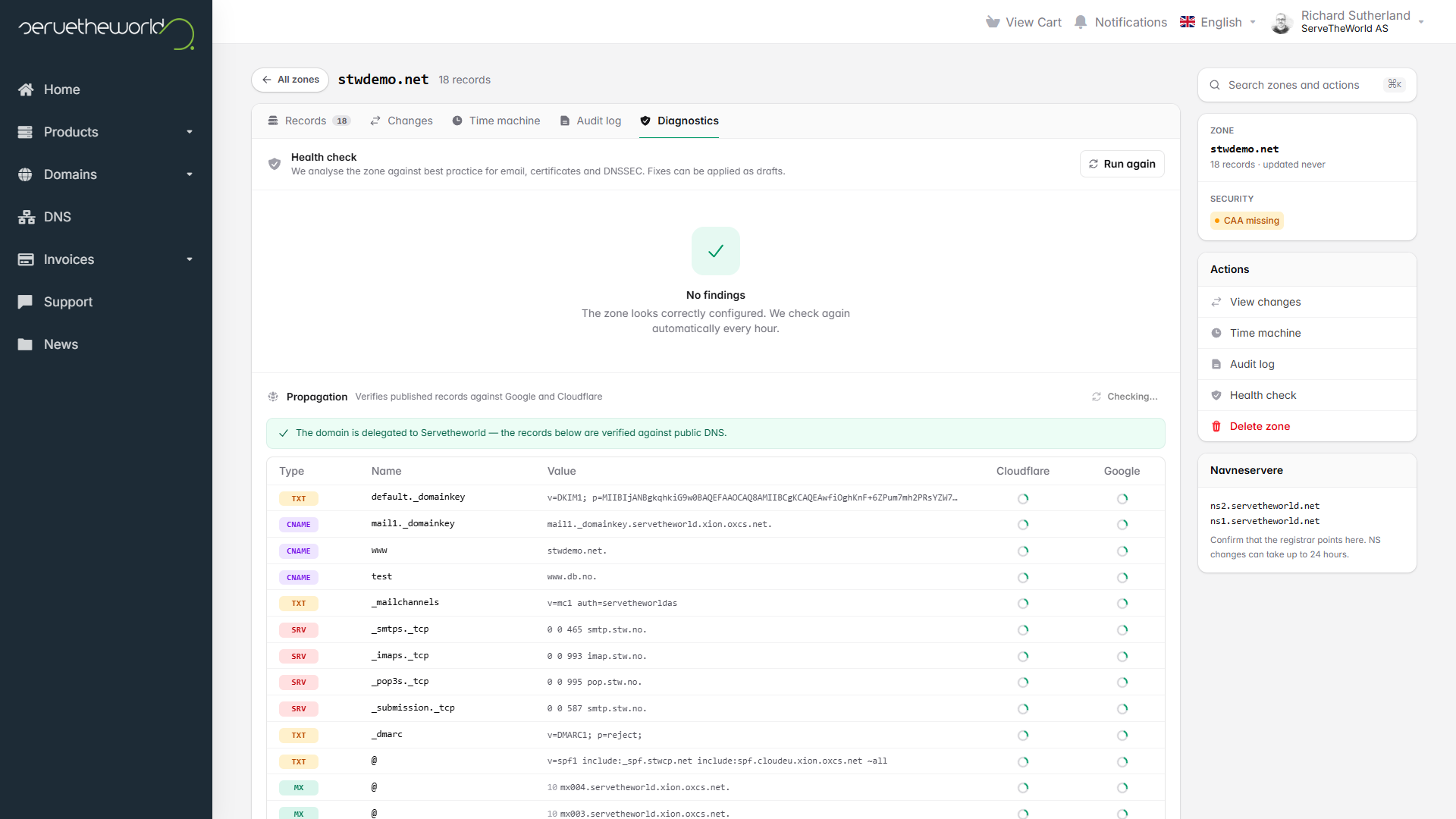
You can check the Time machine to see a 90-day snapshot history of your zone, or look at the Audit log to see exactly who changed what and when. The Diagnostics tab checks your zone’s overall health and compares your published records against public resolvers to confirm your changes have taken effect.
Where to find the settings you need
- The new DNS panel is live in your STW Manager right now.
- We’ve updated our documentation to cover all the features of the new interface.
- For a complete guide to DNS records and how lookups work, read our DNS Fundamentals tutorial series.
Richard Sutherland
Technical Writer, ServeTheWorld